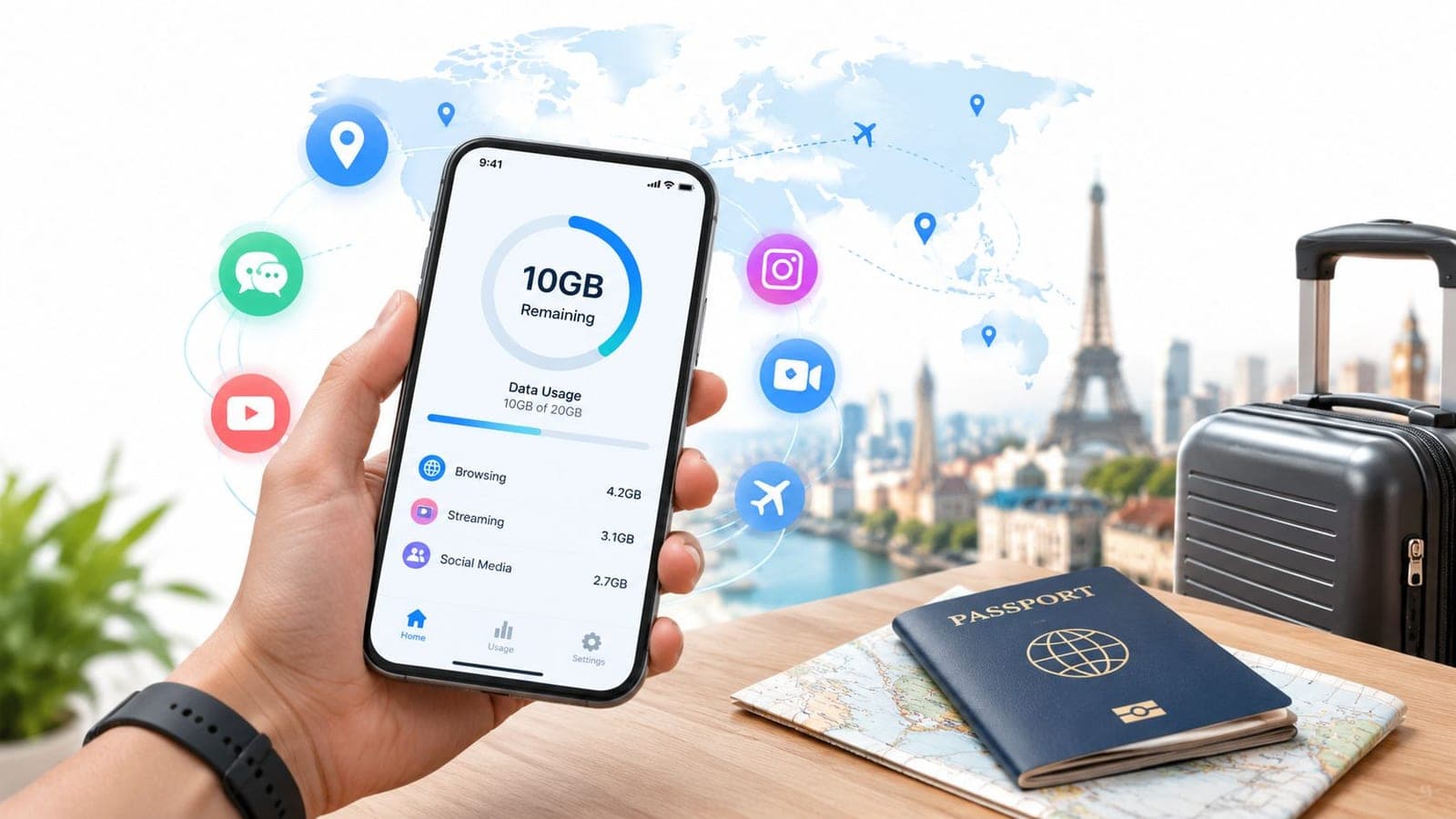
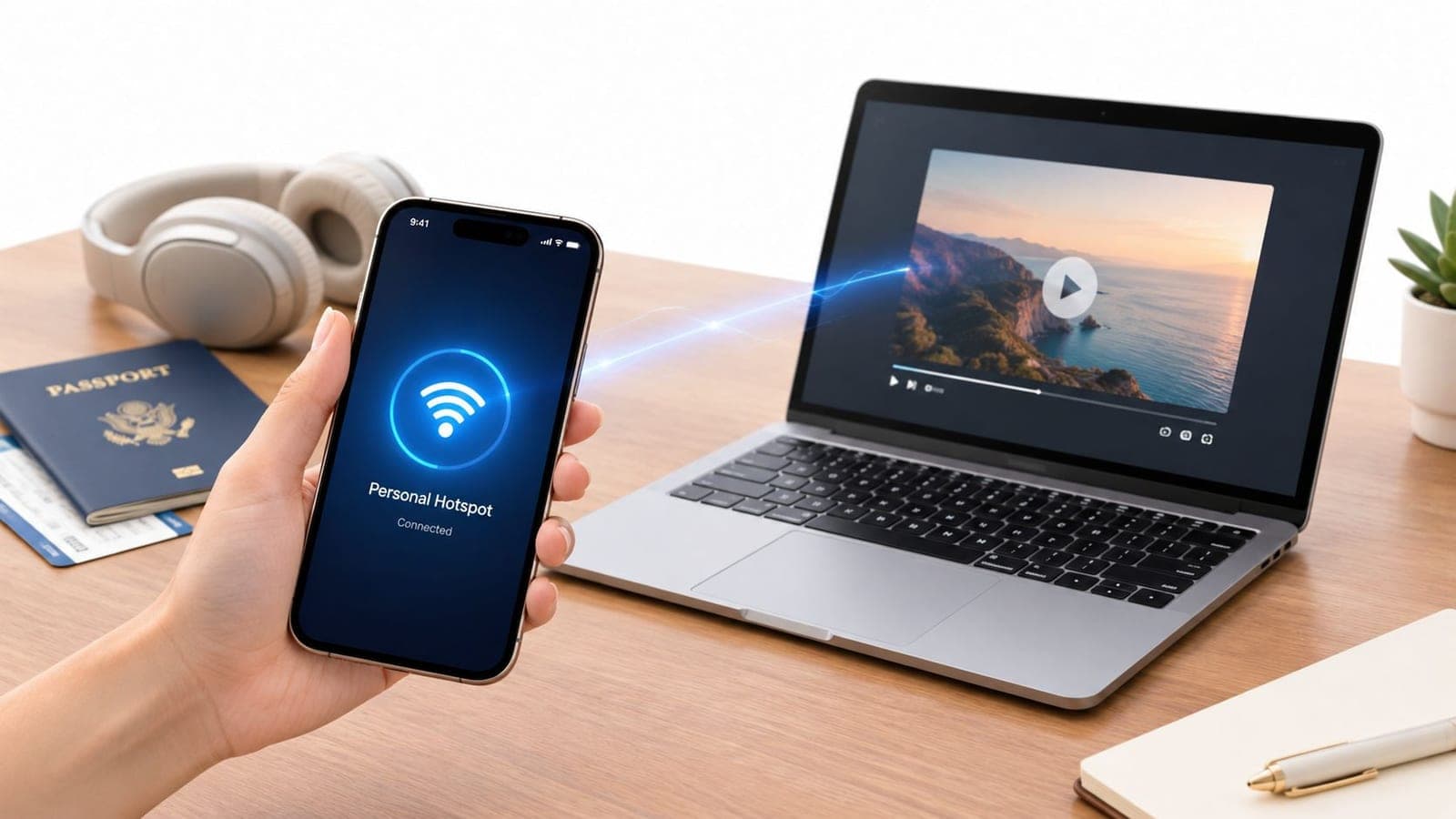
No, your hotspot does not multiply data. A 500 MB download is 500 MB whether it runs on your phone or a laptop, while a laptop streaming 1080p video can use about 1.5 GB per hour and 4K video can use 7–8 GB per hour.
That difference explains why travelers often feel that tethering drains a plan faster. The hotspot is usually not adding a hidden charge per byte. Instead, it gives another device access to the connection, and that device may load full desktop pages, stream at a higher resolution, synchronize files, install updates, or back up photos without making the activity obvious.
The useful question isn't only “does hotspot use more data?” It's “what is the connected device doing while the hotspot is active?” Once that distinction is clear, fast data depletion becomes easier to diagnose and prevent.
The Short Answer
A mobile hotspot shares a phone's existing cellular connection. It doesn't create a second kind of data or automatically apply a multiplier to everything transferred. A video, web session, or download uses roughly the same amount of data whether it runs directly on the phone or through a tethered laptop.
Apple describes Personal Hotspot as a way to share the phone's cellular-data connection. Its example makes the accounting simple: a 500 MB video, download, or web session remains approximately 500 MB when it runs through tethering, as explained in Apple's Personal Hotspot guidance.
A device-manufacturer guide filed with the U.S. Federal Communications Commission also states that using a phone as a mobile hotspot “uses data service” and battery power. That confirms the hotspot draws from the phone's mobile-data allowance rather than creating a separate data category, as documented in the FCC-filed device guide.
Why the answer still feels confusing
The connected device can behave very differently from the phone. A phone app may reduce image quality, delay updates, and avoid large background transfers on a cellular connection. A laptop connected through Wi-Fi may assume it's on a normal broadband network and permit those tasks.
That creates two separate ideas:
- Hotspot transport: the phone carries data between the cellular network and the connected device.
- Endpoint behavior: the laptop, tablet, or second phone decides what to request and how much to download.
Practical rule: The hotspot itself usually isn't the main data cost. The connected device's settings and workload determine how quickly the allowance falls.
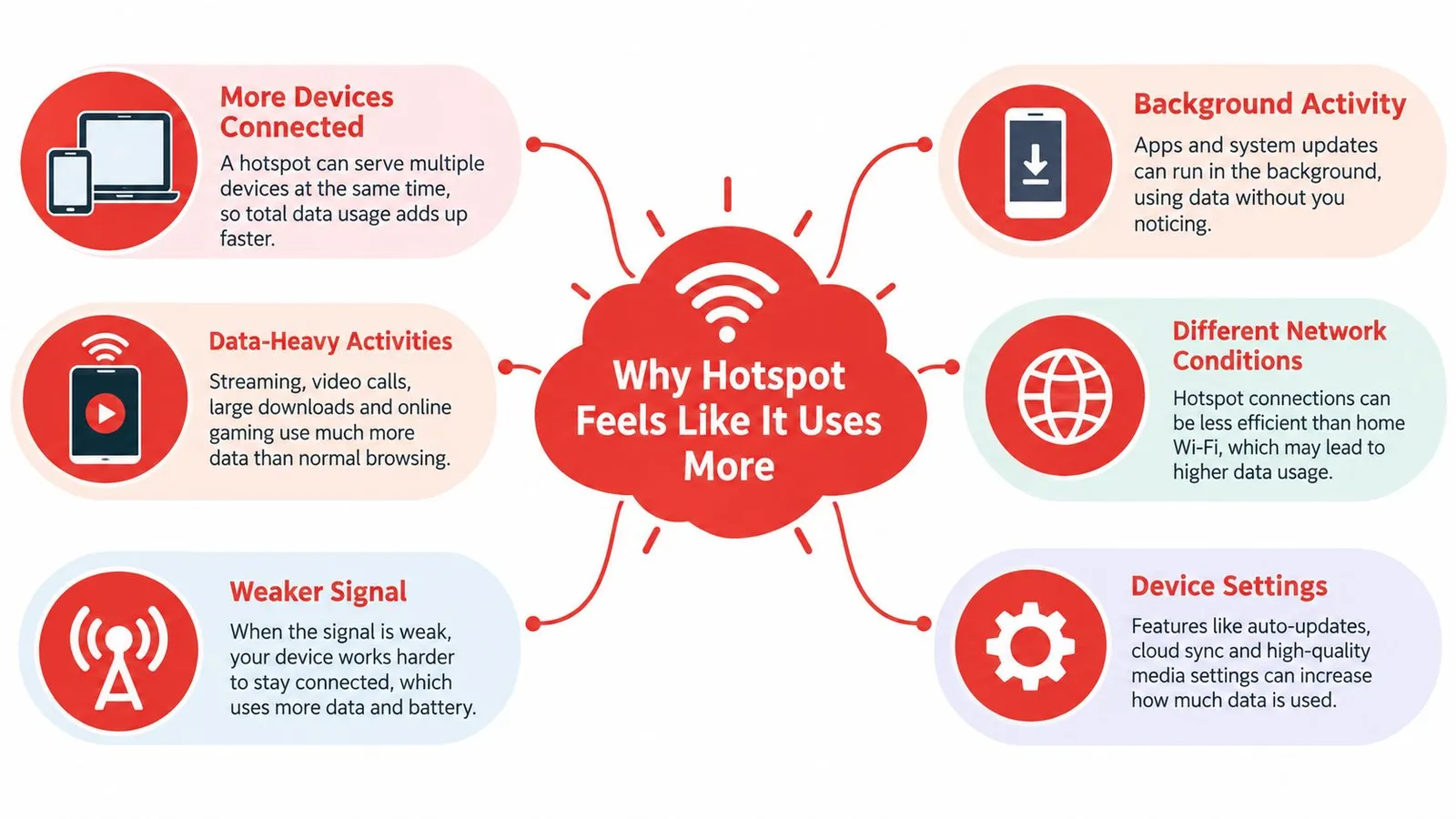
Multiple devices can also use the connection at the same time. If two devices stream, update, synchronize, or download concurrently, their usage adds together. That's why a plan can appear to disappear quickly after a family connects several devices, even though tethering itself hasn't multiplied each individual file.
Why Hotspot Feels Like It Uses More
A phone and a laptop may open the same service but request very different amounts of data. The phone may receive a mobile-optimized page, while the laptop loads the desktop version with larger images, more scripts, and additional media. The laptop may also continue working after the user closes the browser.
The hidden work behind an idle connection
A tethered computer can start tasks that were previously waiting for Wi-Fi. Common examples include:
- Operating-system updates: Windows or macOS may download large update packages.
- Application updates: Software stores can patch several installed apps in the background.
- Cloud synchronization: OneDrive, iCloud Drive, Dropbox, and Google Drive may upload or download folders.
- Photo backups: A tablet or laptop can sync newly imported photos and videos.
- Desktop browsing: Websites may deliver larger assets than their mobile versions.
- Adaptive streaming: Video services can select a higher resolution when the connection looks like Wi-Fi.
Those tasks don't need the user to be actively browsing. A traveler might connect a work laptop to send one email, then notice that the data allowance has fallen because synchronization or updates began in the background.
The phone's hotspot indicator shows that sharing is active, but it doesn't always reveal which application is consuming the data. Device-level usage reports and a review of recent downloads provide a clearer answer. Travelers experiencing slow performance can also consult RedSim's guide to slow data speeds, because congestion and signal quality can affect speed even when they don't explain the data volume.
Why Wi-Fi assumptions matter
Many laptops treat a hotspot like an ordinary Wi-Fi network unless the user marks it as metered. That setting can change whether the operating system delays updates, limits synchronization, or reduces background transfers.
The hotspot therefore acts more like a window into the connected device's normal network habits than a separate data tax. If the device behaves as though unlimited home broadband is available, the mobile plan carries the consequences.
Understanding Data Consumption by Activity
Hotspot use does not add a separate data charge, but connected devices can consume data faster than a phone. The activity, screen, app settings, and background policies determine the result. Messaging, short emails, and light browsing usually use relatively little data. Video quality changes consumption sharply: standard-definition video uses about 240 MB per hour, 720p about 700 MB, 1080p about 1.5 GB, and 4K about 7–8 GB, according to published hotspot usage estimates.
| Activity | Approximate Data per Hour |
|---|---|
| Standard-definition video | 240 MB |
| 720p video | 700 MB |
| 1080p video | 1.5 GB |
| 4K video | 7–8 GB |
Phone viewing versus laptop viewing
A phone may select a lower-quality stream because its smaller screen and app settings favor cellular efficiency. A laptop can request a higher-quality stream for its larger display, especially when the browser treats the hotspot like ordinary Wi-Fi. The same traveler watching the same program can therefore use much more data on the laptop.
A 10 GB travel plan could theoretically support about 6–7 hours of full-HD streaming, or about one hour of 4K streaming, before browsing, messages, maps, updates, or other devices are counted. These figures describe streaming capacity, not a complete trip budget.
The activity may not be visible
Video is easy to spot. Background transfers are not. A cloud service may synchronize a folder after the laptop connects, while an operating-system update starts without an obvious warning. Video calls can also use substantially more data than email or text messages.
Device policies often explain the faster depletion travelers notice. A laptop connected to a hotspot may resume queued downloads, sync files, or request desktop-quality media. Checking the device's network-usage report reveals which application consumed the allowance. Travelers should also review recent downloads and confirm whether the connection is marked as metered.
For phones, tablets, and laptops that support eSIM connectivity, RedSim's compatible-device guidance can help confirm whether a particular device works with the relevant mobile connection. This check addresses compatibility, while the device's activity and settings explain the data volume.
How to Control Your Hotspot Data Usage
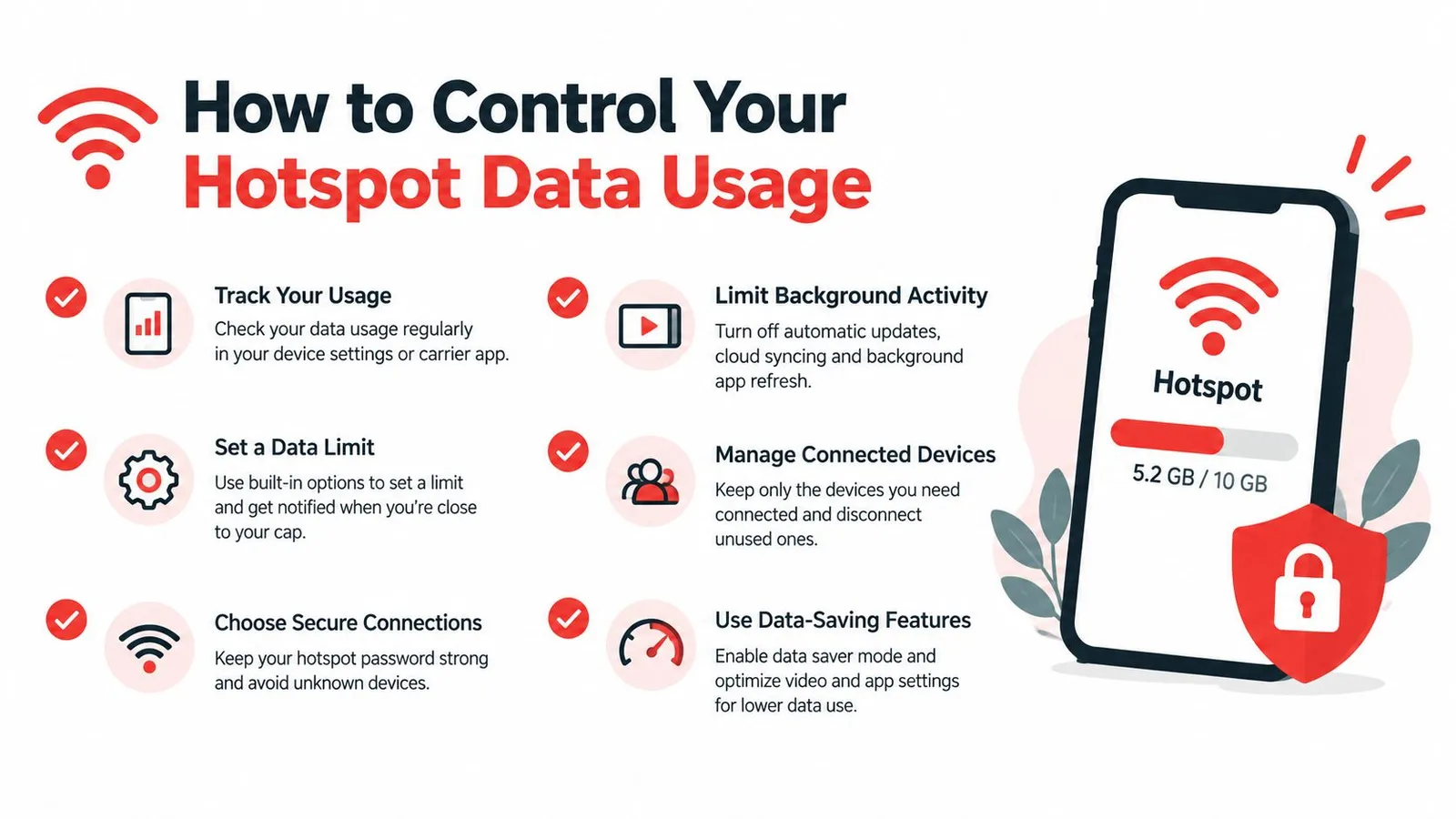
The most effective controls reduce what the connected device requests. They don't change the hotspot's basic accounting, but they prevent unnecessary downloads from competing with the activities that matter.
Make the connection metered
Windows users can mark the hotspot network as a metered connection in network settings. macOS users can limit background behavior by controlling automatic updates, cloud services, and applications that synchronize whenever Wi-Fi is available. The exact menu names can vary by operating-system version, but the purpose is the same: tell the device that the connection has a limited allowance.
Pause the biggest background sources
Before tethering a work computer, travelers should pause cloud drives and photo backups. Automatic system and app updates should also wait until a fixed broadband connection is available. This is particularly important after a device has been offline, because several delayed tasks may start together.
Reduce visible activity
Streaming services should be set to standard definition or a deliberately lower resolution when the plan is limited. Video calls can use less data when participants disable unnecessary video, and large downloads should be scheduled for hotel or home Wi-Fi.
A short checklist helps prevent accidental usage:
- Check the phone's usage counter before connecting another device.
- Connect only the device that needs access.
- Mark the network as metered where the operating system supports it.
- Pause cloud sync and backups before opening work folders.
- Lower video quality before starting a long stream.
- Turn off the hotspot when the session ends.
Travel habit: A hotspot should be treated as a limited connection until the device proves otherwise.
Plan selection also matters, especially for travelers who expect laptop work, streaming, or family sharing. RedSim's guide to choosing the right plan can help match the allowance to the intended devices and activities.
Managing Multiple Devices with eSIM Solutions
One connected device is relatively easy to inspect. A family or small work team presents a different problem because several screens can consume data at the same time. A phone may handle navigation, a tablet may stream video, and a laptop may synchronize work files while all three share one connection.
The total is the sum of those activities. A hotspot doesn't make each device's transfer larger, but concurrent use can make the shared allowance fall faster because several requests are active at once.
Visibility matters more than guesswork
Real-time usage tracking can show whether the main demand comes from a laptop, tablet, or phone. Device-level limits are also useful when a family wants to reserve data for maps, messages, and emergency communication rather than allowing unrestricted streaming.
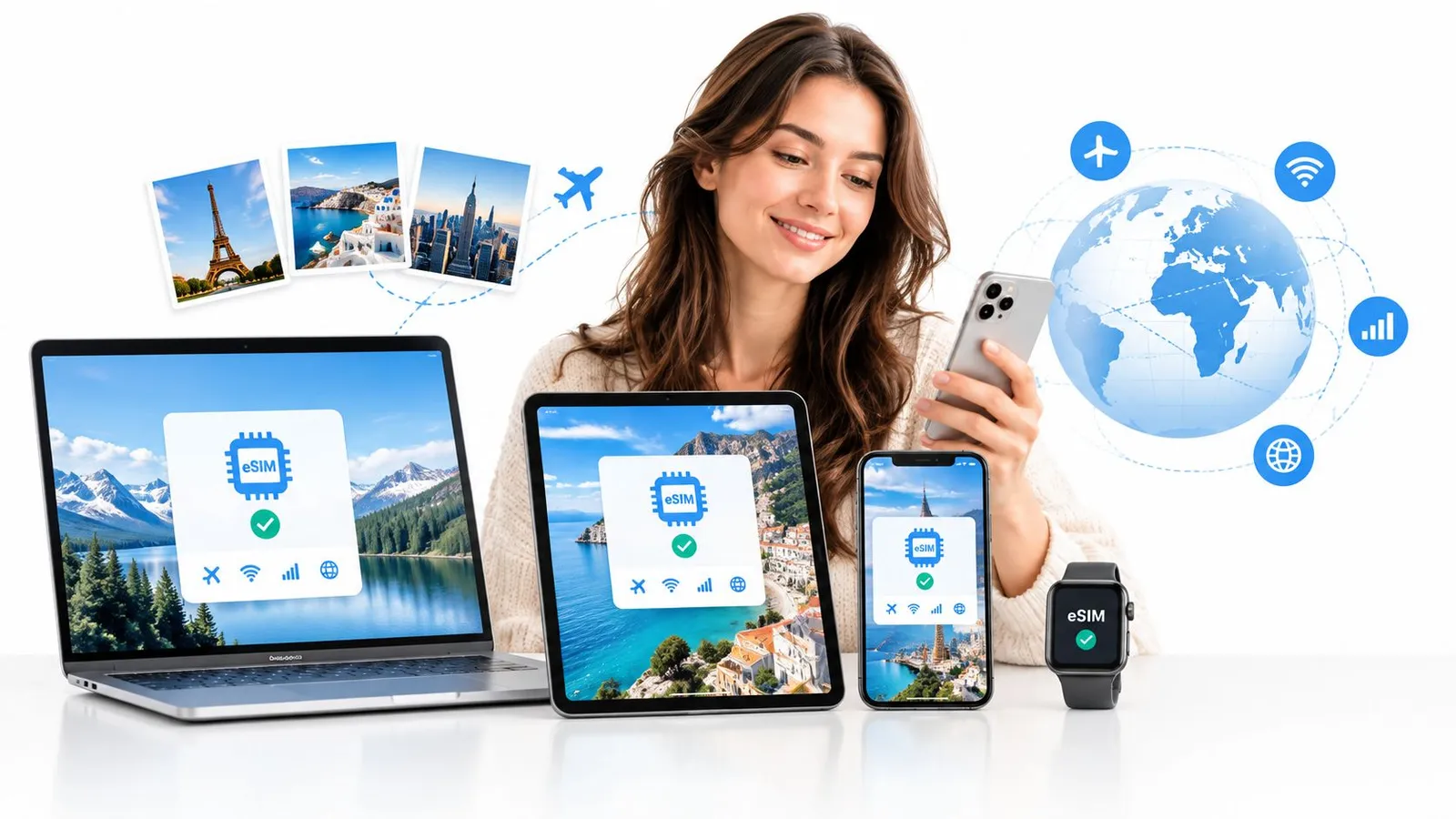
An eSIM service can fit into that arrangement by providing a digital mobile-data connection without requiring a physical SIM swap. RedSim's explanation of eSIM technology describes the basic setup and how compatible devices use an eSIM for mobile connectivity.
A sensible sharing arrangement
The person managing the plan can connect devices only when needed, check usage during the day, and pause the highest-volume activity when the allowance becomes limited. A work laptop may receive priority during a call, while entertainment devices remain disconnected.
This approach combines network access, endpoint settings, and usage visibility. Without those three pieces, a shared plan can be difficult to manage because the phone shows total consumption without immediately explaining which device caused it.
Common Myths About Hotspot Data Debunked
Myth one, hotspot technology automatically multiplies data. It doesn't. The transferred file or stream still has its underlying size, whether the phone requests it directly or passes the request to another device. The higher usage people notice usually comes from the laptop or tablet selecting different content, quality, or background tasks.
Myth two, every laptop session is expensive. A laptop can consume substantial data, but it doesn't have to. Reading documents, sending text emails, or using lightweight web applications can remain relatively modest. The risk comes from treating the connection like unlimited broadband and allowing updates, synchronization, and high-resolution video to run unchecked.
Myth three, turning off the hotspot wastes data. Disconnecting a device doesn't create data loss or a penalty. It only stops that device from continuing to request data through the phone. Any data already transferred has already counted, while future transfers won't occur until the device reconnects.
Myth four, all carriers apply the same hotspot rules. Plan terms vary. Some plans may restrict tethering, reduce speeds after an allowance, or handle hotspot traffic under separate conditions, so travelers need to check the specific plan rather than assume every service works identically.
Myth five, the phone's screen shows the full explanation. The phone can show total hotspot or cellular usage, but the connected computer may hold the detail. Checking both sides is more reliable: the phone shows what the plan carried, while the computer shows which applications requested it.
The accurate mental model: Tethering provides the route. The connected device chooses the traffic.
Key Takeaways for Smarter Travel Connectivity
A hotspot does not multiply the size of each download. Fast depletion usually comes from what the connected device does after joining: a laptop may load desktop pages, choose higher-resolution video, sync cloud folders, or start updates that were waiting for Wi-Fi.
The practical lessons are:
- Hotspot transport is not an automatic multiplier. Tethering provides the connection, while the endpoint decides which files, streams, and services to request.
- Endpoint behavior explains many surprises. Laptop and tablet software may run background tasks or select richer content than a phone would.
- Video quality can change the budget quickly. Standard-definition viewing is relatively light, while high-resolution video can consume several gigabytes per hour, as noted earlier.
- Background processes need active checks. Updates, backups, and synchronization can use data while the traveler is doing nothing in the browser.
- Multiple devices combine their usage. A phone, laptop, and tablet each add requests to the same allowance, so monitoring matters more than a fixed “hotspot cost.”
- Device settings reduce avoidable usage. Metered connections, paused synchronization, lower video quality, and disconnecting idle devices provide direct control.
- Plan choice should match the trip. Travelers can compare available allowances through RedSim's eSIM prices.
For international travel, pair a suitable plan with clear device limits. Check both the phone's usage total and the connected device's applications to find the cause of a sudden drop. RedSim offers eSIM data plans, hotspot sharing, and real-time usage tracking on supported plans. Travelers can review options through RedSim before departure.