

You land, switch the phone on, and connect to a travel data plan. Two days later the meter reads 4.6 GB used from a 10 GB allowance, and nothing about the trip felt data-heavy. No films were downloaded. No huge files went out. The phone mostly sat in a pocket while you walked a city, took photos, and glanced at a map.
That gap between what the trip felt like and what the meter says is the whole puzzle. A phone spends data in small amounts that rarely announce themselves, and the spending continues when the screen is dark and the phone is doing nothing you'd call using it.
Why Data Use Climbs Without Warning
Two days into a two-week trip, the plan app shows more than half the allowance gone. Nothing on the trip felt heavy: a few map lookups, some photos, one short video sent to family at home. The natural conclusion is that the carrier is overcounting.
Usually it isn't. Data leaves the plan every time something sends or receives information, and the phone does that continuously, mostly with nobody watching. Photos upload themselves. Map tiles redraw. A message thread full of pictures syncs. A social feed starts a clip before your thumb stops scrolling. If the trip is running on a travel eSIM, that's a separate line with its own allowance sitting alongside your home SIM, and what an eSIM is explains how the two lines coexist.
The scale isn't subtle. Video apps accounted for about 75.9% of global mobile-app data traffic in January 2025, equal to 111.45 exabytes, while social networking took 7.8% and software updates 2.7%, according to Tridens Technology's mobile data statistics. Those are app totals alone, before system services get involved.
The tank with several taps: a data plan drains through the tap you turned on, and through the small ones left running all day. You notice the first one. You pay for the rest.
Three hidden taps are responsible for most surprises: video that starts on its own, background tasks that run while the phone sits idle, and a connection shared with a laptop or tablet. None of them require a decision from the traveler, which is exactly why a plan can empty during a week of sightseeing.
Ranking those taps by cost is the fastest route to the one that's open. Nobody needs to use the phone less. They need to find which process is spending.
The Usual Suspects and How Much They Use
Video is the largest single cause, and it isn't close. The 2024 Global Internet Phenomena Report from Sandvine found video made up 31% of downstream traffic on mobile networks, averaging 493 MB per subscriber per day, while on-demand streaming generated 7.9 GB per subscriber per day across measured downstream traffic. YouTube alone contributed 1.9 GB and Netflix 1.4 GB per subscriber per day in those measurements.
That gap between "a bit of video" and the numbers is easy to underestimate. An hour of standard-definition streaming can approach or exceed 1 GB, as Google's guidance on managing mobile data use sets out, and high-resolution playback, video calls, and feed autoplay transfer more per minute than that. On a 5 GB travel plan, three evenings of casual watching can do real damage.
The table below maps each cause to what it costs and where it shows up, so a symptom can be matched to a row.
| Cause | Data it can use | Where it shows up |
|---|---|---|
| Video streaming and video calls | Approaches or exceeds 1 GB per hour in standard definition | Video apps near the top of the per-app usage list |
| Autoplay video in social feeds | Roughly the same cost per minute as any other video, because it's the same kind of transfer | Social media apps with high use during short sessions |
| Cloud photo and device backup | Matches the size of whatever is queued, so one long clip can outweigh a hundred text messages | Photo or backup apps under background or cellular data |
| App updates and large downloads | Arrives as one large spike rather than a steady drip | App Store or Play Store activity |
| Hotspot sharing with a laptop or tablet | All traffic from the connected device | The hotspot counter, separate from phone apps |
| Background sync (email, maps, push refresh) | Small per refresh, but it repeats all day | Apps listed with cellular use while not in use |
Read it like a diagnosis. If one video or social app sits at the top of the usage list, suspect autoplay and playback quality. If the hotspot counter is high while the phone barely moved, a laptop or tablet is behind it. If nothing stands out in the app list, the spending is hiding in system services or a device backup, which is why the phone's own per-app counters matter more than any general list of hungry apps.
Rule of thumb: one app usually explains most of a spike. Find the top three and you've found the cause.
Where exact figures can't be pinned down, the device's own counters are the authority, because backup and sync volumes depend entirely on what's being copied. Pick the row that best matches what the meter showed, then confirm it on the phone. A bigger allowance bought in advance also costs less than a panicked top-up halfway through a trip, and the eSIM price comparison page shows how little separates a 5 GB plan from a 10 GB one.
How to Find the Culprit on Your Phone
Every modern phone keeps a receipt. Finding it takes five minutes and answers the question directly, which beats guessing at which app looks suspicious.
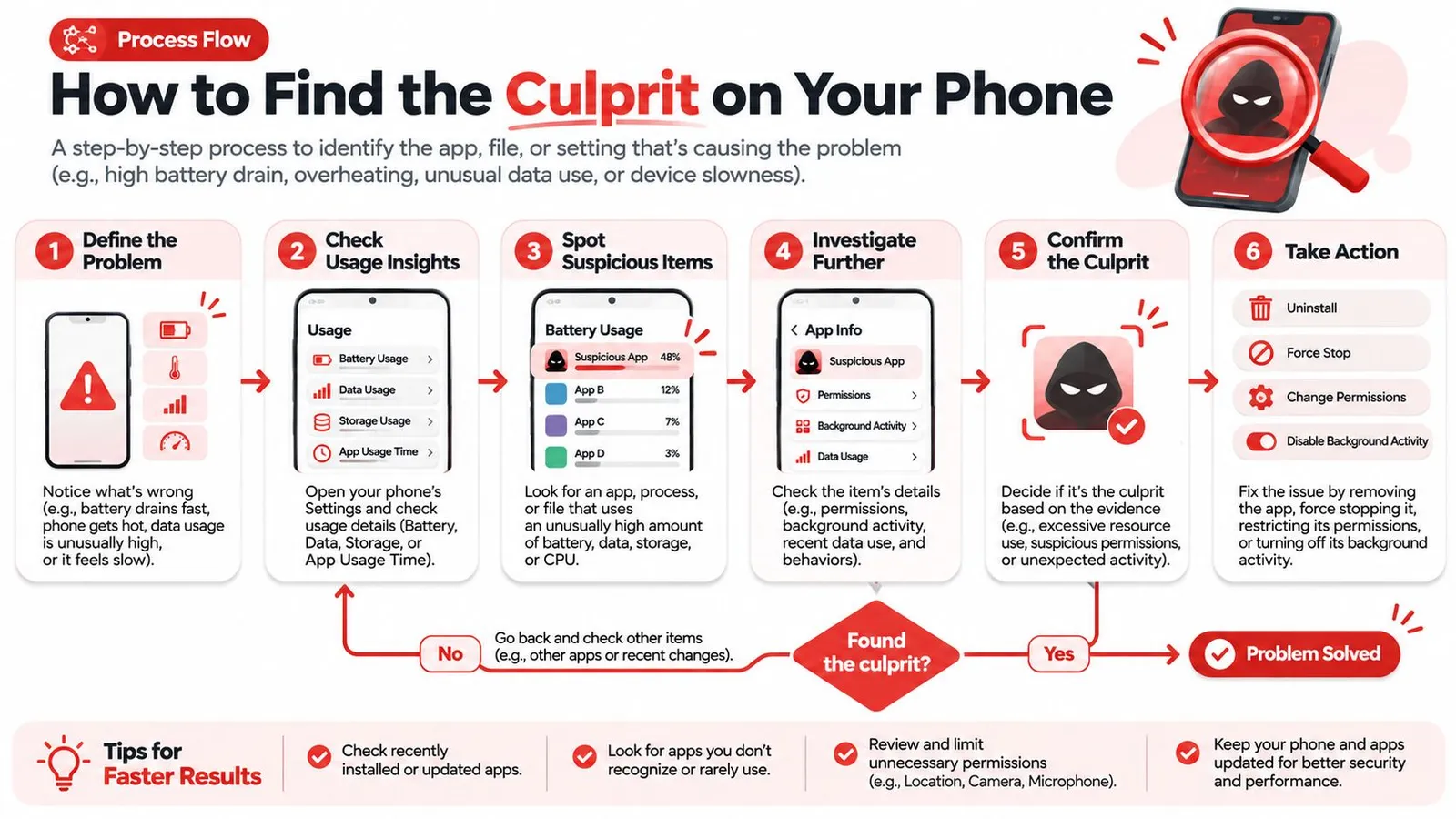
Open the data section of settings. On Android that's Settings > Network & internet > SIMs > App data usage. On iPhone it's Settings, then Mobile Data or Cellular. This screen ranks consumption by app, which is the single most useful view on the device.
Set the period to the current billing cycle. Better still, reset the counter on the first day of the cycle so the totals start clean. Without that reset, you're reading a mix of two cycles and drawing conclusions from noise.
Rank by cellular use and note the top three. One or two apps normally explain the bulk of a spike. If a video app leads, autoplay or streaming quality is the likely mechanism; if a photo app leads, backup is running over cellular.
Check system services and the hotspot counter separately. Both can hide substantial amounts that never appear in the app list. A hotspot figure much higher than expected means a connected laptop or tablet has been updating, syncing, or streaming under the phone's allowance.
Compare the phone total with the carrier or travel-plan dashboard. Billing dates shift, carrier reporting lags by hours or a day, and dual-SIM phones count every line together. The plan dashboard for a travel line is where the remaining balance sits, and the eSIM setup and installation help covers where to find it.
Test the top app by cutting its cellular access for a day. Then check whether the counter stops climbing. This turns a suspicion into a finding, and the switch is easy to reverse.
A typical result looks like one of three things: a single video or social app far ahead of everything else, a hotspot line that shouldn't be that big, or a service that keeps counting while the phone sits on a table untouched. Each one points to a different fix.
Background Transfers You Never Asked For
Screen time gets blamed for data bills. The bigger culprit is often a transfer that happened while nobody was looking at the phone at all. Cloud photo backup, app synchronization, email attachments, operating-system updates, map downloads, and push-driven refreshes all run whenever the operating system permits background networking, as Android's guide to Data Saver explains. On Android, Data Saver restricts many apps from communicating in the background unless the phone is on Wi-Fi, and the per-app usage screens show which process did the work.

iPhone users have a separate trap to check. Wi-Fi Assist shifts foreground internet traffic to cellular when Wi-Fi performance is poor, so a phone that looks connected to hotel Wi-Fi may still be drawing from the mobile plan. The same pattern shows up at scale when the phone acts as a hotspot: a laptop connecting through it can run operating-system updates, cloud synchronization, browser prefetching, and high-resolution media, all billed to the phone's allowance.
A single automatic photo backup resuming over cellular can outweigh hours of deliberate browsing. The screen wasn't on, and the plan still paid for it.
Fixes, in the order worth doing them:
- Turn on Data Saver or Low Data Mode. It blocks most background traffic without touching anything you open deliberately.
- Switch off Wi-Fi Assist on iPhone, so a weak Wi-Fi signal doesn't hand the work to cellular.
- Remove cellular access from backup and update apps, one switch per app in the settings list.
- Set a data warning or hard limit where the phone supports it, so the plan complains before it empties.
Each takes about three minutes and can be undone. Then deal with video at the source: in YouTube and Netflix set video quality to Low or Auto, and in Instagram, TikTok, and Facebook turn off autoplay or video preloading. Lower quality cuts the data per minute while leaving the viewing time alone.
Cutting Travel Data Use Before and During Your Trip
Travel compresses a month of connectivity into a week. Navigation, translation, messaging, video calls, cloud work, and hotspot sharing all happen at once, and the roaming numbers reflect it. A 2025 roaming study reported by WOM found international data traffic rose 10.6% year over year to more than 754,000 GB, with average consumption reaching 560 MB, up 14% from the year before, and peak-season travelers typically online for 7 to 12 days. A high figure over a short trip is often ordinary activity packed into fewer days.
Where travelers get lost is in the counters. Three numbers exist, and they measure different things.
| Counter | What it counts | Where to check | Watch for |
|---|---|---|---|
| Phone cellular total | Apps and system services across all lines | Settings > Mobile data or Cellular | Can run ahead of the carrier report |
| Hotspot counter | Traffic from laptops and tablets | Personal Hotspot or Mobile Hotspot settings | Separate from the phone app list |
| Travel eSIM or SIM allowance | Data on the active travel line only | Travel plan app or carrier dashboard | Its own allowance and validity period |
They work like three separate till drawers. The phone total can climb while the travel line barely moves, if the home SIM is still picking up background traffic. It can also sit still while the travel line drains, if one app or one tethered laptop is pinned to that line. The useful win is finding the automated transfer that was already allowed over mobile data, then deciding which counter should pay for it.
Crossing a border triggers its own set of transfers. Apps refresh when the network changes, photo backups resume once a connection is found, and a work laptop tethered to the phone may pull down updates on arrival. If the trip includes working from a hotel or café, the same discipline applies to shared networks, and this guide on how to cut data use on guest WiFi covers the router side of the equation.
Before departure
- Download offline maps and entertainment over Wi-Fi. The transfers happen before the meter starts.
- Set the travel line as the data line and keep the home line out of roaming. This prevents background traffic from landing on the wrong counter.
- Leave cloud backup and app updates off cellular for the trip. Backups restart on their own after a network change.
During the trip
- Check the hotspot and per-line counters each evening, so a bad day is caught the same day rather than at the end.
- Take video calls on Wi-Fi where it exists. A hotel connection is free; a call on cellular is not.
- Match the plan to the route. Country, regional, and global plans differ in coverage and allowance, and the list of destinations with coverage shows which plan structure fits an itinerary.
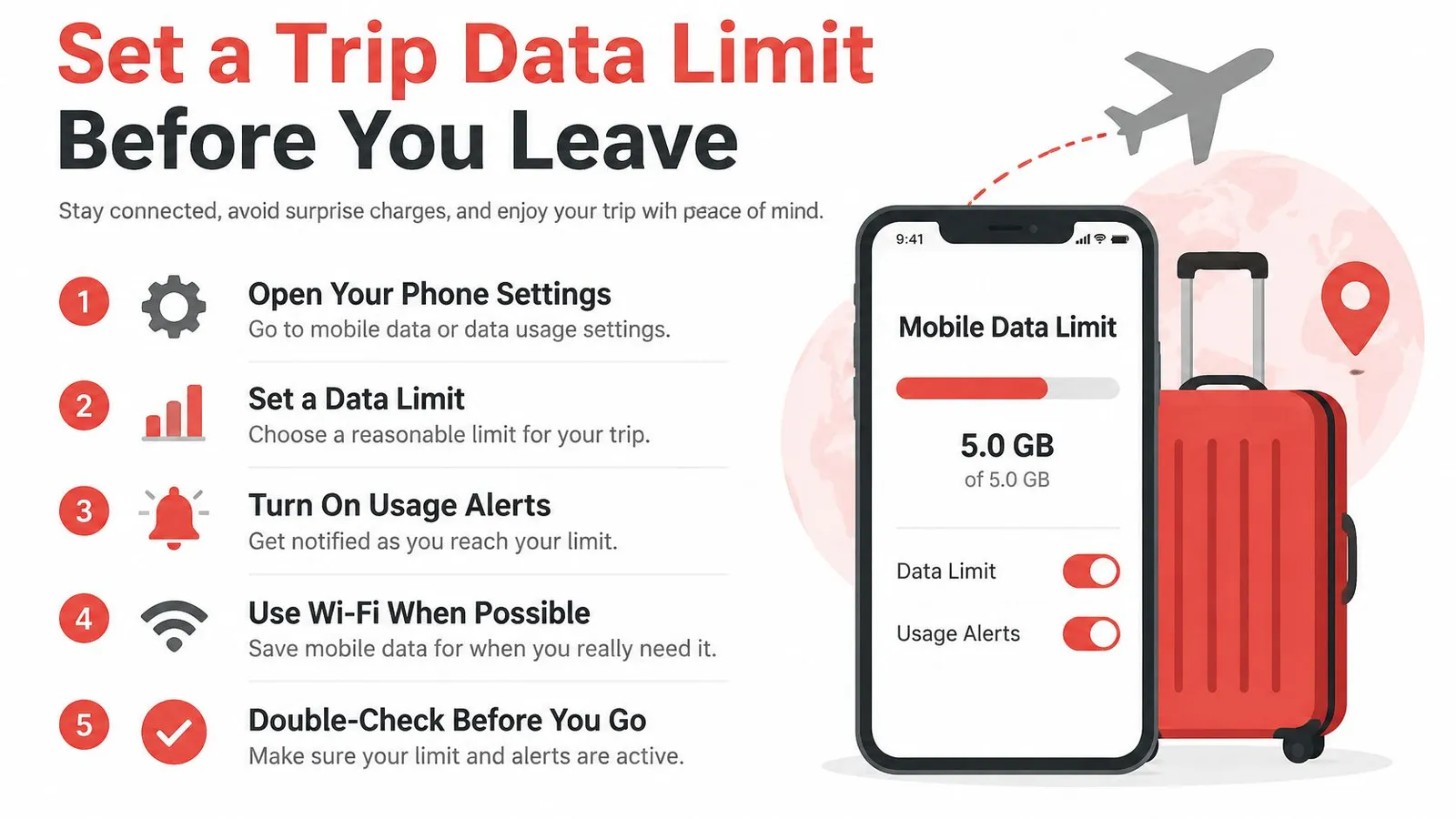
Set a Trip Data Limit Before You Leave
Choosing an allowance from guesswork is how the last trip ended badly. Size it from measurement instead: look up the daily average on the previous trip's counters, multiply by the days away, and add a buffer for navigation, calls, and hotspot use. A trip with a laptop in the bag needs more headroom than a phone-only week.
The risk of skipping this step is real. RedSim itself exists because of one, after a two-week trip to Istanbul ended with a $127 roaming bill driven by video calls, ride-hailing, and web searches. That's a modest-sounding set of activities producing an immodest total.
Check the fair-use rule on whatever plan gets bought, because heavy hotspot days are where it bites. RedSim's Fair Usage Policy, as stated in the plan terms, lowers speed to 1 Mbps after 3 GB of usage per day, which is worth confirming in the terms before departure and worth knowing if a laptop will be tethered.
Monitoring closes the loop. The RedSim app tracks data usage in real time on iPhone and Android, so the counter can be checked each evening against the day's plan.
The pre-trip sequence: measure last trip's daily use, multiply by days, add a buffer, check the fair-use limit, then open the tracker on day one.
For a first-time buyer, the guidance on choosing the right eSIM plan walks through matching an allowance to a trip length and a device count. Set the limit before leaving, then let the evening check confirm the trip is on track.
RedSim provides eSIM data plans for more than 200 destinations, with an app that tracks usage in real time so the counter in your hand matches the allowance on the line. If the last trip ended with a surprise bill, the next one can start with an allowance sized from real numbers instead of a guess. Visit RedSim to compare country, regional, and global plans before you fly.

 Morocco

 Hong Kong