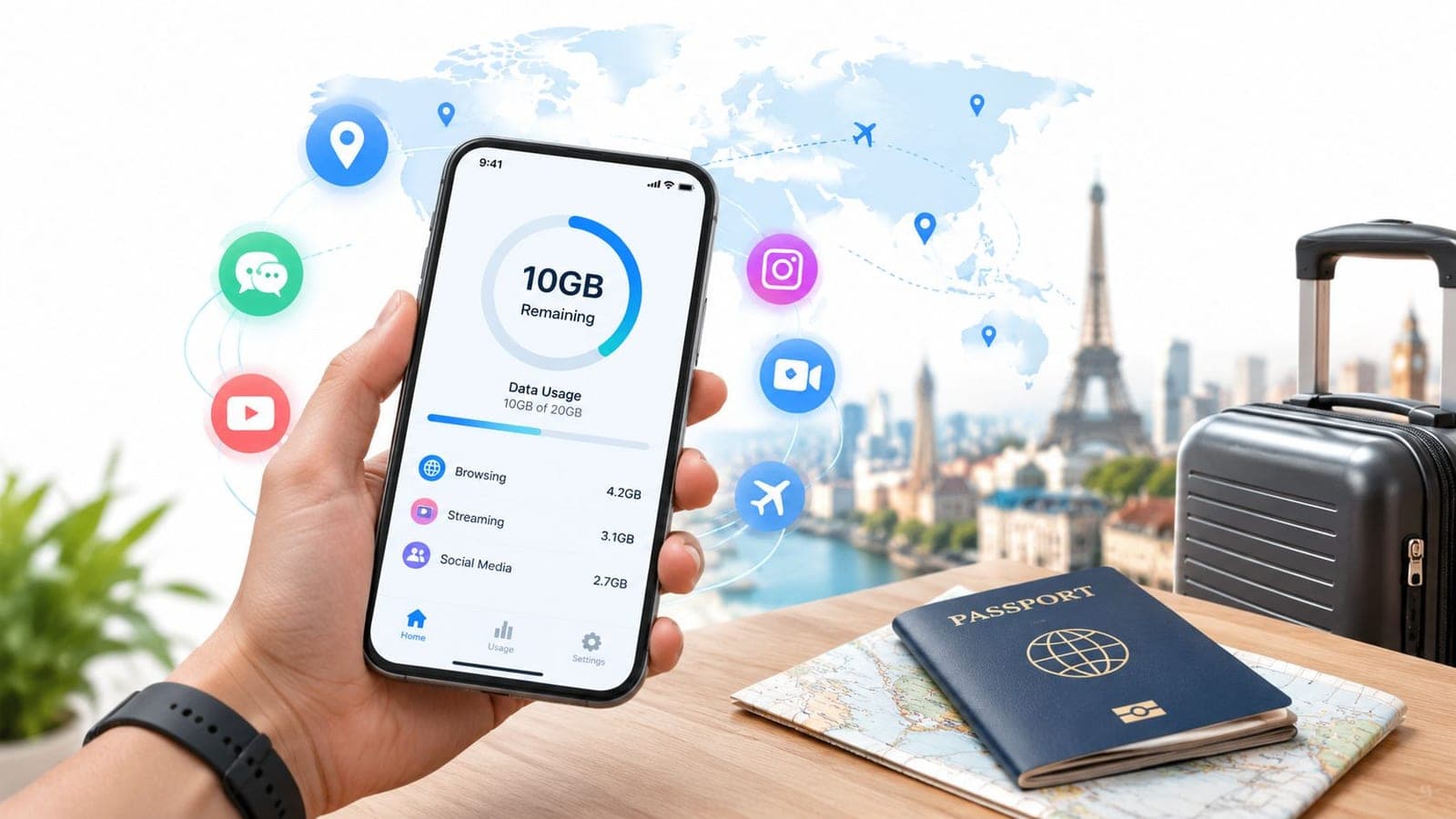
10GB is a solid allowance for maps, messaging, and light social media on a phone, but it isn't enough for daily laptop tethering or heavy video streaming. In practical terms, 10GB provides about 6.5 hours of 1080p video streaming or roughly 22 hours of mixed social-media use with photo sharing and standard video calls.
A traveler can land after a long flight, switch off airplane mode, and immediately need mobile data for an airport transfer, walking directions, a translation app, and messages to a hotel. That first day usually feels effortless. The trouble starts when the same connection powers video feeds, cloud backups, a laptop, and several hours of streaming.
The useful answer to “is 10GB a lot of data” depends less on the size of the number than on which device uses it and what that device does. For a phone-first holiday, 10GB is practical. For hotspot-led travel, it's a limit that requires planning.
The Reality of Using 10GB on the Road
A traveler arriving in a new city typically needs reliable data for a small group of high-value tasks. Google Maps or Apple Maps provides directions, WhatsApp handles hotel and family messages, a ride-hailing app finds the airport pickup, and a browser confirms opening times. These activities usually use data steadily rather than explosively.
That makes 10GB a moderate travel allowance, not a tiny emergency bundle and not an unlimited substitute for hotel Wi-Fi. The 10GB data calculator from Yesim estimates that the allowance covers about 6.5 hours of 1080p streaming or roughly 22 hours of social-media use with photo sharing and 480p to 540p video calls. Those figures show why a plan can feel generous during a sightseeing day and suddenly look small after an evening of streaming.
Practical rule: 10GB works well when the phone remains the primary screen. It becomes risky as soon as a laptop becomes the primary screen.
Home habits often mislead travelers. At home, a phone may stream automatically over Wi-Fi, upload photos in the background, and update apps without anyone watching the connection. Abroad, the same phone may rely entirely on cellular data. Every automatic action then comes out of the travel allowance.
What a phone-first traveler can expect
A traveler who downloads entertainment before departure, uses navigation normally, sends messages, checks reservations, and scrolls social media selectively should find 10GB comfortable for light to mixed travel use. The plan can support spontaneous searches and photo sharing without forcing constant arithmetic.
A traveler who watches video throughout the day needs a different approach. Streaming quality matters sharply, and high-resolution feeds can consume the allowance far faster than maps or text. The traveler doesn't need to avoid video completely, but streaming should happen over Wi-Fi or at a deliberately reduced quality.
The best mental model is a connectivity reserve. Maps, messages, transport apps, and essential browsing protect the trip from disruption. Video, automatic backups, and hotspot use spend that reserve quickly. A 10GB plan suits travelers who decide which activity deserves mobile data instead of allowing every app to behave as if it has a home broadband connection.
Breaking Down 10GB Across Common Travel Apps
10GB equals 10,000MB, which sounds substantial until a phone starts handling video. Navigation, text messages, and ordinary searches tend to consume relatively little compared with streaming services. A traveler can use maps repeatedly across a trip, while a few long video sessions can change the balance in a single afternoon.
The usage estimates published by Asda Mobile place 10GB at roughly 10 hours of Netflix in standard definition or about 6 hours of YouTube at 1080p. Ultra-high-definition streaming is far more demanding, with around 7GB used per hour, so a single long 4K session can consume most of the allowance. The table below uses those estimates for video and qualitative drain levels for common travel tasks.
| Travel Activity | Estimated Hours on 10GB | Data Drain Rate |
|---|---|---|
| Maps and turn-by-turn navigation | Extended travel use | Low |
| Messaging and email | Extended travel use | Very low |
| Web browsing | Many hours | Low to moderate |
| Social browsing with photos | Many hours | Moderate |
| Netflix in standard definition | About 10 hours | High |
| YouTube at 1080p | About 6 hours | Very high |
| 4K video streaming | About 1.5 hours | Extreme |
A navigation app may download map tiles, traffic information, and route changes, but it doesn't behave like a video platform. Messaging remains similarly manageable unless conversations contain a constant flow of high-resolution video. Photo-heavy social feeds sit in the middle because some apps preload images and autoplay clips before the traveler actively opens them.
Video quality changes the answer
A downloaded film watched offline uses no mobile data during playback. The same film streamed in high definition can consume a significant part of the plan, while 4K makes 10GB unsuitable for regular viewing. This is why downloading shows, podcasts, and playlists before departure has more impact than just promising to “use less.”
The 10GB travel data comparison from RedSIM can help travelers compare allowances by destination and trip style. The comparison should be treated as a starting point, not a substitute for checking device settings. A phone with autoplay enabled and photo backup active can use more data than its owner expects, even without deliberate streaming.
A simple decision follows. If mobile data covers maps, messages, reservations, and occasional social media, 10GB is generous enough for many trips. If mobile data covers video every day, the allowance becomes restrictive. If it also covers a laptop, the phone-app estimates no longer describe the actual usage pattern.
The Hidden Data Drain of Hotspot Tethering
Hotspot tethering turns a moderate phone plan into a connection for a much larger computing environment. A laptop loads desktop webpages, refreshes multiple browser tabs, checks cloud storage, synchronizes email attachments, and may download software updates without making the activity obvious. A tablet can do the same, while a second phone adds photo uploads and app refreshes.
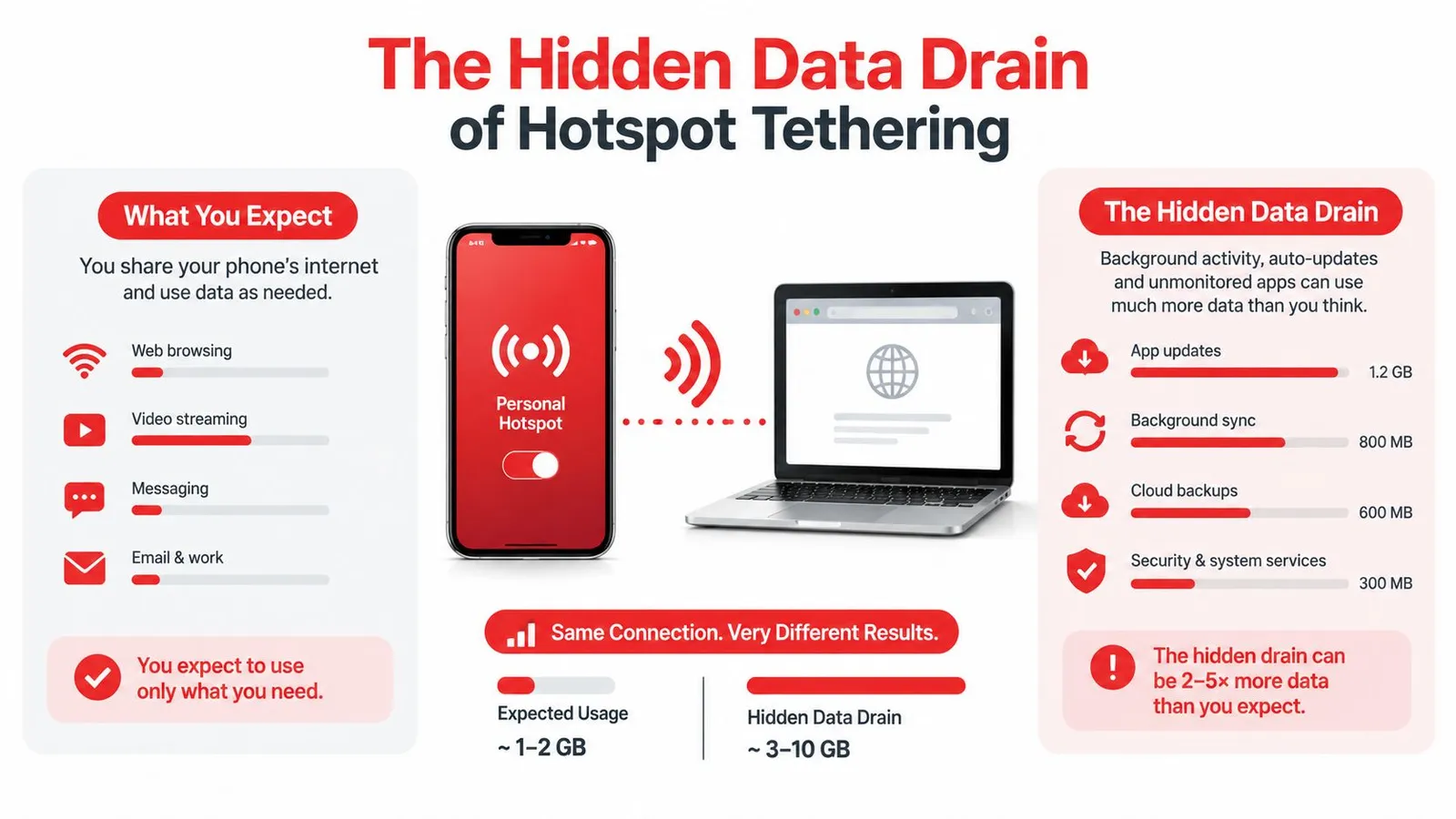
The common mistake is to estimate laptop use from phone use. A traveler may browse lightly on a phone and assume a laptop will behave similarly. Desktop sites often load more media, larger images, advertising assets, and background services. A cloud drive may also decide to synchronize folders as soon as the hotspot becomes available.
Remote work needs a separate calculation
A remote worker using video calls, shared documents, cloud files, and a tethered laptop should not treat 10GB as a comfortable work plan. The travel eSIM data research from Canada Starter estimates that a heavy traveler can use about 10.5GB in a week, while a remote-work pattern can reach about 21GB in a week. These patterns include the type of tethering and work activity that basic phone-use calculators often leave out.
That doesn't mean every workday will consume the same amount. A text-based day with stable hotel Wi-Fi may be manageable. A day with video meetings, large downloads, cloud synchronization, and no reliable Wi-Fi can exhaust a small allowance quickly.
Before enabling a hotspot, a traveler should change the laptop's connection profile to metered. Automatic operating-system updates, game downloads, photo synchronization, and cloud backup should wait for trusted Wi-Fi. Video calls should use a lower quality where the meeting permits it, and large files should be downloaded before leaving the hotel.
A hotspot is not just a bigger phone screen. It gives every background process on the connected device access to the travel plan.
If a hotspot feels unexpectedly slow or stops working, the issue may involve plan limits, network congestion, or device settings rather than the eSIM itself. A troubleshooting guide such as RedSIM's advice for slow data speeds can help isolate the problem, but usage control remains the first defense. Travelers should check which device and application consumed the data before buying another plan.
Matching Your Travel Style to the Right Allowance
A two-week city break with reliable hotel Wi-Fi may use less mobile data than a shorter business trip spent connecting a laptop in taxis, airports, and cafés. Choose the allowance around your daily routine, especially whether your phone will serve as a hotspot.

The light leisure explorer
This traveler uses mobile data for navigation, translation, messaging, reservations, occasional searches, and modest social posting. Hotel Wi-Fi handles downloads and entertainment, while offline maps reduce repeated map loading.
Recommendation: Book 10GB with confidence. It gives you room for route changes and unexpected travel logistics, as long as video streaming and automatic media backups stay on Wi-Fi.
The social documentarian
This traveler posts throughout the day, uploads high-resolution photos, watches short videos, and follows live destination updates. Social apps can consume data quickly because feeds preload images and autoplay video.
Recommendation: 10GB works for a controlled trip, not unrestricted scrolling. Disable autoplay, send large uploads over Wi-Fi, and reduce video quality on mobile connections. Choose a larger allowance if frequent social browsing is part of the trip rather than an occasional activity.
The tethered remote worker
A remote worker may connect a laptop or tablet for video meetings, cloud documents, email attachments, and browser-based tools. That connection takes priority over entertainment, so running out of data can interrupt work rather than just stop leisure use.
Recommendation: Choose a 20GB plan or an unlimited option when reliable Wi-Fi is not guaranteed. As shown in the hotspot section, a remote-work week can approach the capacity of a much larger plan. A 20GB floor gives work devices room to operate without forcing every task onto hotel Wi-Fi.
The multi-device family
A family may share one hotspot among phones, tablets, and a laptop. Light individual use can still become a heavy combined load when several devices handle photos, video calls, app activity, or browsing at the same time.
Recommendation: Treat 10GB as a backup or short-use allowance. A larger shared plan, separate eSIMs, or dependable accommodation Wi-Fi gives each device more predictable access. The guide to choosing the right RedSIM plan can help match the allowance to device count, trip length, and hotspot needs.
For practical travel planning, 10GB equals roughly 10,000MB using the decimal convention used earlier. The 10GB usage breakdown from Monito shows why the activity mix matters: browsing and social use can last far longer than HD video or video calls on the same allowance. Select a plan for the most demanding regular activity, not the easiest one. If tethering is part of the itinerary, size the plan around the connected computer, not just the phone.
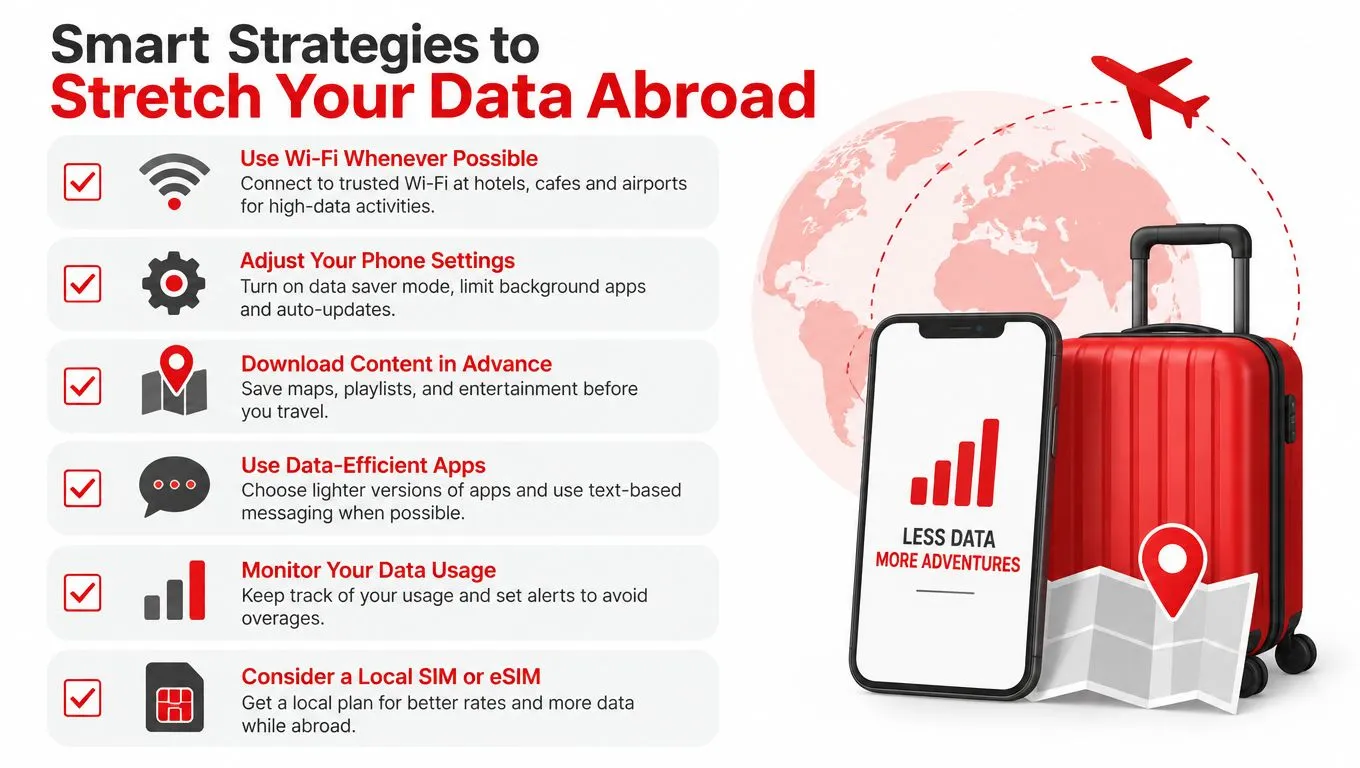
Smart Strategies to Stretch Your Data Abroad
A 10GB plan becomes much easier to manage when the phone is configured before departure. Travelers shouldn't wait until the data warning appears to discover that a photo app has been backing up every image over cellular service.
Prepare before leaving home
Download offline maps for every major destination while the phone is connected to home Wi-Fi. Google Maps supports offline areas, and many travel apps allow tickets, reservations, guides, and language packs to be stored in advance.
Streaming services should receive the same treatment. Films, playlists, podcasts, and long-form videos belong on the device before departure. This preserves mobile data for navigation and communication when the traveler is outside Wi-Fi range.
Restrict background activity
The most useful settings are simple:
- App updates: Set the App Store or Google Play to update over Wi-Fi only.
- Photo backup: Pause cellular uploads in Google Photos, iCloud Photos, OneDrive, or other backup services.
- Video autoplay: Disable autoplay in social platforms and reduce playback quality for mobile connections.
- Background refresh: Turn off background access for shopping, news, games, and other non-essential apps.
- Wi-Fi assistance: Disable features that automatically switch to cellular data when hotel Wi-Fi becomes weak.
- Hotspot controls: Mark the laptop connection as metered and pause cloud synchronization before tethering.
These changes don't remove useful services. They stop low-priority processes from competing with maps, messages, and transport apps.
Track the allowance during the trip
A traveler should check mobile usage in the phone's cellular settings and in the eSIM provider's app. The useful question isn't only how much data remains. It is which application used the most and whether that activity was intentional.
The RedSIM eSIM management guide covers plan management and usage checks. Travelers should review the allowance after a long travel day, after using a hotspot, and before a planned streaming session. Early detection leaves time to switch to Wi-Fi, change settings, or add data.
Protect the essentials first: maps, messages, boarding passes, and reservations matter more than an autoplay video feed.
A traveler who follows these controls can use 10GB flexibly instead of treating it as a countdown. Occasional video calls and photo uploads remain possible, but the plan stays reserved for the services that keep the trip moving.
Choosing a Flexible eSIM Provider for Peace of Mind
No traveler can predict every day perfectly. A delayed flight may require hours of hotspot use, a hotel may have unreliable Wi-Fi, or a work obligation may appear unexpectedly. The practical solution is to choose a provider that makes the plan easy to monitor and expand.
Instant digital delivery removes the need to find a SIM shop after landing. Travelers can install an eSIM before departure, keep the physical SIM in place for calls if needed, and activate travel data when the destination network becomes available. A clear app should show the active plan, remaining allowance, and supported top-up options.
Top-ups are especially important for anyone near the boundary between phone-first use and hotspot use. Adding data to an active eSIM is less disruptive than buying a new profile, waiting for another QR code, or changing settings halfway through a trip. Support also matters when installation, network selection, or tethering doesn't work as expected.
Plan comparison should cover more than the headline GB amount:
- Destination coverage: Country, regional, and global options should match the itinerary.
- Activation rules: Travelers should know when validity begins.
- Hotspot support: Laptop and tablet use requires explicit compatibility.
- Usage tracking: Real-time visibility helps prevent an unexpected cutoff.
- Top-ups: The provider should allow more data without replacing the active eSIM.
- Support access: Messaging support is valuable when a traveler is already abroad.
The available eSIM plan prices give travelers a place to compare allowances before departure. A 10GB plan remains a sensible choice for maps, messaging, and light social use. The safer booking decision is to pair that allowance with reliable tracking and an easy top-up path, especially when the itinerary includes work or tethering.
RedSim offers travel eSIMs with instant installation, hotspot support, in-app usage tracking, and top-ups on active plans, helping travelers keep a 10GB allowance under control and add data when usage changes. Travelers can compare destinations and plan sizes through RedSim before departure.