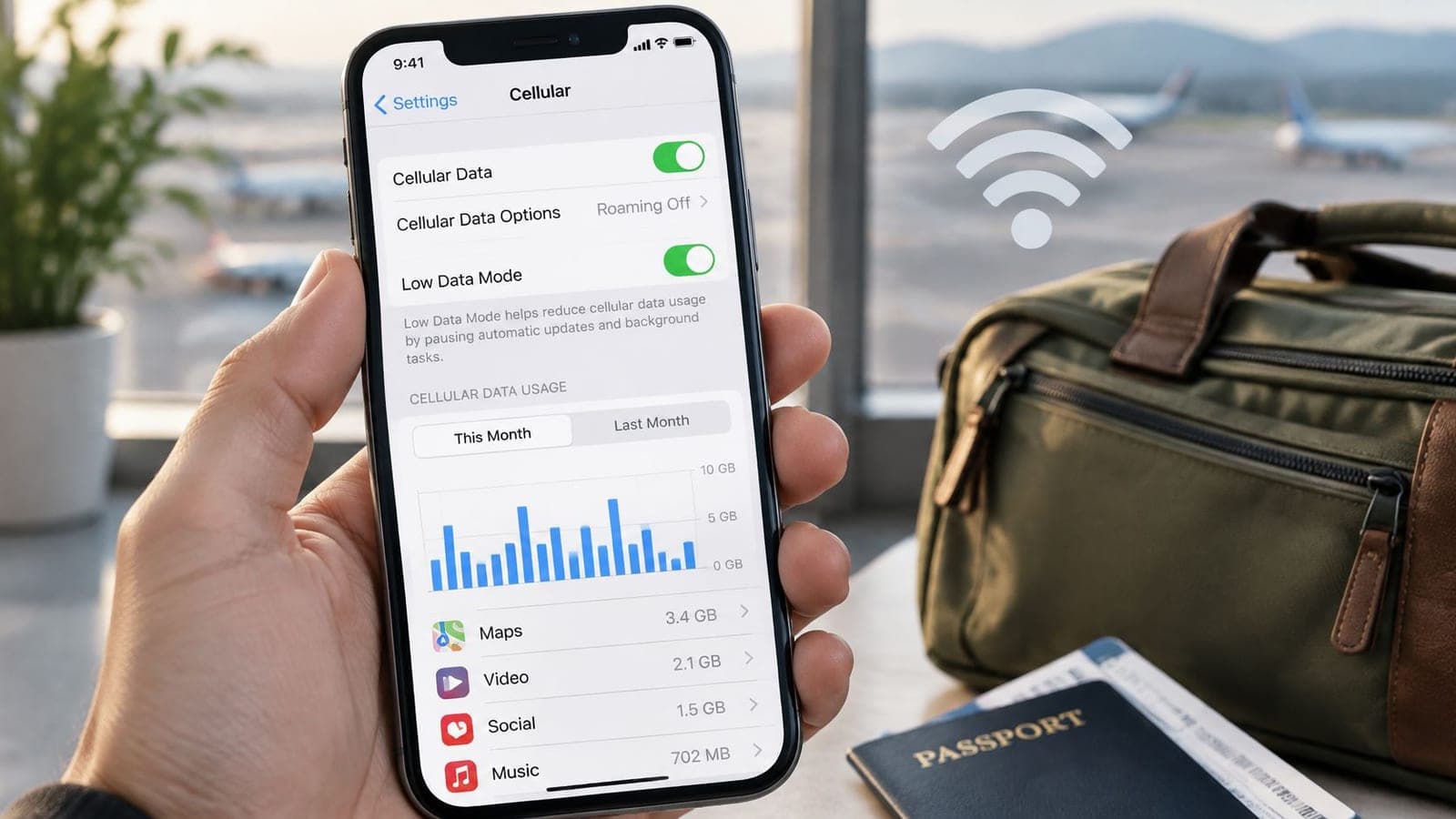
A traveler connects to hotel Wi-Fi, puts the iPhone away, and later finds that the travel data allowance has dropped again. There hasn't been much browsing, and no obvious download explains it. The missing detail may be a background transfer, the wrong Dual SIM setting, or cellular fallback on an unreliable Wi-Fi connection.
Learning how to reduce data usage on iPhone starts with those controls, not with switching off everything useful. A good setup preserves messaging and navigation, limits nonessential transfers, and gives the phone's owner a clear before-and-after measurement.
Cellular Settings That Cut Data Use Fastest
The best starting points are Low Data Mode, per-app cellular permissions, and Wi-Fi fallback controls. Together, they address background activity, deliberate app use, and the less obvious situation where an iPhone uses mobile data despite being connected to Wi-Fi.
Before changing anything, the phone's owner should save the current usage total and app readings. That baseline makes it possible to distinguish a useful adjustment from a setting that changes little.
Main cellular data settings at a glance
| Setting | Where to find it | What it does | Best for |
|---|---|---|---|
| Low Data Mode | Settings > Cellular > Cellular Data Options | Limits background activity and pauses automatic updates off Wi-Fi | Capped travel eSIMs and daily limits |
| Per-app cellular access | Settings > Cellular, then the app list | Stops a chosen app from using mobile data while Wi-Fi still works | Video, cloud-sync, photo-backup and social apps |
| Wi-Fi Assist or Connectivity Assist | Settings > Cellular | Allows cellular fallback when Wi-Fi performs poorly | Tight caps where fallback needs controlling |
| Background App Refresh | Settings > General > Background App Refresh | Limits apps refreshing content when they aren't actively in use | News and social apps on light plans |
| Automatic app downloads | Settings > App Store, or Settings > Apps > App Store | Keeps automatic app downloads and updates off cellular | Large downloads on a small allowance |
| Video quality | Settings inside the streaming app | Reduces the data needed for playback | Viewing while traveling |
Menu names and locations can differ by iOS version. Some cellular lines put Low Data Mode inside Data Mode, rather than showing a direct switch.
Practical rule: Save the baseline first. Then change a setting and measure the result before making another adjustment.
Low Data Mode is a sensible initial change because it works across the selected connection. Individual app restrictions can follow, based on actual usage rather than assumptions about which apps are expensive.
For travelers preparing a digital SIM, the iPhone compatibility guide helps establish device suitability before installation. Compatibility and data-saving settings are separate checks, and both deserve attention before departure.
Find the Apps Using the Most Cellular Data
An app that feels lightweight can still transfer files in the background. The useful question isn't which app seems busiest, but which app's cellular counter increased.
Apple's cellular settings guide documents per-app usage readings, individual cellular switches, resettable statistics, and separately listed system services. These controls make targeted restrictions more useful than disabling apps at random.
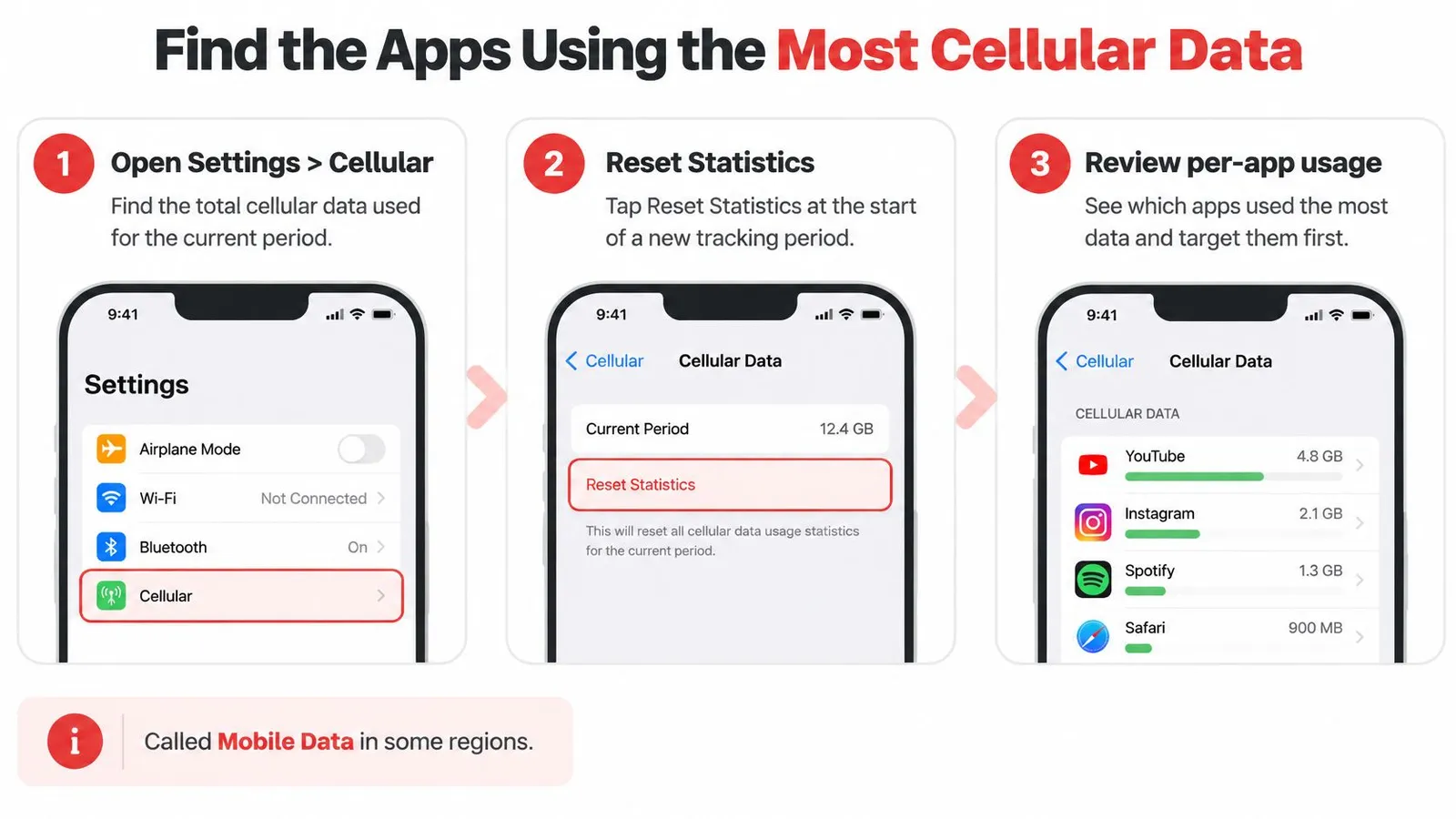
- Record the starting point. In Settings > Cellular, sometimes called Mobile Data, the owner should note the current-period total and the largest app readings. A screenshot preserves the original figures before anything gets reset.
- Start a clean measurement period. Reset Statistics belongs at the beginning of a trip or billing cycle. The common slip is treating Current Period as an automatically synchronized monthly allowance.
- Allow representative use. A useful test includes ordinary browsing, messages, navigation, and whatever entertainment the traveler normally uses. An unusually quiet day won't reveal much about a normal travel day.
- Inspect the largest consumers. The app list identifies where cellular transfers occurred; system services deserve a separate look. Sorting controls and presentation can differ, so the largest readings matter more than their position.
- Restrict nonessential transfers. Turning off an app's cellular switch leaves Wi-Fi access available. It doesn't make the app fully offline or delete its downloaded content.
Keep essential apps available
A traveler might discover that a photo-backup app, rather than maps, accounts for the unexpected increase. Restricting that app preserves navigation while delaying backup until a suitable Wi-Fi connection is available.
For group travel, St Christopher's resource on staying connected on European city breaks can help travelers identify the communication tools they need. Those choices should inform which apps retain cellular permission.
The iPhone counter is a device-controlled measurement, not a billing statement. The carrier's record may be the more accurate reference for charges. For a useful before-and-after check, the owner should compare the increase during each test period, not an old accumulated total against a newly reset counter.
Turn On Low Data Mode on Each Connection
Low Data Mode needs attention on the connection that will carry traffic. A switch enabled for hotel Wi-Fi doesn't automatically establish the same preference on a travel eSIM.
The setup follows this sequence:
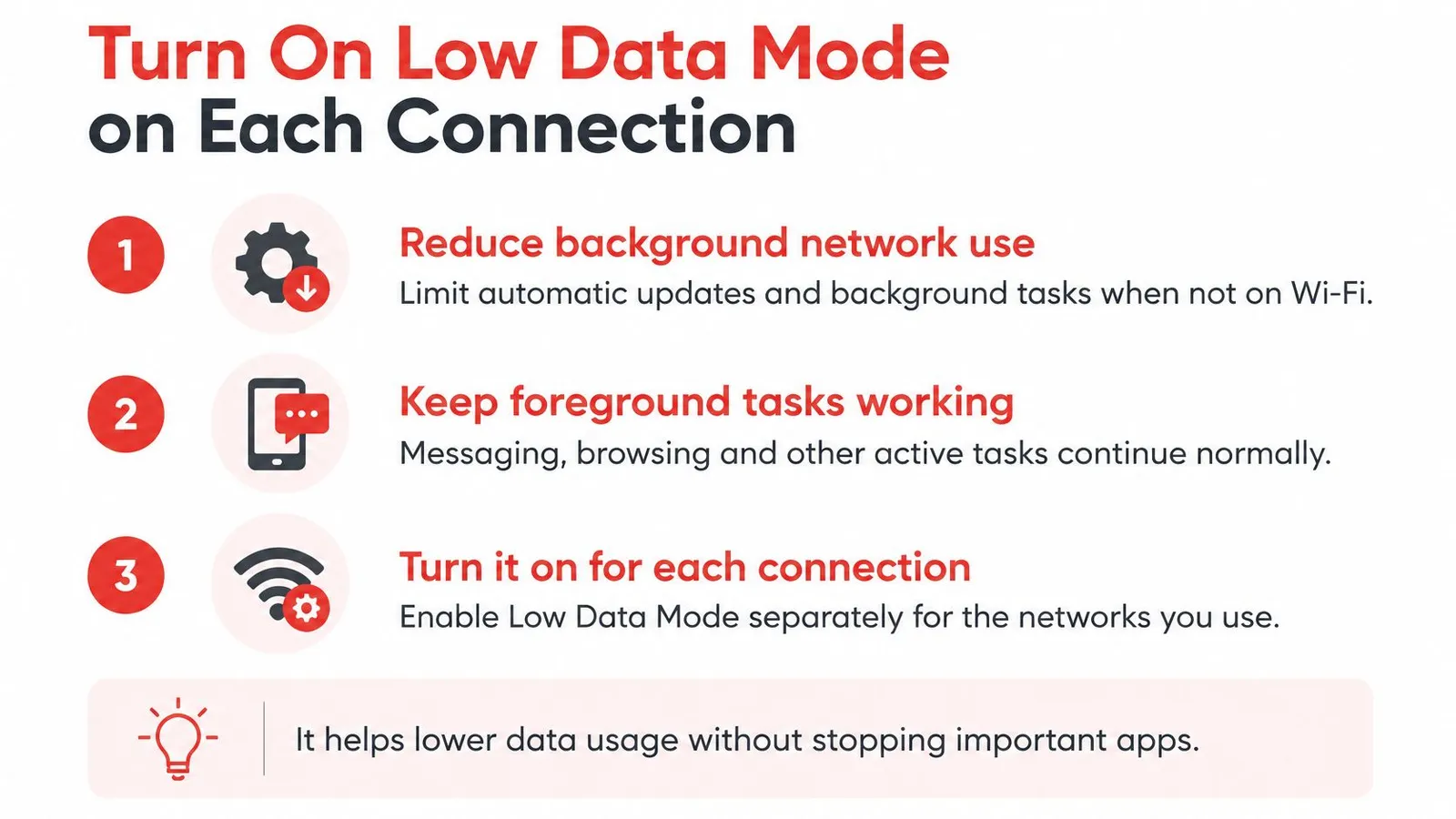
- Cellular connection: Open Settings > Cellular > Cellular Data Options and enable Low Data Mode. If Data Mode appears, the option may sit inside that menu.
- Dual SIM configuration: Select the relevant cellular line and check its data options. The home line and travel eSIM need separate attention.
- Wi-Fi network: Open Settings > Wi-Fi, tap the information button beside the connected network, and enable Low Data Mode there when appropriate.
Apple's Low Data Mode instructions explain that the feature reduces background network activity and defers automatic updates and other background work. Active tasks such as messaging, browsing, and navigation can continue, so the phone remains useful rather than becoming disconnected.
Check the line, not just the switch
The per-line rule is particularly important when a home SIM remains installed for calls while a travel eSIM provides data. The owner should confirm which line is selected for cellular data, then inspect Low Data Mode on that line.
A traveler preparing before landing can enable the setting on the travel connection before ordinary background activity resumes. The benefit is reducing transfers that don't need immediate attention, not preventing every byte from leaving the phone.
Low Data Mode is a background-activity control, not a hard spending limit.
The trade-off is delayed freshness. Content, backups, or automatic updates may not be ready as quickly as they would under unrestricted settings.
The eSIM setup instructions are useful when identifying and configuring the newly installed line. After setup, a final inspection of both cellular lines and any restricted Wi-Fi networks helps catch the easy mistake of configuring the wrong connection.
Stop Weak Wi-Fi From Draining Your Plan
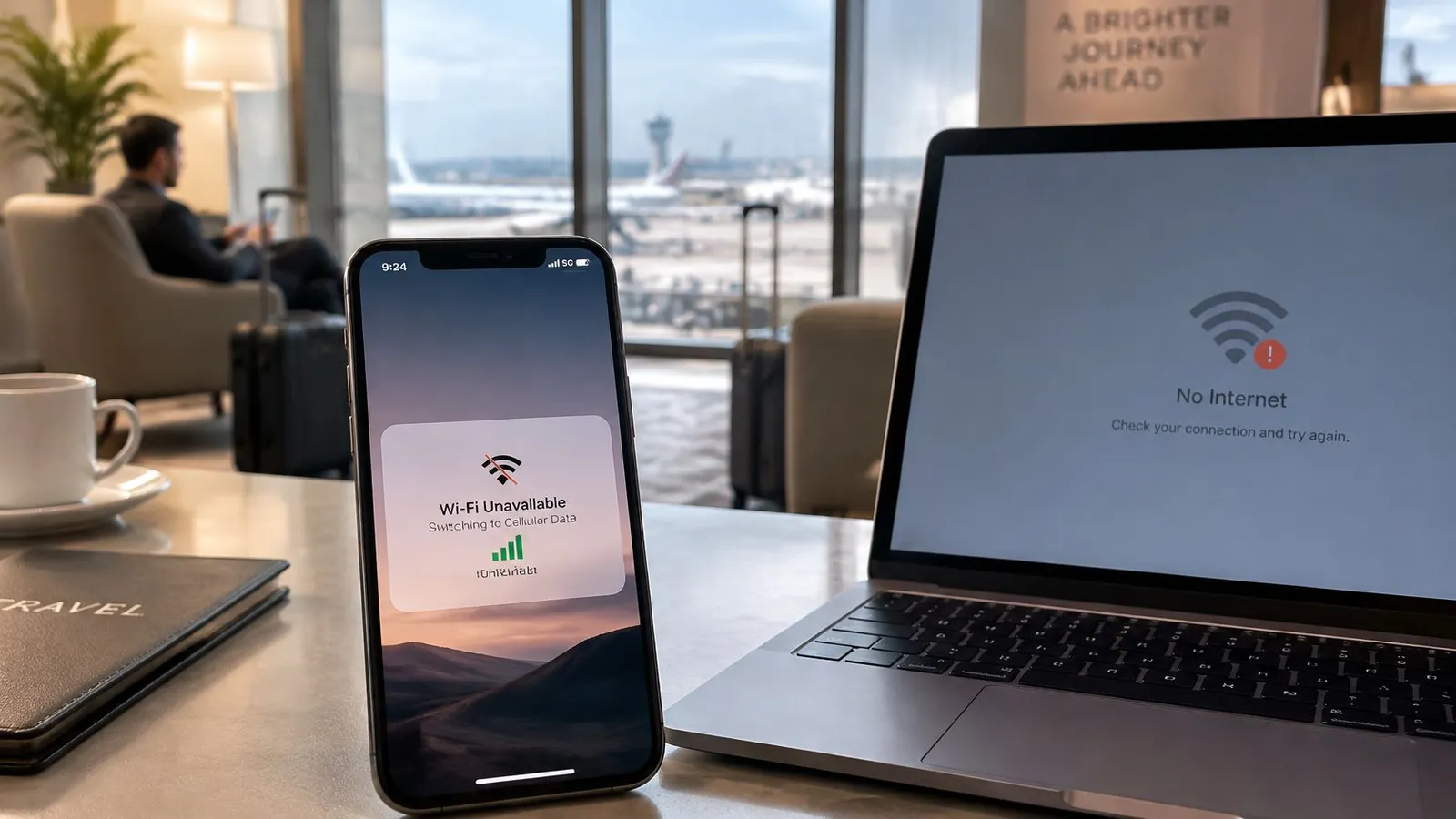
A Wi-Fi symbol doesn't guarantee that every active transfer stays off cellular. When a connected network performs poorly, an iPhone may use cellular fallback to keep supported activity moving.
When preserving a capped allowance matters more than uninterrupted loading, disabling Wi-Fi Assist is the clearer choice. Apple's cellular guide states that Wi-Fi Assist is enabled by default and can increase cellular usage.
Choose reliability or stricter control
Hotels, airports, cafés, and conference venues are good places to inspect this setting. A network can accept a connection yet struggle to deliver a usable service. Repeatedly reconnecting to the same weak network doesn't establish that cellular use has stopped.
- For a tightly capped plan: The owner can open Settings > Cellular, locate Wi-Fi Assist, and turn it off.
- For connection continuity: Leaving fallback available may be preferable when loading failures would be more disruptive than additional cellular use.
- For an unfamiliar menu: The owner should check the installed iOS version and look for the exact assistance label rather than assuming every release behaves identically.
On newer software, the successor may appear as Connectivity Assist. Its documented behavior differs, including exclusions during international roaming and while cellular Low Data Mode is active. Those conditions shouldn't be assumed to describe every older Wi-Fi Assist implementation.
A conference attendee who notices an increase after working on poor hotel Wi-Fi has a useful test case. With fallback disabled, another comparable session can show whether the cellular counter still rises. The trade-off may be slower loading or failed requests instead of automatic rescue by cellular.
For anyone unfamiliar with digital SIM terminology, the explanation of how an eSIM works helps distinguish the data connection from the Wi-Fi network. The important distinction is the route carrying traffic, not whether a physical SIM card is present.
Limit Streaming and Background Downloads
Approximate video data per hour by quality
| Video quality | Data per hour (approx.) | Hours on 5 GB | Hours on 10 GB |
|---|---|---|---|
| Standard definition (SD) | 0.7 to 1 GB | About 5 to 7 hours | About 10 to 14 hours |
| High definition (HD) | 2 to 3 GB | About 1.5 to 2.5 hours | About 3 to 5 hours |
| Ultra HD (4K) | 7 to 10 GB | Under 1 hour | About 1 hour |
These ranges are planning figures, not a promise from every streaming app. Compression, automatic quality changes, and short pauses all affect the final total. The useful move is to set a ceiling before travel, then compare the cellular counter after a representative viewing session.
For a tightly capped plan, decide which viewing really needs cellular delivery. Set a lower cellular playback quality inside each streaming app, then download the shows, music, and podcasts you expect to replay over reliable Wi-Fi. That keeps the choice deliberate instead of letting autoplay and default quality spend the allowance.
Make offline playback genuinely offline
A download icon alone is not enough preparation. Open the downloaded item and confirm that it plays without an active network connection before leaving. Do this after the transfer finishes, because a partial download can look complete in a list.
- Video apps: Choose a data-saving cellular quality and disable cellular downloads where that control exists.
- Music and podcasts: Restrict automatic downloads to Wi-Fi and remove subscriptions that no longer deserve automatic delivery.
- Photo and cloud apps: Disable cellular backup or use the app's cellular permission when its own controls aren't clear.
- Background refresh: Review Settings > General > Background App Refresh and restrict apps that don't need fresh content before being opened.
Background App Refresh is not a universal stop button for all transfers. It should not replace an app's specific backup, download, or cellular-access controls. A news app may refresh headlines in the background while a cloud app still queues photo uploads. Both need their own settings.
Downloading over reliable Wi-Fi changes when the transfer happens. Lowering playback quality reduces what must be transferred during streaming.
The same logic applies to iOS updates, podcast catch-up, and cloud photo libraries. Downloads over Wi-Fi move the bulk of the transfer away from the cellular counter. Playback quality then limits what still happens live.
A traveler watching shows during several train journeys can preserve the same routine by preparing downloads instead of repeatedly streaming. For plan sizing, count only the viewing expected over cellular, with room left for navigation, browsing, and communication. After the first journey, check the cellular usage total again. If it rises faster than the viewing plan allows, lower playback quality further or move another batch of downloads to Wi-Fi.
Fixes When Cellular Usage Stays High
A rising counter after the main changes calls for diagnosis, not another blanket restriction. The owner should first check which app or system service increased during the latest observation period. A different top consumer requires a different fix.
Cellular usage symptoms, causes and fixes
| Symptom | Likely cause | Fix |
|---|---|---|
| Apps use data after cellular is turned off | The observed activity may be Wi-Fi traffic rather than cellular | Separate Wi-Fi activity from the cellular counter, then restrict background refresh if needed |
| iPhone total is higher than the carrier bill | Measurement periods or reset timing don't match | Align the reset with the billing cycle and use the carrier's record for billing |
| Plan runs out after a new app install | The app may run background tasks or autoplay video | Disable its cellular access and compare usage over a representative day |
The first symptom needs careful interpretation. An app remaining active on Wi-Fi doesn't prove its cellular restriction failed. If its cellular reading appears unchanged, continued online activity may be entirely consistent with the setting.
Test a specific explanation
For unexpected overnight use, the owner should inspect permissions for App Store downloads rather than assuming a messaging app is responsible. A traveler who finds cellular downloads allowed can disable that route, record the counter, and observe the next comparable overnight period.
A setting change is immediate, but evidence of savings takes another representative usage period. Changing playback quality, download permissions, and background refresh together may reduce consumption without revealing which change mattered.
The slow-data troubleshooting guide is relevant when the complaint is poor performance rather than excessive consumption. Slow loading and high usage aren't interchangeable problems, and reducing data use doesn't necessarily repair a weak connection.
If no clear consumer emerges, a fresh billing-cycle baseline can help separate real transfers from mismatched measurement windows. Apple's current cellular settings documentation provides the controls for checking app permissions and resetting device statistics.
Confirm Your Savings Before Your Next Trip
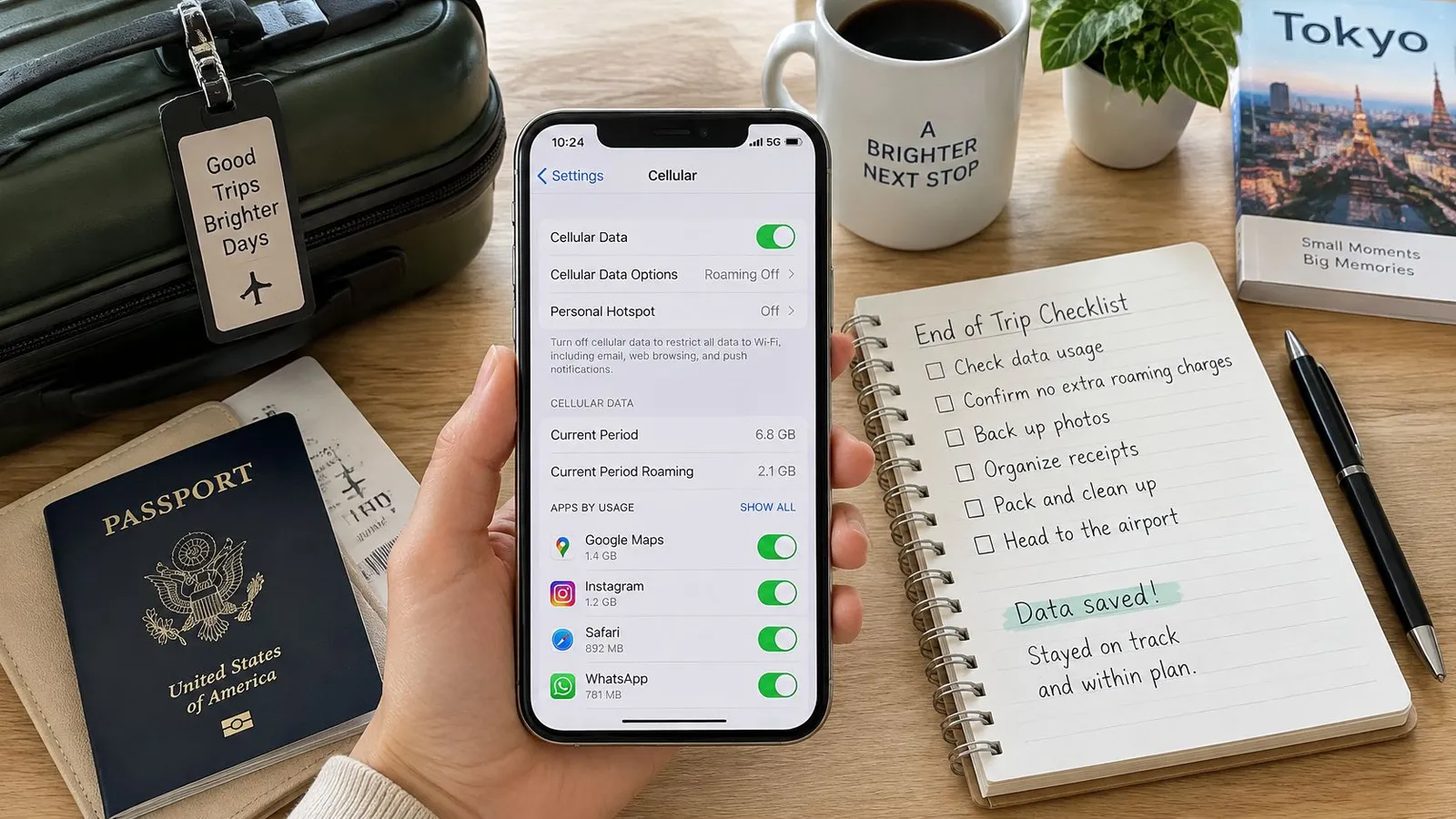
A smaller number after resetting statistics proves little. The useful signal is a lower increase across comparable use, with the same kinds of apps doing the same jobs. Record the total, the largest app readings, and the setting changed at each checkpoint. That makes weak Wi-Fi fallback and Dual SIM line choices easier to judge, because you can see whether the cellular total moves after each fix rather than guessing from one screen.
Turn the result into a travel routine
- Check representative activity: A navigation-heavy sightseeing day and an evening of streaming shouldn't be treated as equivalent tests.
- Review before departure home: The final reading helps establish what the trip required.
- Size the next allowance: Expected cellular viewing and measured everyday use provide a better basis than buying the same plan automatically.
RedSim offers real-time usage tracking in its app, which can sit alongside the iPhone's device statistics during these checks. The guide to choosing the right plan helps translate that usage pattern into an appropriate allowance.
Travel plans can also affect the right setup. Travelers who compare cruise ships should separate onboard connectivity from mobile data needed ashore. An itinerary alone doesn't establish that the same connection will be available throughout a journey.
Before the next departure, save a baseline, verify the selected data line, and confirm that essential apps remain usable. A measured allowance leaves fewer surprises than a collection of untested switches. RedSim provides travel eSIM data plans and real-time usage tracking to help travelers manage their mobile allowance. Travelers can visit RedSim to choose destination coverage, then use these iPhone controls to keep nonessential transfers off their travel data.