The common forum suggestion is to open Network operators and scan for available networks. That only shows what the phone can detect, not whether the carrier will let it connect. A live test with a SIM or eSIM from another carrier gives stronger evidence: successful service means the phone can join that network.
Check the original carrier's IMEI status too. Its result applies to that handset, while an Add eSIM menu only confirms the setting is present. If a travel eSIM fails, stale carrier provisioning may be the cause, rather than a permanent restriction. Don't buy a plan based on the menu alone.
What Network Freedom Means on an Android Phone
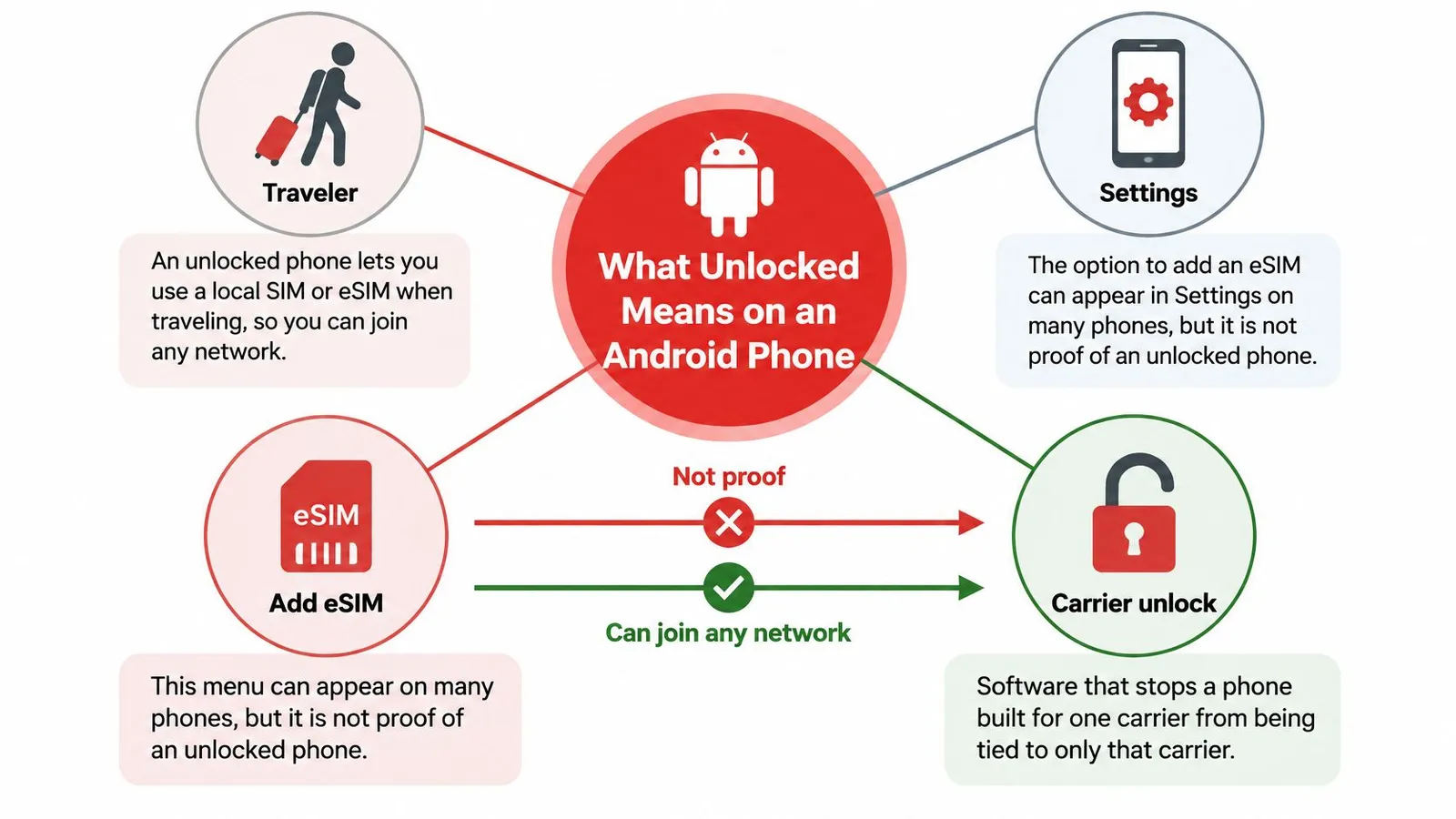
An Android phone can show an Add eSIM option and still reject a travel plan. After purchase, the traveler may see a message saying the eSIM can't be activated because the device is restricted to another carrier. The menu confirms eSIM support, not permission to use a different provider.
Carrier freedom means the original carrier's software restriction has been removed. It does not add eSIM hardware or change the radio bands built into the phone.
Separate the travel requirements
- Carrier permission: The phone must accept service from another provider. Google Fi's device guidance says a bring-your-own-device phone must be free of restrictions imposed by its previous carrier.
- eSIM capability: The exact model must support a downloadable digital SIM profile. This explanation of how eSIM works describes how the digital profile differs from a physical SIM card.
- Destination compatibility: The regional model must support the destination network's technology and frequency bands. A phone without carrier restrictions may still lack the bands needed for service in a particular country.
A PIN, pattern, fingerprint, or face scan protects access to the screen. Passing that check says nothing about which mobile providers the phone can use.
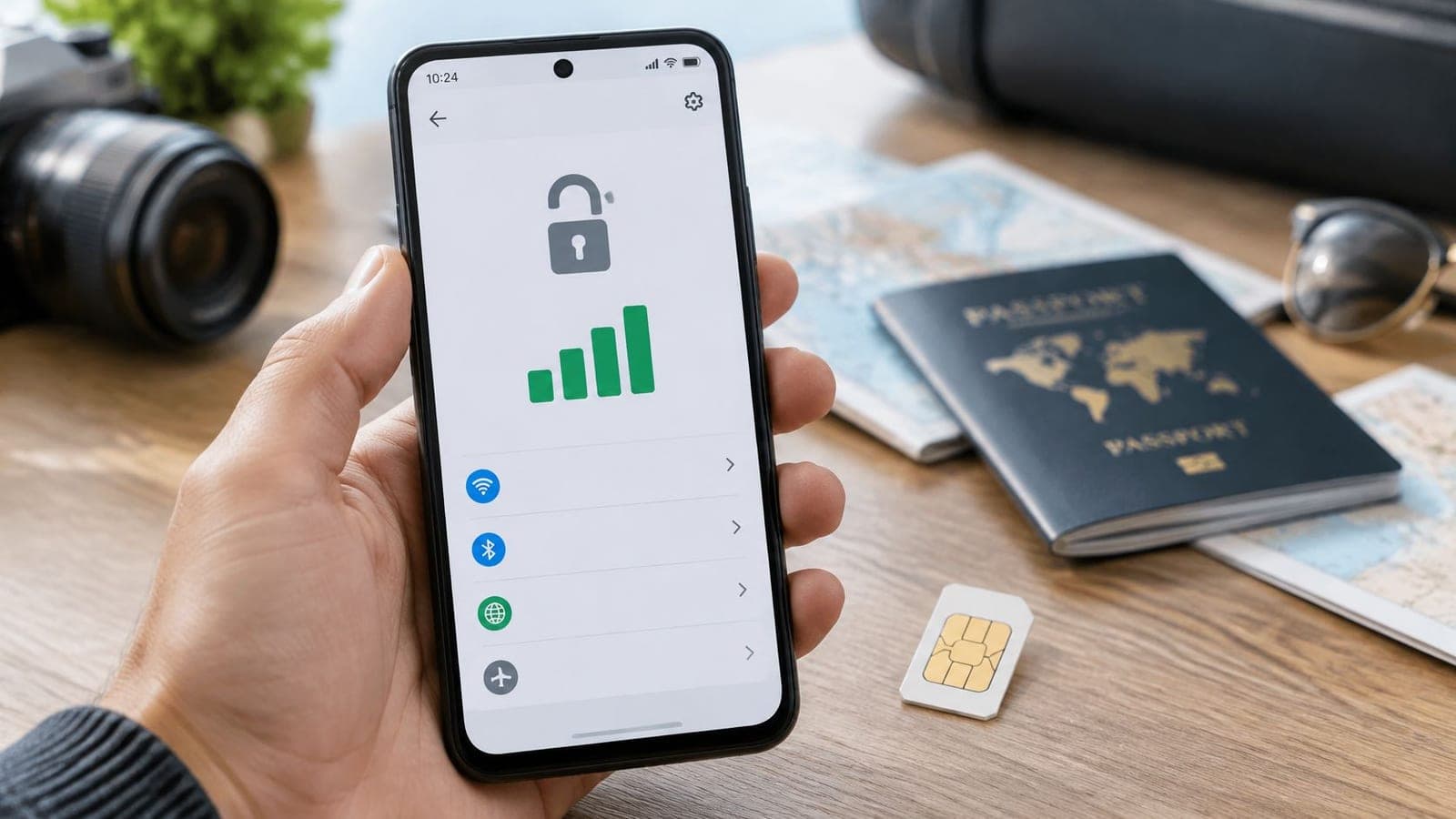
The infographic below shows the difference between carrier-restricted service and the ability to switch networks.
Treat menus as clues
Android has no universal network-status screen. Samsung, Motorola, Google Pixel, and other brands use different menu names, and some models do not display a clear carrier-status result.
Practical rule: A feature menu describes what the phone supports. It does not confirm which provider's service it will accept.
For households comparing used Apple devices too, Used Mobiles 4 U explains how to check refurbished iPhone network compatibility. Those iPhone checks are separate from Android menu instructions.
For Android, keep the three requirements distinct: carrier permission, eSIM capability, and compatibility with the destination network. A phone needs all three for a travel eSIM to work.
Find Your IMEI and EID First
The IMEI identifies the handset's mobile equipment. The EID identifies its embedded SIM hardware, giving support a way to investigate eSIM provisioning rather than guessing from the model name.
Collect the handset details
- Open Settings > About phone. Find the IMEI and copy it carefully. If separate IMEI entries appear, record each one with its label.
- Dial
*#06#. This often opens the device-identification screen without placing a call. Record the EID if it appears; its presence indicates embedded SIM hardware, not carrier status. - Record the exact model. Include the model code, not just the retail name. Regional versions can differ, so Samsung owners can compare their handset with the Samsung compatibility list.
- Compare used-phone records. Match the IMEI in Settings against the seller's account or original packaging. A mismatch needs an explanation before payment or a status request proceeds.
Keep the identifiers private
Save the identifiers with the original carrier's name and the date of the check. Screenshots can help, but they shouldn't be posted publicly or sent to unfamiliar websites.
A missing EID line isn't a complete diagnosis. The identifier may be elsewhere in Settings, and the manufacturer's documentation for the exact model can clarify whether eSIM is supported. These details let the carrier investigate the actual handset rather than a general product family.
Run the SIM Test and Read the Result
A live test with a working SIM from another carrier gives a stronger answer than a settings menu. The alternate service should be active, available where you are, and able to use a different carrier network from your home SIM.
The Google Pixel SIM guidance explains where to manage SIMs and mobile networks on Pixel phones. The controls are under Settings > Network & internet > SIMs; menus differ on other Android models.
Prepare a test that can answer the question
Choose a known-working alternate service. A borrowed physical SIM should already work in its owner's phone. A travel eSIM that connects only at your destination is a poor test at home: installing a profile and registering on a live network are separate steps.
Check the test conditions. Confirm that the alternate carrier covers your location and accepts the exact phone model. A different logo on the SIM packaging does not prove the test uses another carrier network.
Install the alternate SIM correctly. For a physical card, power off the phone, remove the original SIM, insert the alternate card, and restart. The tray should close flush without force. For an eSIM, keep the phone on, connect to Wi-Fi, and follow the provider's installation instructions.
Select the line being tested. On a dual-SIM phone, enable the alternate line and choose it for mobile data. Temporarily disabling the home line can prevent the phone from using the wrong connection. There is no need to delete an existing eSIM.
Check registration and working service. Note the carrier name and any error message. After installation, turn off Wi-Fi and load a fresh webpage over mobile data. If the alternate plan includes voice service, place a regular call, not an emergency call.
Investigate an inconclusive attempt. Test the physical SIM again in its original phone, check that the account is active, and confirm local coverage. Compare the APN settings with the alternate carrier's instructions rather than copying settings from an unrelated online post.
Save the evidence. Record the exact message, which carrier was tested, and whether a call or data session completed. Compare the result with the table before contacting the carrier or buying another plan.
What Android shows and what it means
| What you see | Likely status | Next action |
|---|---|---|
| SIM not supported, Network locked, or a carrier restriction prompt | A carrier restriction is likely still active | Contact the original carrier with the IMEI |
| Another carrier's SIM registers, and a call or data session works | Carrier-free on this test | Confirm bands and eSIM hardware before travel |
| eSIM option appears in Settings | eSIM hardware or menu access only; it does not establish carrier status | Test a second-carrier SIM or check the carrier portal |
| No signal and no error message | Could be an inactive SIM, limited coverage, unsupported bands, or an APN issue | Retest with a known-good SIM and the correct APN |
| Service fails on another network after carrier status is confirmed | Possible blacklist or incompatible bands | Check lost-or-stolen status separately |
The table gives a practical reading, not a reason to skip troubleshooting. A clear restriction message calls for a carrier check. An unexplained failure needs a controlled retest.
Avoid testing the wrong connection
A webpage already open in a browser may remain visible after the connection drops. Turn off Wi-Fi and load a new page to check that mobile data is passing through the selected line.
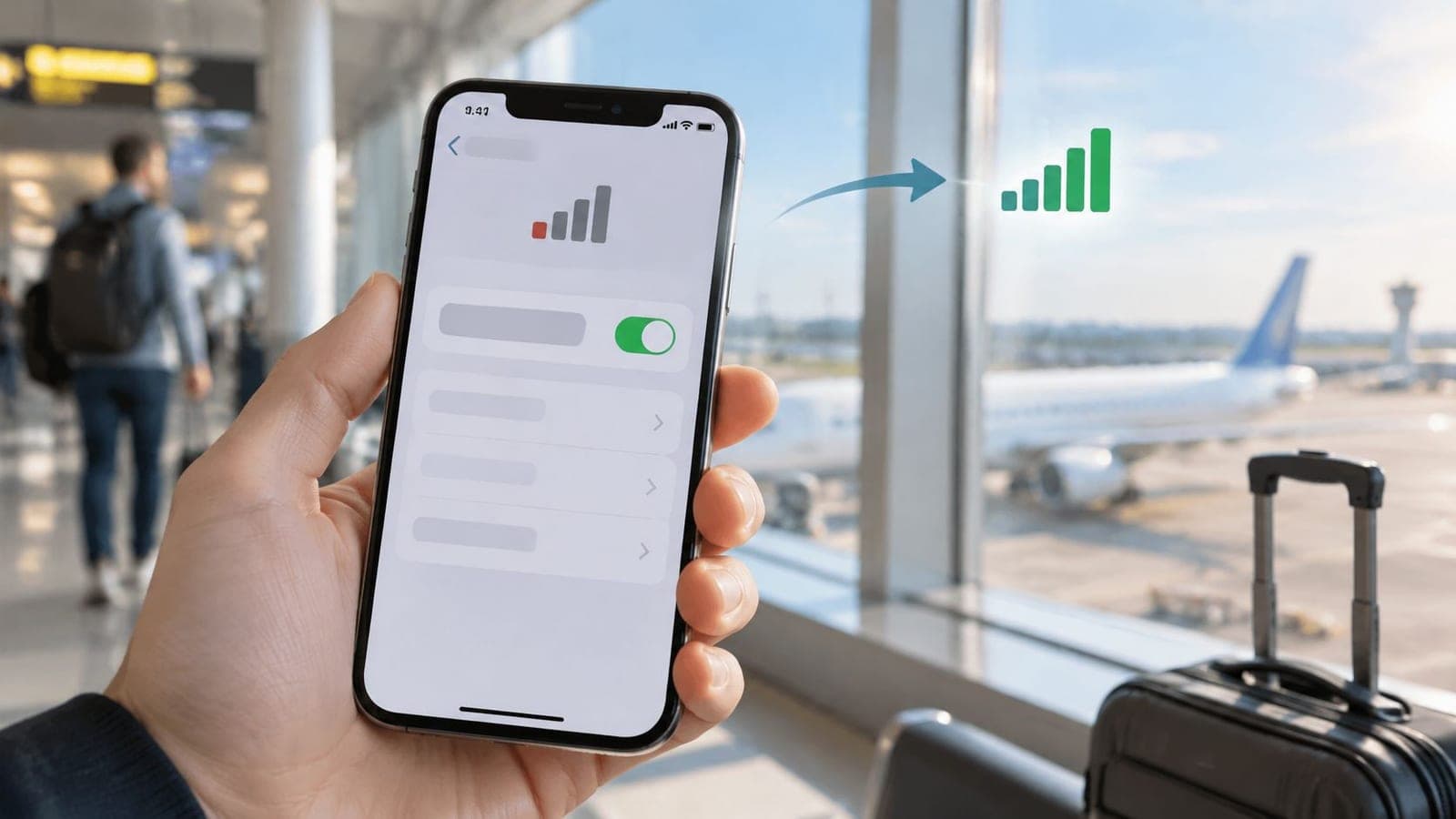
Four bars on a dual-SIM status bar can still be misleading if the home line is selected for data. Check the active data line in SIM settings, then confirm that a fresh page loads with Wi-Fi off.
A useful test records the selected line and the completed action, not just a photograph of signal bars.
A data-only eSIM should be tested with mobile data, not a conventional voice call. A voice-capable physical SIM can be checked with both calls and data.
Keep compatibility separate from the verdict
A successful SIM test shows that the phone accepted that other carrier under those test conditions. It does not change the phone's antennas, add unsupported frequency bands, or guarantee service on every destination network.
Before purchasing a travel profile, compare the exact model with the eSIM compatibility guidance. Compatibility and carrier status are separate checks: a phone can pass the SIM test while lacking support for a particular eSIM configuration.
For example, an Android handset might accept a borrowed domestic SIM and load webpages normally, yet not support a travel provider's eSIM. Check the regional model and supported service rather than repeating the same physical-SIM test.
A failed travel profile can also reflect stale carrier provisioning, rather than a permanent restriction. A carrier may need to refresh the handset's provisioning; the live SIM test and the carrier's IMEI check help distinguish that problem from a lasting restriction. Blacklisting is separate, too: a lost-or-stolen report can prevent service even when carrier status is clear, so used-phone buyers should check both.
Carrier IMEI Checks and Unlock Timelines
US carrier release rules versus proof of current status
A carrier's timeline explains when a device may qualify for release. It does not show whether the change has reached your particular phone. Check the carrier's IMEI record, then compare it with the result of a live SIM test.
| Rule | When the carrier must release the device | What it does not prove |
|---|---|---|
| Verizon phone bought from Verizon | Automatically after 60 days, according to the Consumer Reports guide to carrier release policies | That the change reached this handset if the process failed |
| CTIA postpaid, participating US carriers | After the contract or installment plan is fulfilled, with the account in good standing | That the carrier has completed the release |
| CTIA prepaid, participating US carriers | No later than one year after activation, subject to reasonable payment or usage requirements | That the phone is carrier-free today |
| Request to a participating provider | Release, or an explanation of ineligibility, within two business days | Service on every network or in every country |
| Phones sold outside the United States | Under the original carrier's applicable local rule | A US timeline or a settings-menu result |
The FCC's guidance on cell-phone release policies describes participating carriers' voluntary standards: postpaid eligibility after contractual obligations are fulfilled, prepaid access no later than one year after activation subject to reasonable requirements, and access or an explanation within two business days of a request. These rules describe eligibility and response times. They do not confirm the current status of a specific handset.
Check the record for your handset
Use the original carrier's official website or account app to find its device-status tool. Enter the IMEI shown on the phone, and make sure the record matches this handset rather than an older device on the account.
Look for four separate answers:
- Current status: Does the carrier record show the phone as restricted or carrier-free?
- Eligibility: Are the payment, account, and service requirements satisfied?
- Completion: Has the carrier processed the change, or only accepted a request?
- Separate restrictions: Is there a lost-or-stolen report or another account issue?
Eligibility means the carrier may process a request. It does not establish that processing is complete. If the portal lists an unmet requirement, ask support to explain that specific issue before submitting another request.
Keep the confirmation: Save the reference number and written carrier-status confirmation. Support can use them to investigate if the phone still rejects another carrier.
For a phone purchased abroad, the selling carrier determines which local requirements apply. A third-party IMEI lookup should not outweigh the original carrier's device record.
If the carrier record says the phone is carrier-free but a travel profile still fails, stale carrier provisioning may be the cause, rather than a permanent restriction. Once the status is confirmed, use the no-signal-after-landing checklist to address an arrival connectivity problem separately.
Fix a Failed eSIM or Act on the Verdict
A QR code can install successfully and still show no line registration after landing. That result calls for a provisioning check, not an immediate conclusion that the handset is carrier-restricted or defective. The phone and carrier may have inconsistent activation records, even after a release request is approved.
Google Pixel community troubleshooting guidance describes checking the policy against both the IMEI and EID, then resending the carrier signal. This is a useful support route when the carrier says the handset is carrier-free but an outside profile still fails.
Ask for a provisioning check
Give carrier support the saved identifiers and the exact activation error. Ask them to verify the policy attached to the handset's IMEI and embedded SIM's EID, confirm that authorization is complete, and refresh or resend it if needed.
- Keep Wi-Fi connected: A working internet connection is needed to download the profile and complete any internet-dependent activation steps.
- Resolve eligibility issues: Ask for a specific explanation if an unpaid installment, account restriction, or unsupported identifier is blocking the request.
- Wait for completion confirmation: An accepted request is not the same as completed carrier approval.
- Restart before retrying: After confirmation, restart the handset and retry the existing profile only if its installation instructions allow reuse.
Record the result of the retry. If the same error returns, give the carrier and eSIM provider the message and the stage where installation stopped, rather than making another unexplained purchase.
Preserve the profile until support explains the failure
Deleting an eSIM can make recovery harder because some installation credentials cannot be reused. Ask support whether to keep the existing profile, re-enable it, or replace it.
A physical SIM and an eSIM both depend on the handset accepting the carrier's service. Changing the SIM format does not remove a carrier restriction.
Before paying again, find out whether the problem is permission, profile installation, or network registration.
A travel profile may install at home but fail to register until the phone reaches its destination. Treat installation and live service as separate checks, then follow the plan's destination and activation conditions.
Make the travel plan the last step
After the alternate-network test and carrier record agree, an eSIM-capable handset can be prepared for travel. The Global eSIM is a prepaid travel-data option to consider once those device checks pass.
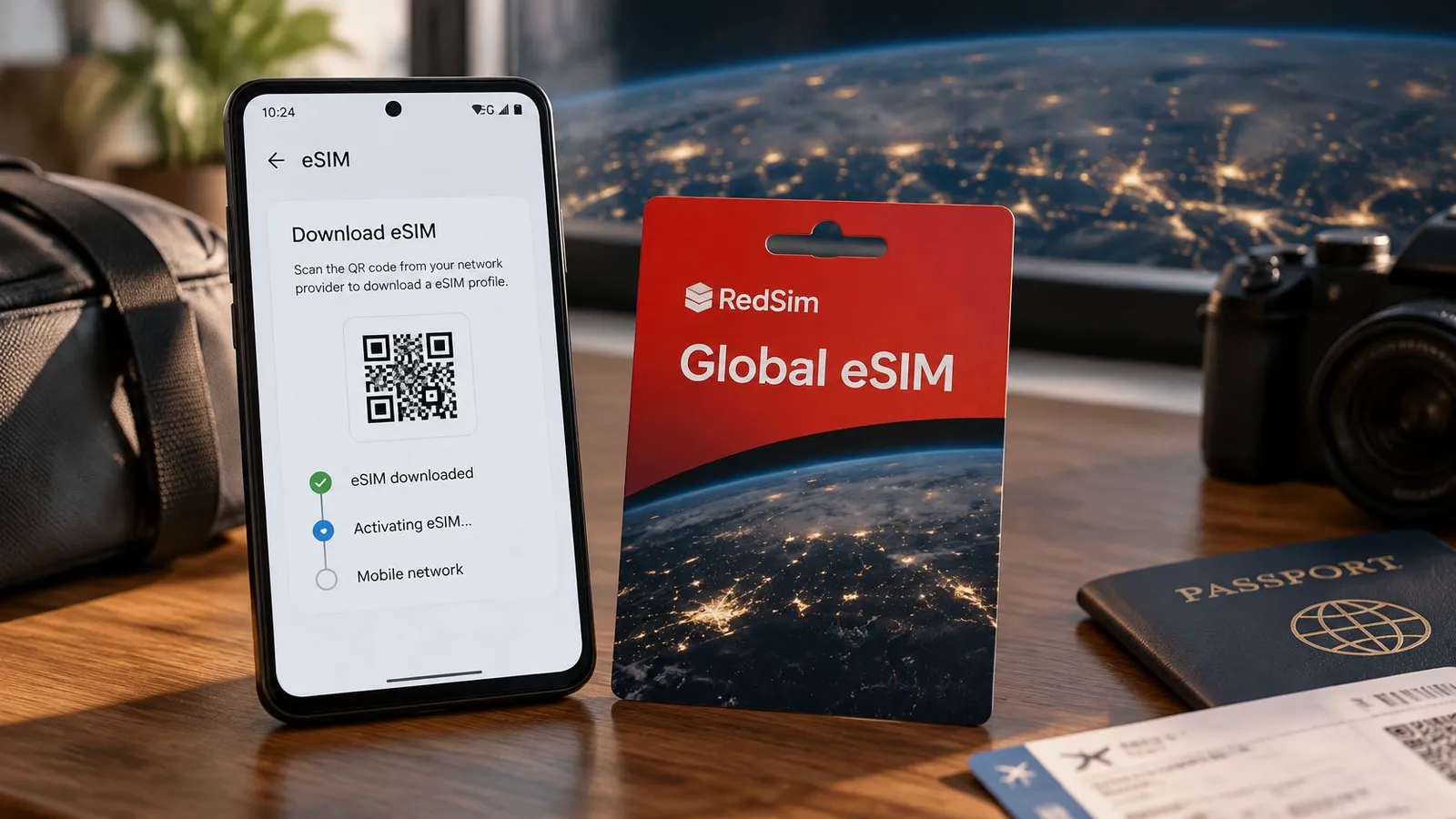
The eSIM installation and setup instructions explain how to receive the emailed QR code, install the profile over Wi-Fi shortly before travel, and turn on the travel line and its data roaming on arrival. Follow the plan's activation conditions when deciding when to install.
On a compatible dual-SIM handset, the home number can stay active while the travel line handles data. The home carrier may still charge for calls, texts, or roaming, so check its roaming settings and tariff separately.
If an authoritative check still shows a restriction, pause travel-plan purchases until the original carrier confirms completion and the handset passes a retest.
RedSim provides travel eSIM data for carrier-free, eSIM-capable phones, with digital installation instead of a physical SIM swap. Once the handset passes the live test and carrier IMEI check, travelers can visit RedSim to choose a destination plan and review setup before departure.