
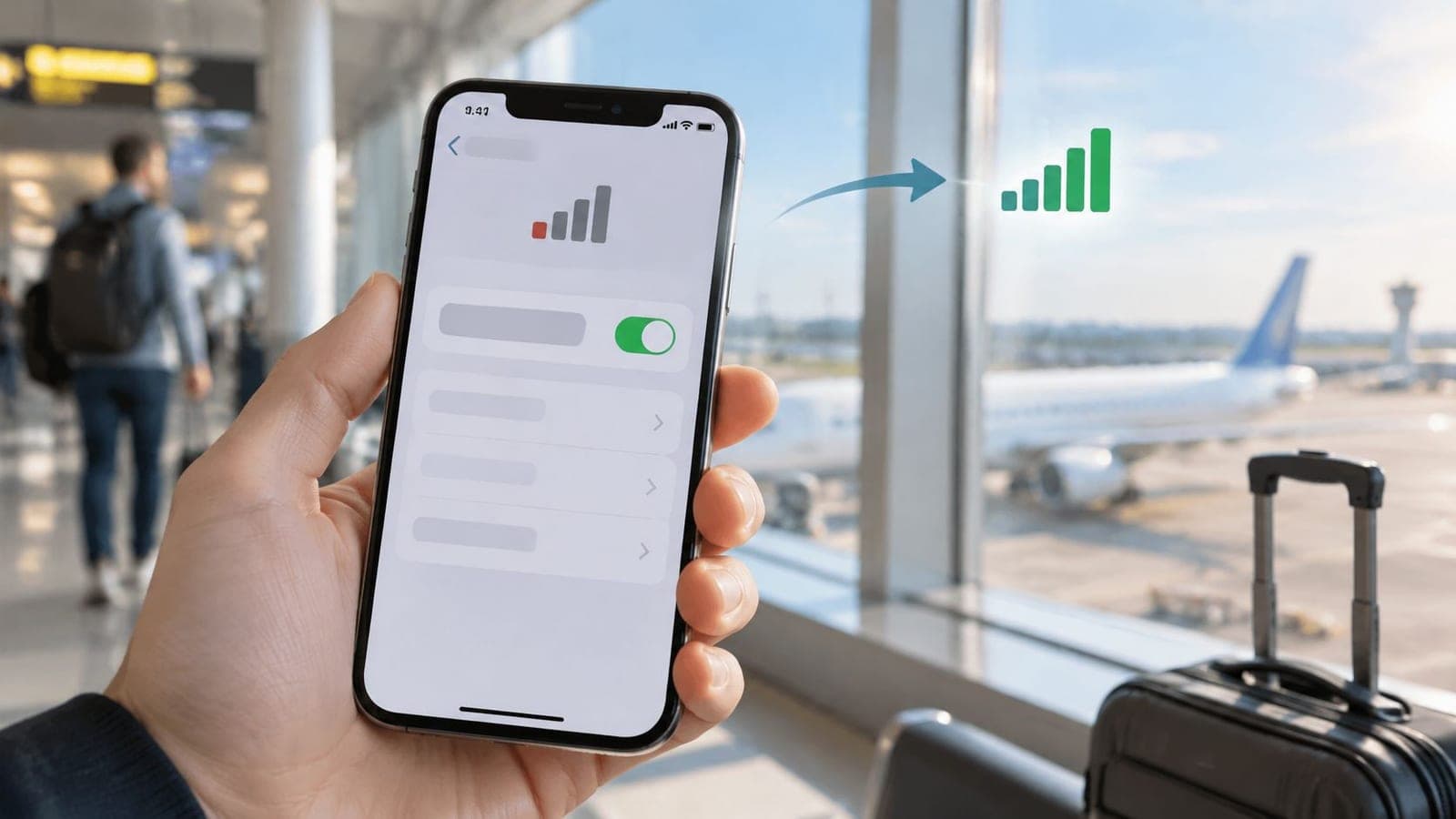
The plane has landed, the iPhone shows signal, and the map still won't load. A travel eSIM appears in Settings, the home number remains active, and restarting the phone hasn't changed anything.
That combination doesn't automatically mean poor coverage or a damaged antenna. With iPhone network issues, the safest starting point is the active line, the data selection and roaming permissions. Deleting an eSIM belongs near the end of troubleshooting, not the beginning.
Match Your Symptom to the Right Fix
| Symptom | Likely cause | First fix |
|---|---|---|
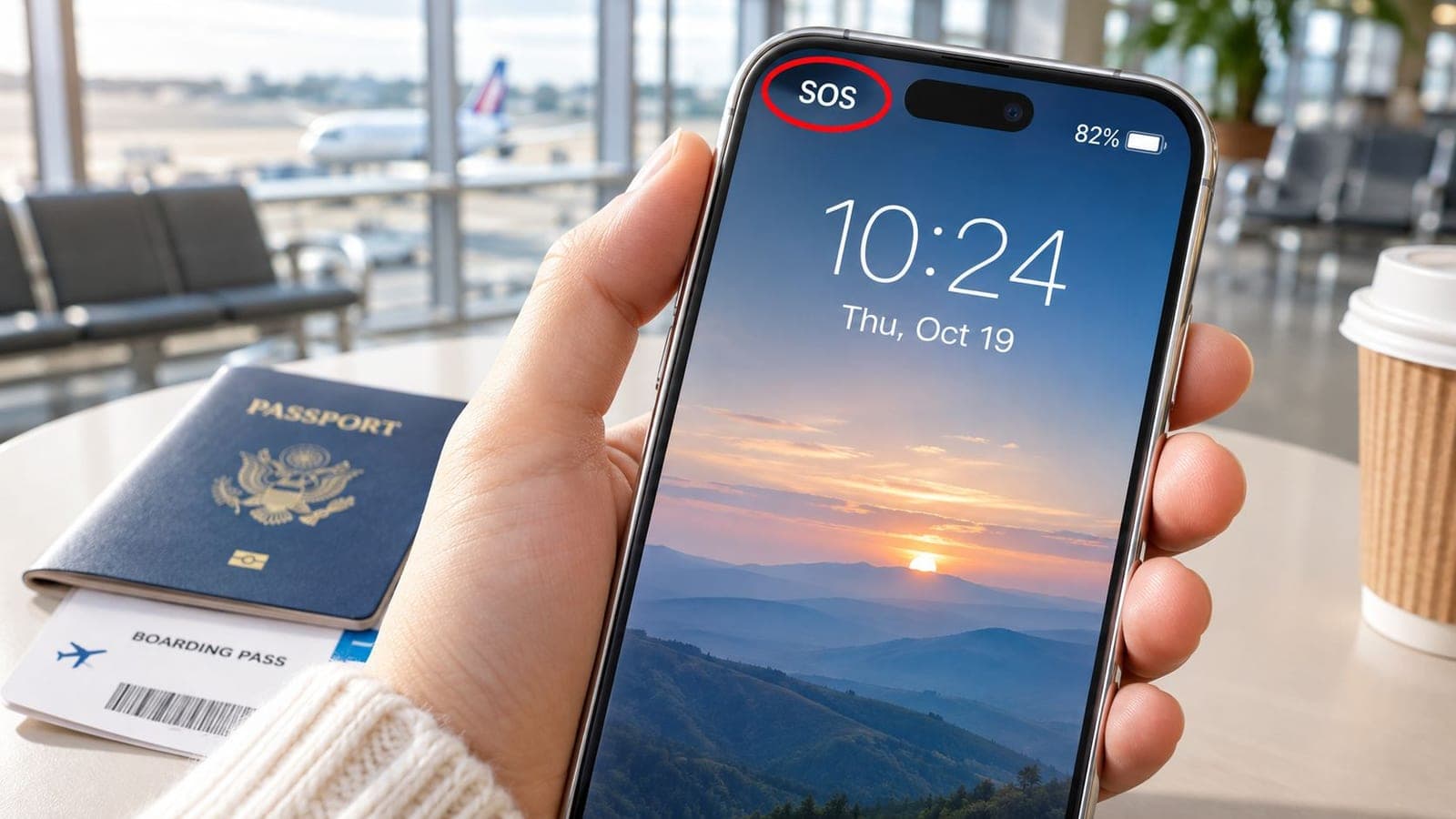
| No Service or SOS only | Coverage gap, line turned off or eSIM not activated | Check the line is on under Settings > Cellular, then toggle Airplane Mode |
| Bars show but no pages load | Cellular Data on the wrong line or Data Roaming off | Select the active line for Cellular Data and enable Data Roaming on it |
| Calls work but data fails abroad | Home line still set for data | Switch Cellular Data to the travel eSIM |
| Works in one place, fails in another | Congested cell or weak indoor coverage | Move near a window, test Wi-Fi Calling and check the carrier outage page |
| Only some apps fail | VPN or security app blocking traffic | Turn off the VPN or security app and retest |
| Started after an update or carrier change | Outdated carrier settings or an iOS software problem | Install any carrier-settings update, then consider a network reset if it persists |
| Works on Wi-Fi only | Cellular line or plan inactive | Check Settings > Cellular and the plan status with the carrier |
The opening row covers the common no-service situation: the phone can't establish normal service on its intended line. These rows are a starting map, not a diagnosis. An inactive account can resemble a coverage gap, while a working voice line can hide an incorrectly selected data line.
Why signal bars aren't enough
During the 2010 iPhone 4 reception controversy, Apple acknowledged that its signal display could show as many as two bars more than the actual signal warranted, according to CNN's coverage of Apple's antenna response. That historical display problem doesn't diagnose a modern iPhone, but it illustrates why bars shouldn't be treated as a complete connection test.
Bars estimate reception. They don't confirm that the selected plan permits internet access, that roaming is enabled or that an app can send traffic successfully.
Practical rule: SOS or No Service calls for a line-registration check first. Bars with no internet call for a data-routing check first.
For an arrival-specific failure, RedSim's no-signal-after-landing guidance provides a focused starting point. If cellular trouble accompanies charging, freezing or other unrelated faults, myhalo's guide to troubleshoot your iPhone problems can help separate those symptoms.
The ordered checks under “Run the Basic Fixes and Dual SIM Settings in Order” avoid unnecessary resets. Troubleshooting should stop when the original symptom clears and a fresh connection test succeeds.
Run the Basic Fixes and Dual SIM Settings in Order
The useful order starts with changes that are easy to undo. A reset shouldn't happen before the phone's selected line and account status have been checked.
Establish which line should connect
Read the cellular status before changing anything, because SOS, No Service or Searching suggests registration trouble, while visible reception with failed loading suggests a data-path problem. On a dual-SIM iPhone, Control Center can help identify which carrier belongs to each line. A screenshot preserves useful evidence if the status changes during testing.
Open Settings > Cellular, select the intended line and confirm Turn On This Line is enabled, because a disabled line can't register with a network. Some regional versions of iOS use Mobile Service or Mobile Data instead of Cellular. Labels such as Primary and Travel are user-assigned, so the plan details matter more than the label.
Set Settings > Cellular > Cellular Data to the intended plan, because keeping a line enabled doesn't automatically select it for internet traffic. With a home SIM and travel eSIM installed, the travel line should be explicitly selected. During diagnosis, turn off Allow Cellular Data Switching so the phone doesn't quietly use another line and obscure the result.
Confirm that activation has completed and the handset permits the intended carrier, because an installed profile isn't proof of a usable account. Under Settings > General > About, the Carrier Lock field indicates whether carrier restrictions remain. A carrier lock and a screen passcode are different things; changing the passcode won't restore cellular service.
These checks also prevent a misleading comparison: a phone can display reception for the home line while the travel line remains inactive. The relevant question is which line is carrying the attempted connection.
Refresh registration and carrier configuration
Toggle Airplane Mode to trigger fresh registration; Apple's cellular troubleshooting guide recommends leaving it on for at least 15 seconds before turning it off. Once disabled, allow the phone to reconnect and test again. Repeated toggling without checking the result adds confusion rather than useful evidence.
Connect to Wi-Fi and open Settings > General > About, because an available carrier-settings update can correct the configuration used to reach the network. Accept an update prompt if one appears. A normal restart is also reasonable at this stage, but it shouldn't substitute for checking the selected data line.
Check roaming separately on each line, because international data permission belongs to the selected plan. Under Settings > Cellular, select the travel line and open its Cellular Data Options or Data Roaming setting. The exact nesting can differ by iOS version and carrier.
Apple's international eSIM guidance explains the importance of selecting the travel line for cellular data and configuring it independently from the primary line. The home line can remain available for calls and texts with its Data Roaming disabled, although calls and texts can still incur carrier charges.
For RedSim installation instructions, the eSIM setup guide helps distinguish adding a profile from enabling it for use. A regional plan such as the Europe & UK eSIM is prepaid travel data, so its selection as the data line matters independently of the home number used for voice calls.
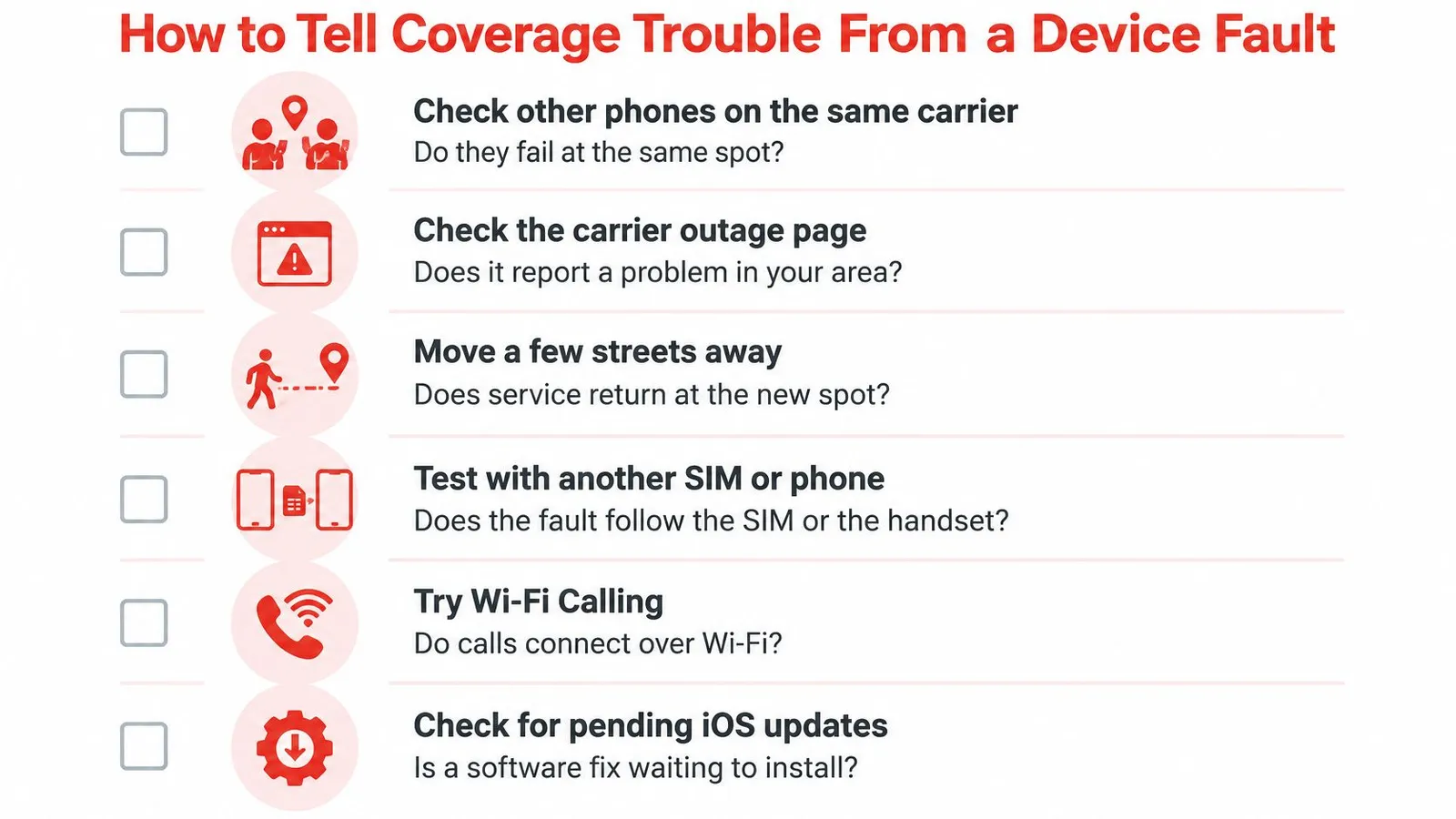
The checklist below helps keep network checks separate from handset checks.
Remove blockers and prove the result
Temporarily disable a VPN or third-party security app, because it may block traffic despite an apparently healthy cellular connection. A VPN sends traffic through another service before it reaches the internet. If disabling it restores access, the app or its configuration needs attention rather than the antenna.
Check account standing, remaining data, coverage, outages and device blocks, because a suspended or incorrectly configured account won't be repaired by changing phone settings. The carrier may need to correct provisioning, meaning the account configuration that authorizes the device and plan to connect.
A useful test changes one setting, then checks the original failure. Changing everything together makes the successful fix impossible to identify.
The final test is a fresh web page with Wi-Fi switched off, the intended line selected and home-line data excluded. A carrier name and a 4G or 5G indicator are encouraging, but the page actually loading is the evidence that data works. Before departure, this test can confirm home-line isolation; a destination-only travel plan may still need arrival coverage before it can connect.
How to Tell Coverage Trouble From a Device Fault
The early iPhone network problems weren't all handset defects: contemporary reporting on AT&T's congestion problems described heavy demand overwhelming local network capacity. The practical distinction remains useful: a functioning phone can lose reliable service when too many subscribers share the same local cell.
The strongest comparison is another phone using the same carrier in the same place. A companion's phone on a different network isn't a reliable control, because carriers have different nearby sites, indoor coverage and available capacity.
Compare the location before blaming the handset
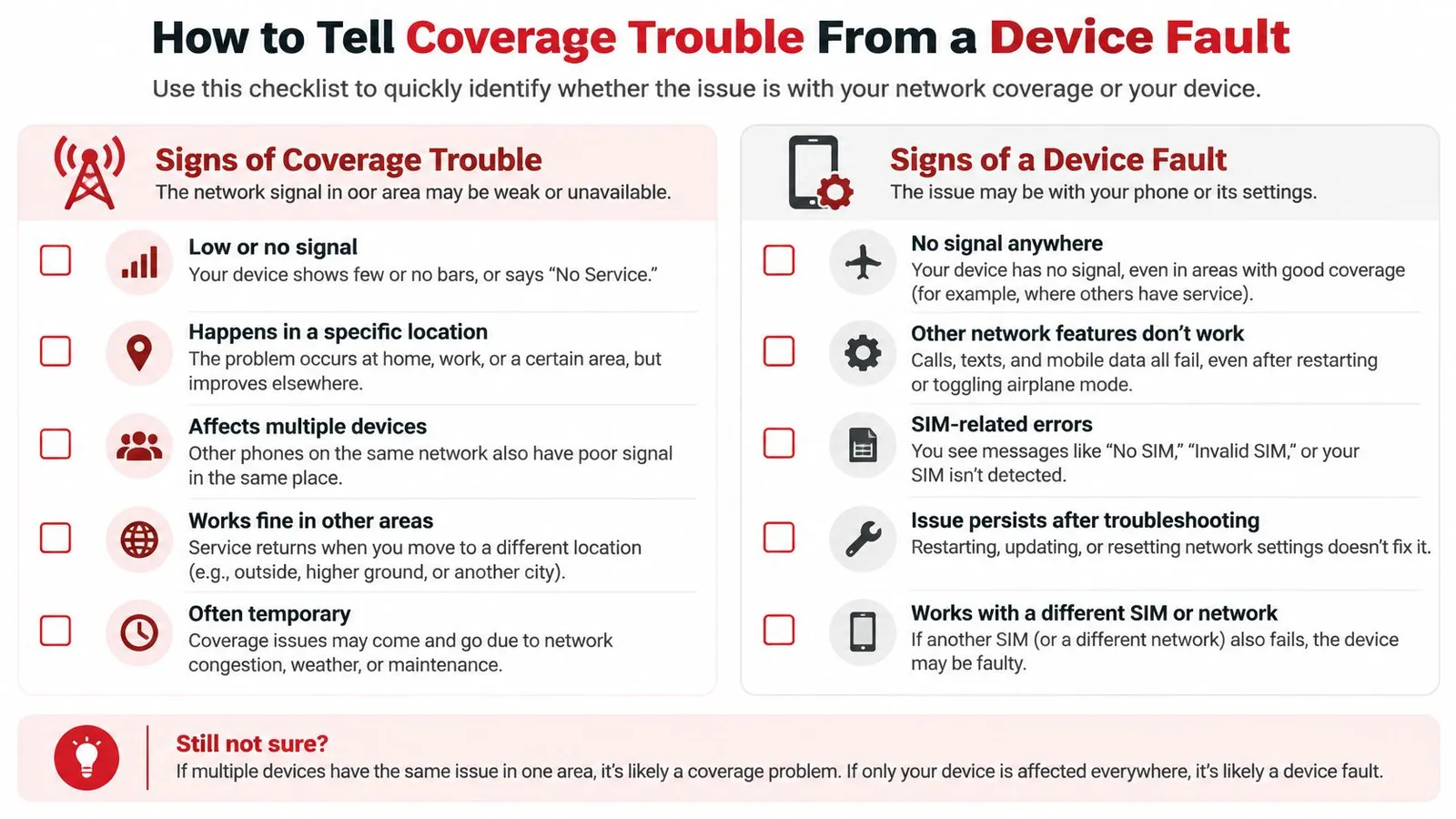
- Other phones also fail: A shared failure points toward an outage, weak coverage or congestion. The carrier's outage page can support that conclusion, although an unlisted local problem remains possible.
- Service returns outdoors: Moving near a window or outside helps identify building-related signal loss. Repeatedly failing inside but working outside doesn't, by itself, justify an antenna repair.
- Wi-Fi Calling succeeds: Calls working over a known-good Wi-Fi connection provide a temporary alternative when supported by the carrier. They don't prove the cellular radio is healthy.
- Only the affected phone fails everywhere: A line, account or device fault becomes more plausible. A supported test with another physical SIM or handset can help show whether the failure follows the account or the phone.
The comparison guide provides a quick way to record those differences.
Interpret the pattern
Say an unlocked iPhone loses data in a crowded airport terminal but reconnects after a short walk outside. That points toward local congestion or indoor coverage, not automatically failed hardware. Airports, stadiums, train stations and busy city centers can place substantial demand on a nearby cell.
A speed-test app can compare Wi-Fi and cellular performance, but the test consumes mobile data and doesn't identify the cause alone. Recording the location, time, carrier and whether calls also failed is more useful to support than an isolated screenshot of a slow result.
For indoor-only failures, Phone Repair Direct's guide to iPhone reception problems before booking repairs offers relevant checks. RedSim's iPhone compatibility guidance also helps rule out an unsuitable device before further travel-eSIM troubleshooting.
Network Reset and eSIM Recovery Without Losing Your Plan
Deleting an eSIM can turn a recoverable settings problem into a missing travel line. The phone may then need internet access and provider assistance to obtain another usable activation method.
The safe approach is to identify what remains installed before removing anything. Apple's cellular diagnostic guidance supports checking device information and using recovery options that distinguish network settings from stored data plans.
Identify the current eSIM state
- Visible profile, no data: The profile exists, so selection, roaming permission and account configuration remain the first suspects.
- Visible profile, SOS or No Service: The phone isn't registering normally on that line. Coverage, activation and carrier authorization need checking before removal.
- Missing profile or missing device information: Installation recovery or device diagnostics may be necessary. An absent profile and an absent EID aren't the same problem.
Under Settings > General > About, the EID identifies the eSIM chip, while Modem Firmware identifies software used by the cellular modem. Unexpectedly blank fields warrant attention, but they aren't a complete hardware diagnosis.
Recovery actions from least to most risky
| Action | What it resets | Keeps eSIM or plan | Use when |
|---|---|---|---|
| Toggle Airplane Mode | Radio connection only | Yes | First step for any symptom |
| Update carrier settings | Carrier configuration | Yes | An update prompt appears or data fails after a carrier change |
| Reset network settings | Wi-Fi passwords, cellular, VPN and network settings | Yes, eSIM stays installed | No data after the steps above |
| Remove and re-add eSIM | eSIM profile | Only with a new QR code or carrier re-issue | Confirmed provisioning failure or carrier instruction |
| Erase all content and settings | Device content and settings | Plan may survive if the keep-eSIM option is selected; back up first | Last resort after a backup and carrier confirmation |
The network-reset path is Settings > General > Transfer or Reset iPhone > Reset > Reset Network Settings. This clears saved network configuration without deleting the installed eSIM, but saved Wi-Fi passwords will need entering again. Managed work or school phones should be checked with the administrator before resetting.
Before deleting any profile, check Settings > General > Software Update for a pending fix. A failure that follows an update doesn't establish that the eSIM itself is damaged.
Keep the recovery route available: An old QR code may not be reusable. Removal should wait until the provider confirms how the replacement will be activated.
RedSim's eSIM management guidance is relevant when checking installed profiles and activation details. A full erase requires a backup, preserved activation information and careful attention to any keep-eSIM option. eSIM deletion belongs after confirmed provisioning failure or explicit carrier instruction, not as a routine experiment.
Decide When to Call Your Carrier, Apple or RedSim
Support is most useful when the request matches the failure. A carrier can correct account authorization; Apple can investigate the handset; an eSIM provider can handle its own activation profile.
Choose the right support route
- If service fails across several locations: Contact the carrier for account, activation and provisioning checks. A suspended account or device block belongs with the carrier too.
- If an outage is confirmed: Wait for restoration or use another available connection. A reset won't repair the carrier's network.
- If the eSIM profile is missing: Request recovery or re-issue from the carrier or eSIM provider rather than repeatedly scanning an old code.
- If device fields remain abnormal after carrier checks: Contact Apple for diagnostics. Failure across unrelated networks, especially with separate Wi-Fi problems, warrants device investigation rather than another plan purchase.
A support request should include the phone model, iOS version, line status, locations affected and completed tests. For a RedSim line, confirm it's enabled and selected for data before using RedSim support.
RedSim requires Data Roaming on its eSIM line to reach the local network; that setting isn't an extra charge and doesn't affect the home SIM. RedSim eSIMs are fully refundable if not installed or activated; once connected they can't be refunded, but an eSIM that never connects is always covered.
The next action is the home-line data-isolation test before departure, with QR codes and activation details saved somewhere accessible.
RedSim offers travel eSIM data with digital installation and support for setup problems. Travelers arranging mobile data can visit RedSim, check device compatibility and keep the activation details available before leaving.
 Switzerland