
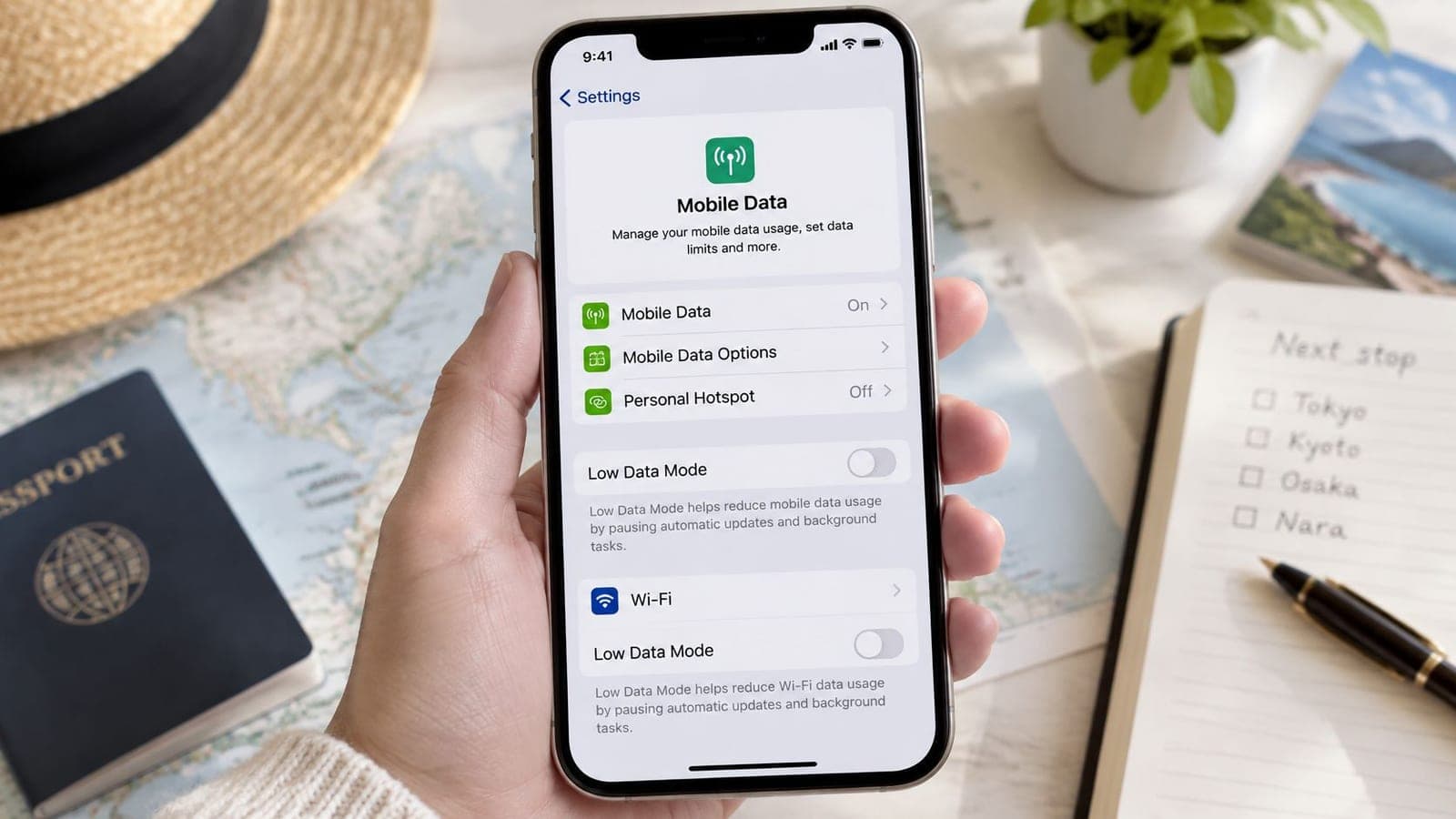
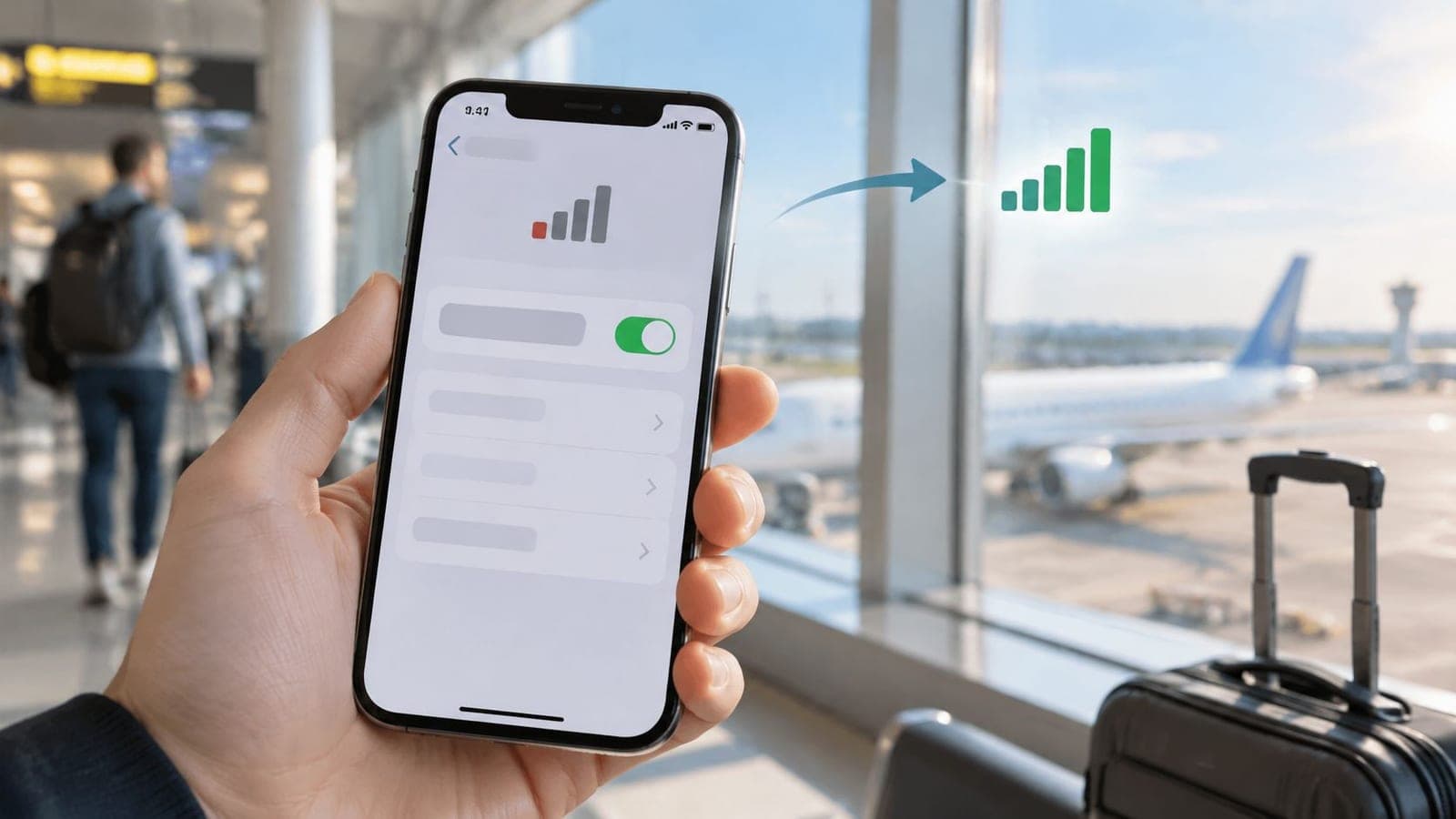
Open Settings, tap Cellular, tap the active line, tap Cellular Data Options, then switch Low Data Mode off. On a 5G line, open Data Mode and choose Standard instead.
That path fails for many people for one blunt reason. The wrong line or network gets changed. Photos still won't sync, app updates stay paused, and a travel eSIM looks broken even though signal bars look fine. The Low Data Mode iPhone turn off fix isn't finding a hidden master toggle. It's finding the switch attached to the connection that's carrying traffic right now.
Where the Low Data Mode Switch Lives
There's no single master switch for Low Data Mode. The Apple support page for Low Data Mode states that Apple introduced Low Data Mode with iOS 13, released in 2019, and designed it to work independently on cellular connections and individual Wi-Fi networks. That page also notes that iCloud can keep Low Data Mode preferences synchronized for each Wi-Fi network across devices.
The feature restricts background network activity, including automatic downloads and backups, and it can prevent apps from using data when they're not actively in use. Turning it off restores that background work, but data use can rise on a limited plan.
Switch Location by Connection Type
| Connection | Settings path | Setting to choose |
|---|---|---|
| LTE or 4G cellular line | Settings > Cellular > [line] > Cellular Data Options | Low Data Mode off |
| 5G cellular line | Settings > Cellular > [line] > Cellular Data Options > Data Mode | Standard or another option that is not Low Data Mode |
| Specific Wi-Fi network | Settings > Wi-Fi > tap the information button (i) beside the network | Low Data Mode off |
| Dual SIM or eSIM line | Settings > Cellular > tap the specific number first | Set on that line only |
Menu names shift a little. Some regions show Mobile Data instead of Cellular. Some 5G plans don't show a plain Low Data Mode toggle at all, because the control sits inside Data Mode. Neither difference means the setting is missing. It means the path depends on region, plan type, and line type.
First check: Confirm which line is set for cellular data before changing any switch.
That check prevents the most wasted taps. Turning the feature off on home Wi-Fi does nothing to a travel eSIM. Changing a personal SIM does nothing when a work line carries data. Before changing lines on a trip, the iPhone eSIM compatibility list confirms whether the handset supports eSIM at all. Once the active connection is clear, the cellular and Wi-Fi steps below are straightforward.
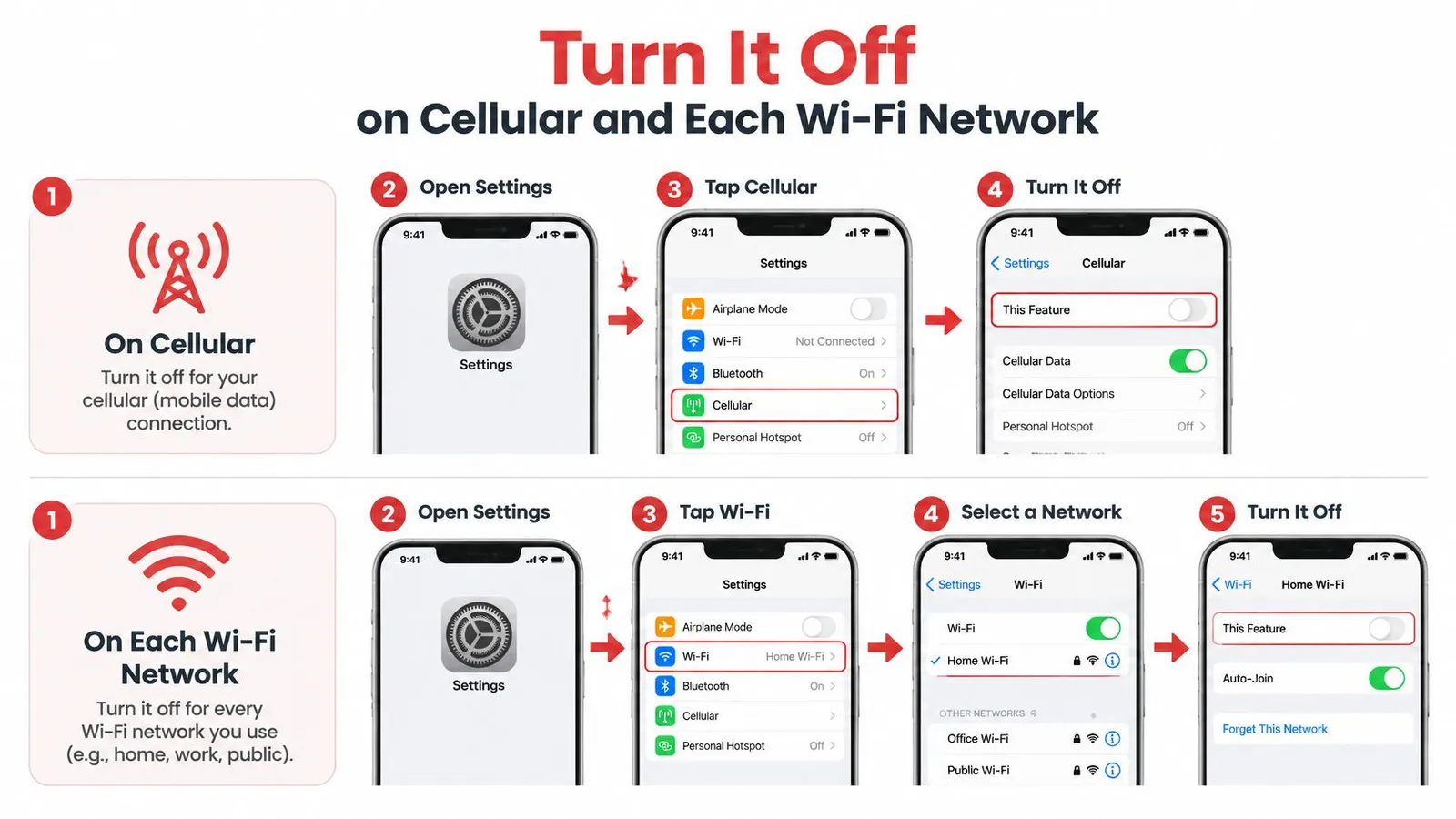
Turn It Off on Cellular and Each Wi-Fi Network
A cellular setting changed on the wrong line will not fix the connection you are using. On a Dual SIM iPhone, Low Data Mode is set per line. The Apple support guide for turning Low Data Mode off shows the cellular and Wi-Fi controls separately, so check the active connection before changing a switch.
Cellular Steps for LTE, 4G, and 5G
- Open Settings. The Low Data Mode control is not in Control Center or inside an individual app.
- Tap Cellular, or Mobile Data in some regions. These labels lead to the same settings area. Continue past the data usage summary.
- Tap the specific number or line. On a Dual SIM iPhone, choose the travel eSIM if it carries cellular data. Choosing your home SIM changes that line instead.
- Tap Cellular Data Options. The selected line's data settings are here, including roaming and data mode choices.
- On LTE or 4G, switch Low Data Mode off. Leave the toggle grey to allow normal background network activity on that line.
- On 5G, tap Data Mode and choose Standard or Allow More Data on 5G, if shown. Any option other than Low Data Mode removes that restriction. Standard is the cautious choice on a fixed allowance because it restores normal behavior without selecting the higher-data option.
- Return to the same screen and check the setting again. Confirm that Low Data Mode remains off on the line carrying data.
The line choice is the easy part to miss. If your eSIM carries data, changing the setting on your main SIM will not change the eSIM. A cellular adjustment also does not turn off Low Data Mode for Wi-Fi. Treat each connection separately.
If you are setting up a travel eSIM, follow the eSIM setup steps as well as checking its data settings. RedSim's Global eSIM is listed at $6.15. On a limited data allowance, leaving Low Data Mode off can allow more background activity, so choose the setting with your plan in mind.
Wi-Fi Steps for Each Saved Network
- Open Settings. Control Center does not show the per-network Low Data Mode switch.
- Tap Wi-Fi. The connected network appears near the top with a checkmark.
- Tap the information button (i) beside that network. This opens settings for that network, not a general Wi-Fi preference.
- Switch Low Data Mode off. The change applies to the selected network.
- Repeat for other networks you use. Home, office, and hotel Wi-Fi each have their own preference. iCloud can sync Wi-Fi preferences across Apple devices, so a change on an iPad may also appear on an iPhone.
For example, if photo syncing is paused on hotel Wi-Fi while cellular works normally, change the hotel network's setting. Changing cellular or home Wi-Fi will not affect it. The same applies at home: a restricted Wi-Fi network can hold back backups even when the cellular line is unrestricted.
If the menu labels differ, open Settings > General > About to check the iOS version, then update if needed.
After changing the setting, return to its screen and confirm it remains off. A switch that stays off on one connection does not prove it is off on another. If the correct switch is off but a problem continues, check that you selected the active line or network, then consider whether an app has its own data restriction.
What Changes When Low Data Mode Is Off
Turning Low Data Mode off restores activity that iOS had limited on that specific connection. Automatic downloads can resume, apps can sync in the background, and photos and web images can load at full quality. The trade-off depends on whether the active connection is Wi-Fi or cellular, and on the data allowance available on that line. For slow connections, check common causes of slow data speeds before assuming Low Data Mode is responsible. Coverage and congestion can still limit performance.
Behaviour With Low Data Mode On Versus Off
| Behaviour | Low Data Mode on | Low Data Mode off |
|---|---|---|
| Automatic downloads | Held back | Allowed |
| Background app activity and syncing | Restricted | Restored |
| iCloud and device backups | Held back | Allowed |
| Photos and web images | Reduced quality | Full quality |
| Data used on a fixed travel plan | Lower | Can rise quickly |
The changes are easiest to notice in the background. App updates and media downloads no longer wait for an unrestricted connection. Mail, messaging attachments, and cloud files can refresh without opening each app, and iCloud backups can run over that connection again. Images appear at full quality rather than reduced resolution.
The phone may feel busier, not faster. Apps refresh while you are doing something else, and pages or video previews may use more data. More background work can also increase battery use. These are expected effects of removing the restriction.
On a travel plan with a fixed allowance, that background activity has a real cost. A few hours of syncing or a large app update can consume a substantial share of a 1 GB plan. Keep the restriction off on a line only when you are comfortable with that trade-off. If you use Wi-Fi Calling while changing data settings, you can also adjust iPhone Wi-Fi Calling settings.
Use the table to decide for each connection, rather than treating Low Data Mode as one switch for the whole iPhone. If the restored activity is useful and the allowance can cover it, leave it off on that line or network. If data use matters more, turn it back on there.
Fixing a Switch That Won't Stay Off
Use a fixed sequence when Low Data Mode seems to return: check the connection carrying the traffic, verify the app's own settings, then test again. The setting is saved per connection, so changing the wrong line or Wi-Fi network leaves the active connection unchanged. Apple's WWDC 2019 session on Low Data Mode explains that the preference is set per Wi-Fi network, identified by its SSID, and per cellular network, identified by the SIM. Low Data Mode manages data use through the operating system and apps. It does not set network speed.
The Working Sequence
- Identify the active connection. If cellular data is in use, select the line carrying it. If the phone is on Wi-Fi, check that specific network.
- Open the relevant setting. For cellular, go to Settings > Cellular > Cellular Data Options or Data Mode. The available label depends on the line and its network options.
- Turn Low Data Mode off. Reopen the setting and confirm it remains off.
- Test the connection. If the problem appears only on Wi-Fi, open Settings > Wi-Fi, tap the network's (i) button, and check its Low Data Mode setting.
Change one setting at a time. Then retry the same download or sync. This shows whether the affected connection was the cause, instead of leaving several changed settings to untangle.
The App-Level Exception
An app can still restrict its own downloads after Low Data Mode is off. Apple's developer documentation describes allowsConstrainedNetworkAccess for URLSession requests and configurations. Apps may use networks marked with Low Data Mode by default, but developers can configure resource-intensive requests to behave differently. Turning the system setting off allows apps to handle data without that system restriction, but it does not override every app-level choice.
If only one app will not refresh or download, check Settings > General > Background App Refresh and make sure refresh is enabled for it. Also check the app's own download or sync settings. Those controls can hold back activity independently of Low Data Mode.
Roaming check: An eSIM line abroad may need data roaming enabled on that line to connect.
When nothing loads, roaming can be mistaken for a Low Data Mode problem. Use the no signal after landing troubleshooting steps if an eSIM has no service after arrival. If the Low Data Mode switch is missing or greyed out, check whether a carrier or device-management setting controls it. Updating iOS may also help if the device is running an older version. If the switch stays unavailable, contact the carrier or device administrator.
Symptoms, Likely Causes and Fixes
| Symptom | Likely cause | Fix |
|---|---|---|
| Switch is off but the eSIM still feels slow | The active line or Wi-Fi network has a separate setting | Check the connection carrying data and turn Low Data Mode off there |
| Setting appears on for one Wi-Fi network | That network has its own saved preference, possibly synced through iCloud | Open the network's (i) screen and check its setting |
| eSIM plan shows data but nothing loads | Data roaming is off on the eSIM line | Turn on data roaming for that line only |
| Switch is missing or greyed out | Carrier or device-management control, or an older iOS version | Update iOS, then contact the carrier or device administrator if needed |
| Downloads are still held back in one app | App-level behavior or Background App Refresh is off | Check the app under Settings > General > Background App Refresh and review its own settings |
Match the symptom to one row, change that setting, and test again before moving to another. This keeps the fix clear and helps identify whether the limit comes from the connection, the app, or the line's ability to connect.
Decide When to Keep Low Data Mode On
Choose Low Data Mode separately for each cellular line and Wi-Fi network. The right setting depends on what that connection needs to do.
- Keep it on for a limited data allowance. It restricts background activity and helps preserve data for tasks you choose.
- Keep it on when roaming charges depend on usage. Restricting background transfers can help avoid unwanted cellular use.
- Keep it on when several devices share a hotspot. The phone's data allowance is shared, so consider which devices need updates or downloads.
- Turn it off on unlimited home Wi-Fi. Backups and downloads can run without conserving a capped connection.
- Turn it off when a connection needs to complete downloads promptly. Check that you are changing the setting for the line or network those downloads use.
- On a trip, choose based on the plan allowance. Keep it on when conserving data matters; turn it off when you need unrestricted background activity.
For example, with a 1 GB travel eSIM, keep Low Data Mode on for that cellular line if you want to reserve data for maps and messages. The guide to what one gigabyte gets you can help put that allowance in context. Before departure, use this guide to choosing the right data plan to compare plan size with your expected use.
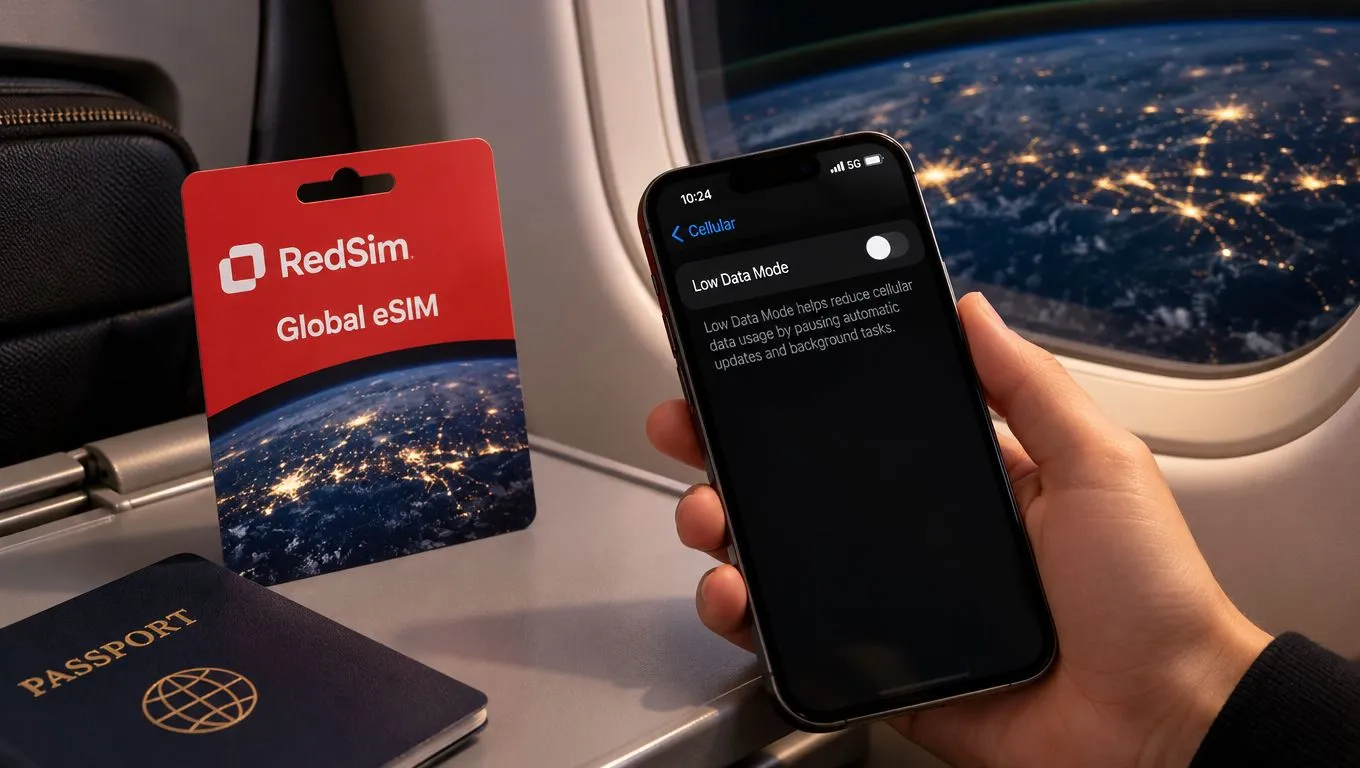
RedSim is data-only and runs alongside your normal SIM, so your home number stays active while apps use the eSIM's data. When you arrive, select the eSIM line for cellular data and turn on data roaming for that line. Set Low Data Mode on the eSIM itself, not on your home line, or the connection you intended to manage may be unchanged.
Here is a practical choice: keep Low Data Mode on for a small travel allowance while using maps and messaging, then turn it off on unlimited home Wi-Fi when you return. The setting belongs to each connection, so check the active line before changing it.
 Switzerland