
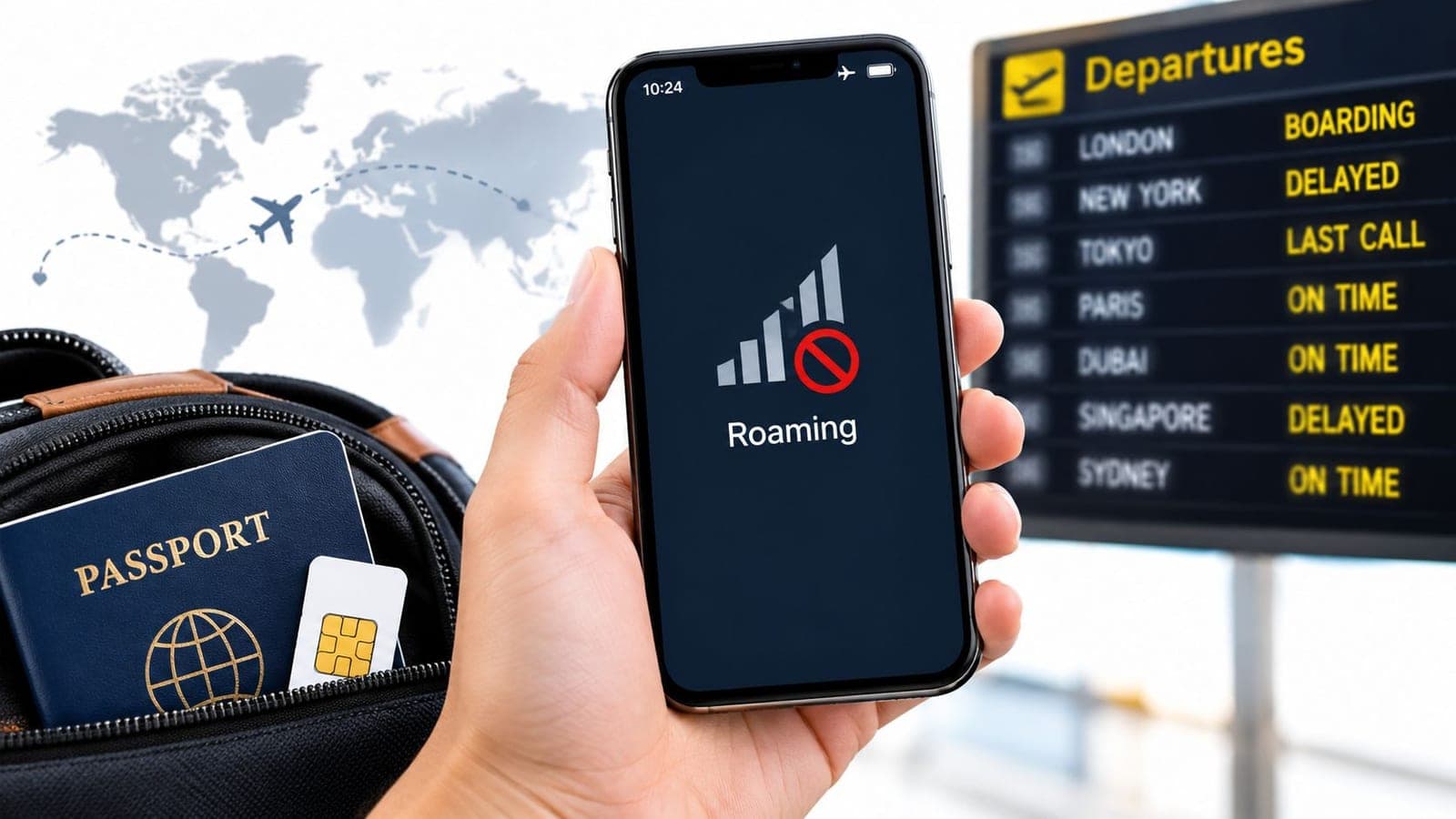
You've just landed, opened Maps, and watched it spin. The phone may say No Service, show an emergency-only indicator, or display full bars while every app fails to load. Those symptoms look similar, but they point to different problems.
Start by separating no service from the wrong data line. No service means the phone hasn't connected to a usable mobile network. The wrong data line means it may have a connection, but internet traffic is assigned to a different SIM or eSIM than the one with working data. That distinction saves time: a coverage problem won't be fixed by changing an APN, and a mistaken data-line choice doesn't require hunting for a better signal.
Work from simple settings toward deeper network configuration. Check the active line, mobile data, roaming, and plan status first. Only then move on to network selection or APN settings. If you're travelling with an eSIM, confirm it's activated and using a permitted local partner network before resetting anything.
The Moment You Realize Your Data Is Gone
Wi-Fi problems usually stay in one place. Cellular problems follow you outside the hotel, across the airport, and into the street, where a map or a ride app may be the thing you need most. That urgency makes it tempting to restart the phone immediately. Resist the urge for a moment and read the status bar.
If it says No Service or Searching, the phone may not be connected to a network at all. Coverage isn't universal: GSMA reported that in 2024, around 300 million people, or 4% of the world's population, remained outside mobile internet coverage, while 4G covered about 93% of the global population and 5G about 54% in the reported period (GSMA's coverage-gap figures). Even in a covered area, buildings, underground spaces, terrain, congestion, and network compatibility can affect reception.
Full bars with no internet call for a different first check. The phone might be connected for voice service but sending data through an inactive SIM, a line with roaming disabled, or a plan without remaining allowance. Calls or texts working while web pages fail can be a clue that the data line, not the signal, is the problem.
First diagnosis: No bars or “No Service” points toward connection or coverage. Bars with no data point first toward the selected line, roaming, plan, or network configuration.
The order matters. Check quick settings before changing advanced network details; confirm the intended SIM before blaming an outage; and leave APNs and network resets until the simpler causes are ruled out.
Quick Settings Checks to Run First
Start with the settings that can stop cellular data even when the phone has no hardware problem. Check Airplane Mode, confirm the intended cellular line is on, and make sure mobile data is enabled. These are among Apple's cellular troubleshooting steps.
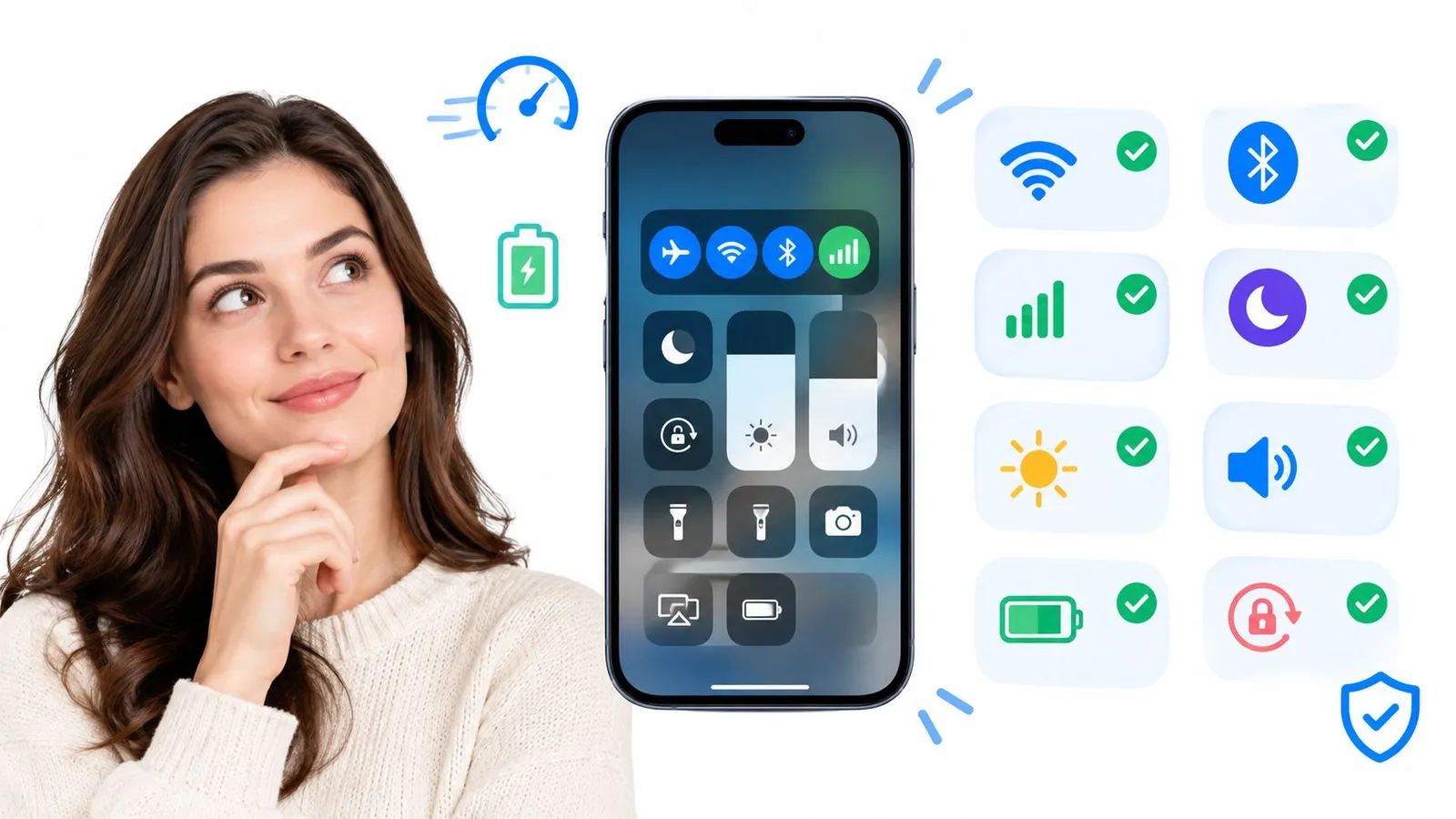
Run these checks in order before changing APN settings:
- Refresh the connection. Turn Airplane Mode on, wait at least 15 seconds, then turn it off. This prompts the phone to reconnect.
- Confirm mobile data is on. On iPhone, open Settings → Cellular. On Android, open Settings → Connections or Network & Internet. Turn on Mobile Data if it's off. Menu names vary by manufacturer.
- Check roaming for the data line. On iPhone, go to Settings → Cellular → Cellular Data Options. On Android, search Settings for Data Roaming or open the mobile network settings. A travel eSIM may need roaming enabled. Check your home plan before turning roaming on for your home line.
- Verify the plan. Check the carrier or eSIM provider's app to confirm the plan is active and has data remaining. Signal alone won't restore an expired plan or used-up allowance.
For travel, check which line the roaming switch belongs to. Dual-SIM phones keep roaming settings separate for each line, so changing the home SIM's setting won't enable roaming on a travel eSIM. If these checks don't restore data, confirm which line is selected for mobile data before changing advanced network settings.
Why Your Phone Shows Bars but Nothing Loads
Signal bars show that the phone has radio contact with a network. They don't confirm that the phone has permission and configuration to pass internet traffic through it. A usable data connection depends on a chain: the intended SIM must be selected, its data service must be enabled, roaming must be allowed when required, and the phone must attach to a network that supports the plan.
A failure at any link can leave the bars in place. For example, the phone may be attached to a local network for calls but have mobile data assigned to a home SIM that can't roam there. Or the travel eSIM may be selected, but its roaming setting is off or its plan is no longer active. On a dual-SIM phone, calls and texts can still use the primary number while data is assigned to a second line.
The travel-roaming distinction is easy to get wrong. A travel eSIM may need data roaming enabled to use a local partner network. That doesn't mean the home SIM's roaming should also be turned on. Check the setting for the eSIM that's meant to carry data, and leave the home line's roaming disabled if that's what the home plan requires.
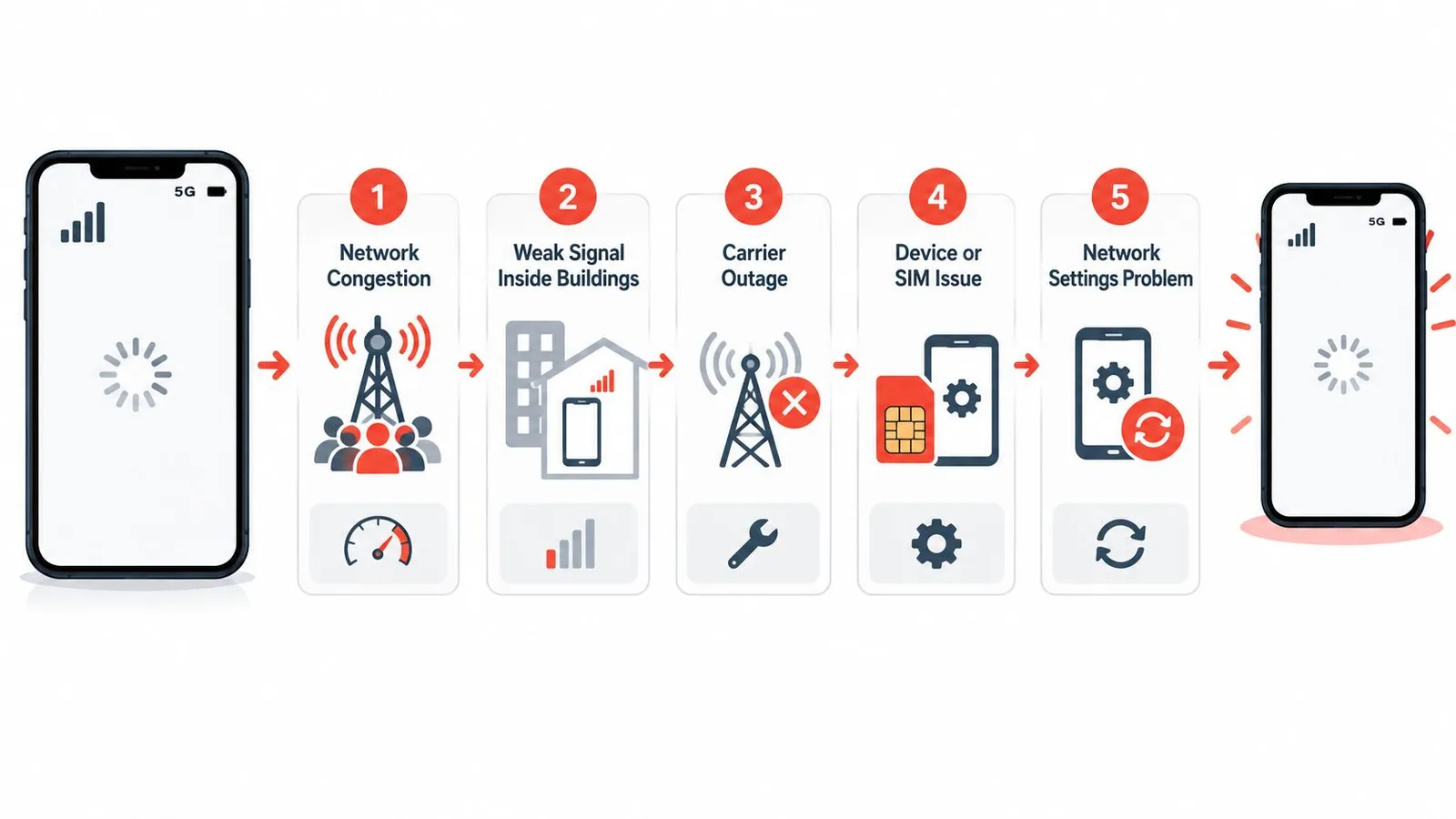
If the phone shows bars but pages don't load, check the selected line and that line's roaming permission before resetting the network. If the display says No Service, move to a more open spot and let the phone reconnect before changing data settings. Travellers who've just arrived can use this no-signal-after-landing troubleshooting guide to check whether the issue is connection, line selection, or setup.
Dual-SIM and eSIM Traps That Look Like Network Outages
Two active lines can make the phone look connected while data goes nowhere. The fix is to confirm which SIM is assigned to mobile data, not merely whether both lines appear in the settings.
On iPhone, open Settings → Cellular → Cellular Data and select the line meant to provide internet. While testing, turn off Allow Cellular Data Switching so the phone does not move data to the other line. On Android, open the SIM or network settings and select the preferred SIM for mobile data; the exact labels differ by device.
This is particularly important when a travel eSIM sits alongside a home SIM. A traveller may keep calls and texts on the home number for banking codes while using the eSIM for internet. If the phone assigns data to the home SIM, the eSIM can be installed and active yet never carry traffic. Confirm the travel eSIM is selected for data, then check its roaming and plan status.
Keep the test controlled: Choose one data line and disable automatic switching temporarily. That makes it clear which SIM is supposed to carry internet while troubleshooting.
Don't delete a working line just because data is missing. First confirm the eSIM is present and enabled, then check its selected-data status. If you need help identifying or managing the installed profiles, use RedSim's eSIM management instructions.
When a phone can call or receive texts but can't load a page, don't assume the mobile network is down. Check the selected data SIM first. The phone may be doing exactly what its settings tell it to do, just not what the traveller intended.
APN and Network Selection Without Making It Worse
APN settings tell the phone how to reach an operator's packet-data gateway. Incorrect settings can leave a phone registered on a network but unable to use mobile internet. That's why guessing an APN from a search result is a poor first move.
On many Android phones, open Settings → Connections or Mobile Networks → Access Point Names. Select the profile attached to the SIM or eSIM that should carry data, then reset it to the operator-provided defaults. If the provider gives specific APN values and the reset doesn't work, enter only those values. For an eSIM, check the settings for the eSIM profile itself, not the physical SIM.
On iPhone, APN controls may not be visible or editable, depending on the carrier. Don't assume the absence of an APN menu means the phone needs a manually added profile. Check the carrier or eSIM provider's setup instructions instead. Samsung also provides steps to check or reset APN settings.
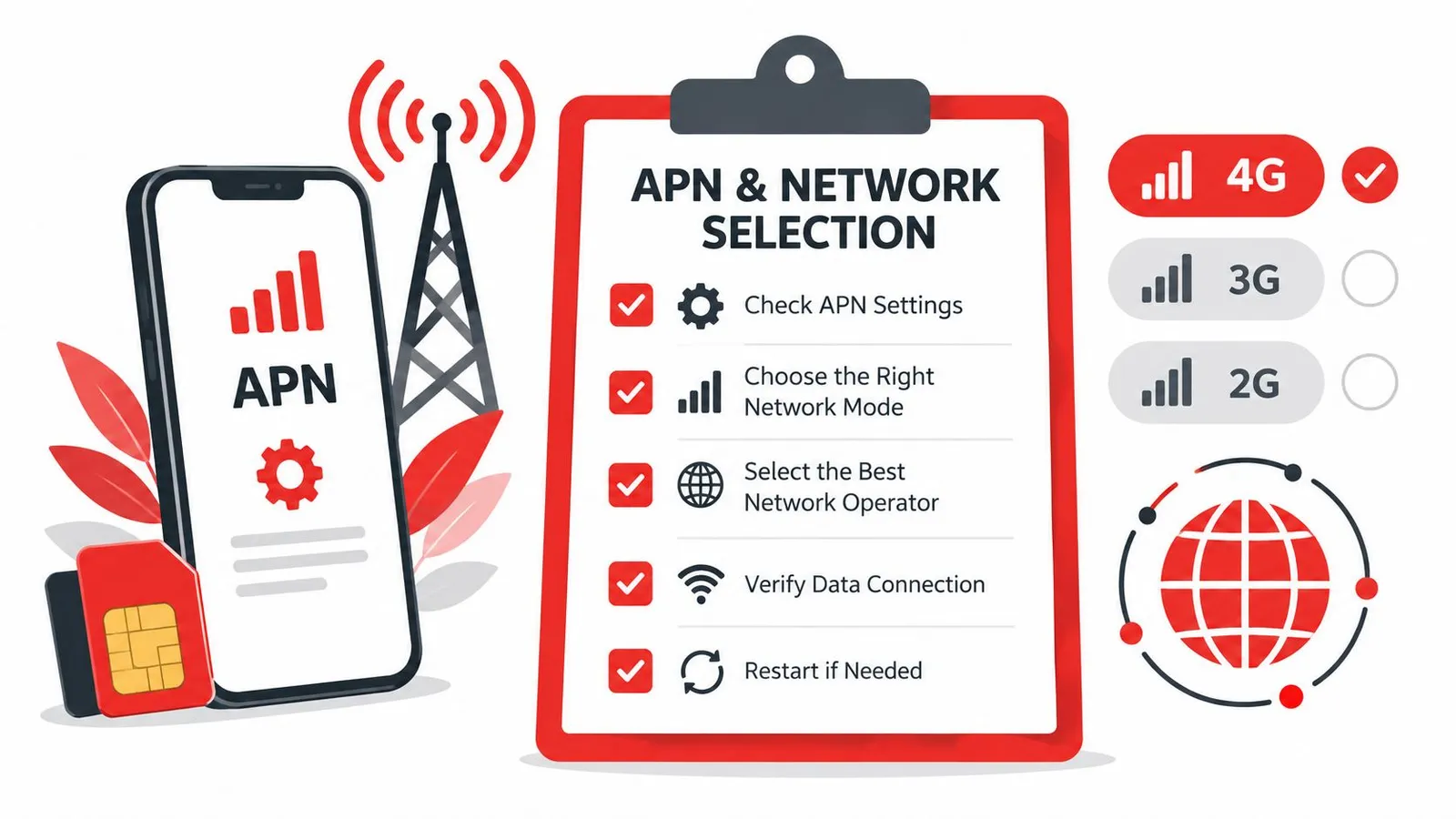
If default APNs don't restore data, test network selection before resetting all network settings. Temporarily switch off automatic selection, scan for available operators, and try a permitted partner network. Return the phone to automatic selection after the test if manual selection doesn't help.
Never copy APN details from another country, carrier, or phone model. Fields such as MCC/MNC, authentication, and APN type can differ, and an incorrect profile can allow network registration without usable internet. Before a full network reset, record any APN values you were given and note saved Wi-Fi details. For slow or unstable service, follow RedSim's guide to troubleshooting slow data speeds.
RedSim eSIM Checks Before You Contact Support
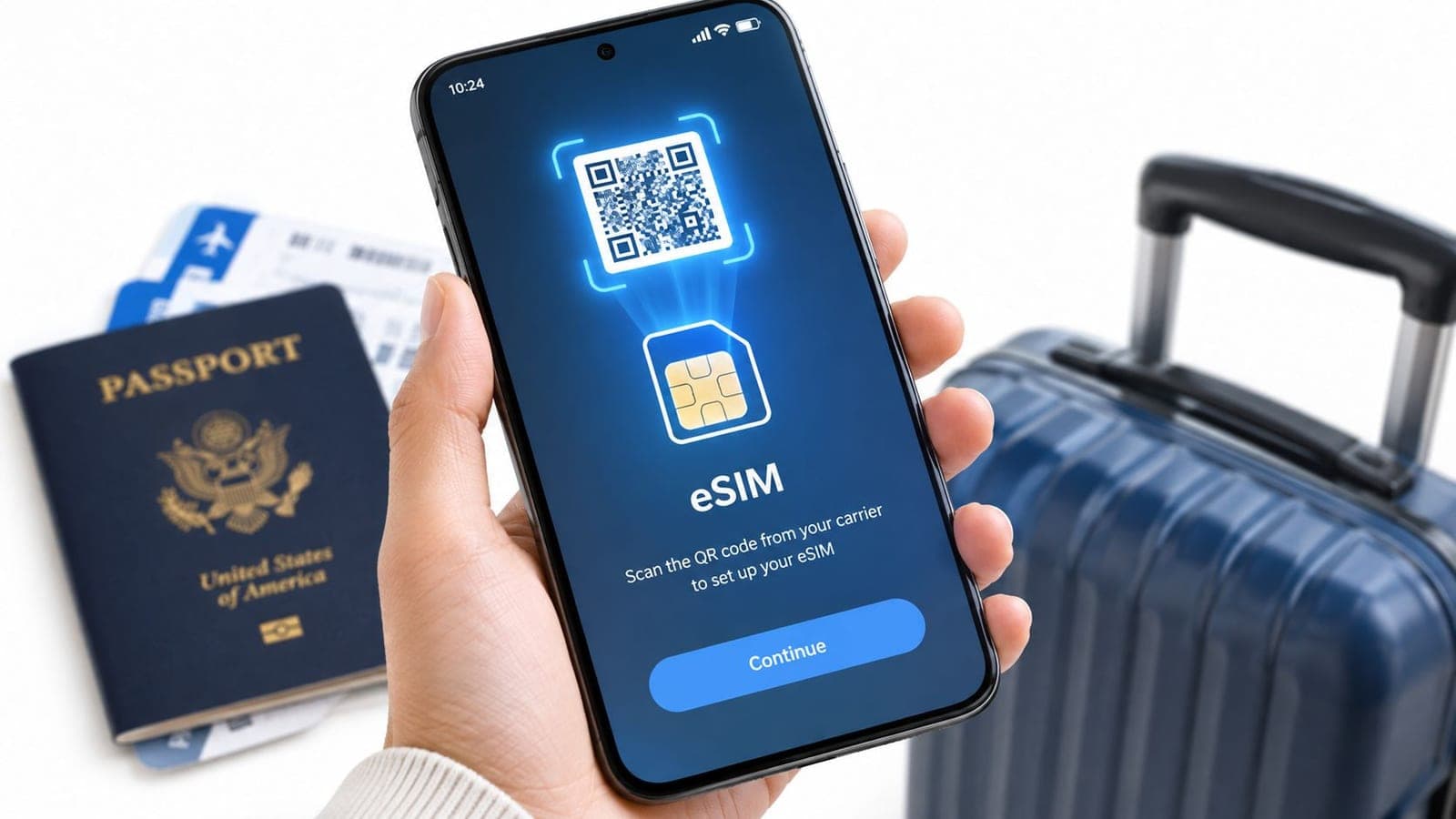
Suppose a traveller lands, sees signal bars, and opens Maps, but nothing loads. The eSIM appears in the phone, so it seems ready. The useful next move isn't reinstalling it on instinct. Confirm the profile is installed, active, selected for data, and allowed to roam.
Start in the RedSim app. Check that the eSIM and plan show the expected activation status and remaining data. Confirm the phone is using that eSIM for mobile data, and check that data roaming is enabled on the eSIM line. If the plan has no allowance left, a top-up on an active eSIM can restore data without issuing a new QR code.

Check installation against the RedSim setup instructions. If the eSIM wasn't installed from the app or the supplied QR code, compare the profile on the device with those instructions before removing anything. Reinstalling can complicate diagnosis, especially when the profile is already present and the actual issue is line selection or partner-network access.
When those checks don't resolve the problem, contact support with a clear diagnostic snapshot. Include the device model, operating-system version, country and city, the network name or status shown on the phone, which line is selected for data, whether roaming is enabled on that line, the plan's activation and data status, and the checks already tried. If available, include the eSIM or order reference. That information helps support distinguish a profile issue from a coverage or network-selection problem.
When and How to Reach RedSim Support Fast
You're in a city where the plan should work, but your phone shows No Service, or the eSIM appears active and still cannot connect to a usable partner network. Contact support once you've confirmed the relevant settings. Repeating resets without a new diagnosis can erase useful configuration details without resolving the cause.
RedSim offers 24/7 human support via WhatsApp, with typical reply times of around two minutes, for eSIM configuration and coverage questions during travel. For RedSim's WhatsApp support and contact options, send a concise report rather than only saying “data doesn't work.” Include:
- eSIM or order reference: Use the identifier shown in the app or purchase details.
- Phone details: Name the device model and its iOS or Android version.
- Location: Give the country and city where the issue is happening.
- Network status: Say whether the phone shows bars, No Service, Searching, or a network name.
- Line settings: Identify the SIM or eSIM selected for data and whether roaming is enabled on that line.
- Tests already completed: Note whether you toggled Airplane Mode, checked the plan and allowance, reset APNs, or tried manual network selection.
If you're still troubleshooting, follow this order to avoid losing useful settings:
- Check signal and location. If there is no service, move somewhere open and check again.
- Choose the correct data line. Confirm the intended SIM or eSIM is active for internet.
- Check roaming and plan status. Enable roaming only on the line that needs it, then confirm data remains available.
- Refresh the connection. Toggle Airplane Mode and test again.
- Check network configuration. Reset APNs to provider defaults, then test a permitted partner network if needed.
- Hold off on a full reset. Record any supplied APN values and saved network details before resetting network settings.
Stop and ask for help: If your phone shows No Service where the eSIM should work, or repeated network scans find no permitted partner, send support your diagnostic details instead of continuing to reset settings.
For setup or coverage help, contact RedSim support with that snapshot. A clear report of your line, location, and network status gives the support agent specific details to investigate.
RedSim offers travel eSIM data plans, app-based setup, top-ups on active eSIMs, and round-the-clock WhatsApp support for connection problems on the road. If you need travel data with support available when setup or coverage problems interrupt your trip, visit RedSim.

 Turkey