
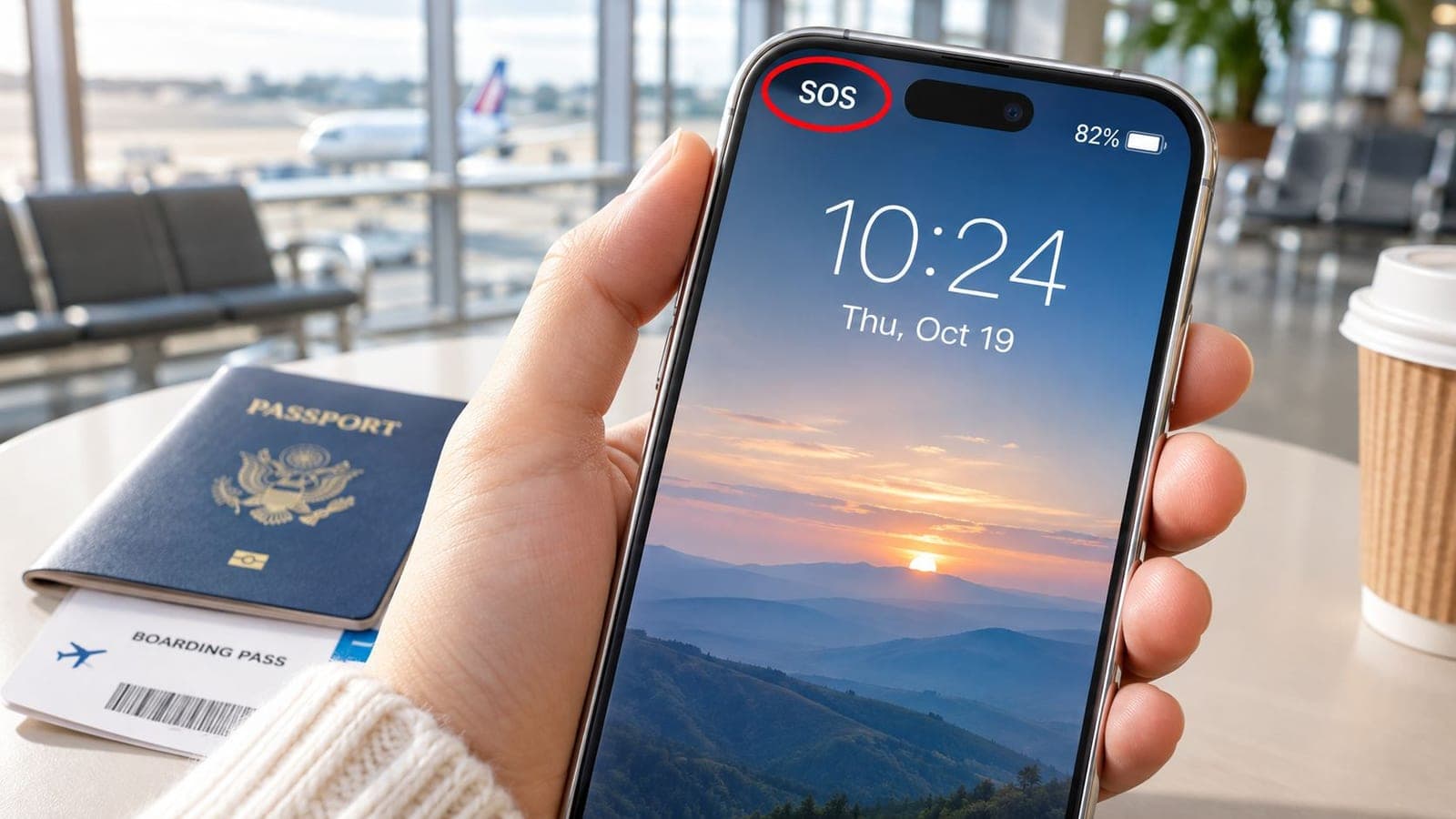
You've just landed, switched off Airplane Mode, and your iPhone still shows SOS where the carrier bars should be. Wi-Fi may work, but maps won't load once you leave the airport network, and the travel eSIM you thought was ready might not be the line your phone is using.
The icon doesn't automatically mean your iPhone is broken. It does mean ordinary mobile connectivity needs attention. The fastest way to find the cause is to work through the actual decision tree: coverage first, then the selected line, SIM or eSIM status, and finally the carrier.
What SOS on Your iPhone Means
SOS or SOS only means your iPhone can't reach its regular carrier network. The phone may still place an emergency call through another carrier in range, but ordinary calls, texts, and mobile data won't work until that connection comes back. Apple treats it as a separate state from No Service or Searching, which mean the iPhone has no cellular connection at all. (Apple's explanation of SOS, No Service, and Searching)
Getting the label right saves you real time, because each status points down a different fix path. SOS signals a connectivity problem rather than a hardware failure, and most online advice skips the obvious first step: confirming exactly which status is on screen before changing a single setting. On an iPhone with two lines, the SOS label also tells you something specific. The device failed to register either line on a carrier network, so the problem sits with the lines or the coverage, not the phone itself.
| Icon or status | What it means |
|---|---|
| SOS or SOS only | The iPhone isn't connected to its regular carrier, but emergency calling through another available carrier may be possible. |
| No Service | The iPhone isn't connected to a cellular network. |
| Searching | The iPhone is looking for a cellular network but hasn't connected. |
| Airplane icon | Airplane Mode is on, so cellular connections are disabled until it's switched off. |
One more label causes confusion. On supported iPhone 14 or later models, Emergency SOS via satellite is a separate feature for emergency messaging when cellular and Wi-Fi coverage aren't available. It isn't mobile data, doesn't provide ordinary internet access, and depends on the device, software, and location. (Apple's satellite Emergency SOS announcement)
The Most Common Reasons SOS Appears
Start with where the phone is, not with complicated settings. If the iPhone is in a remote area, underground, or inside a building with poor reception, the carrier network may be out of reach. Moving outside or toward a window can help distinguish a local coverage gap from a problem with the line.
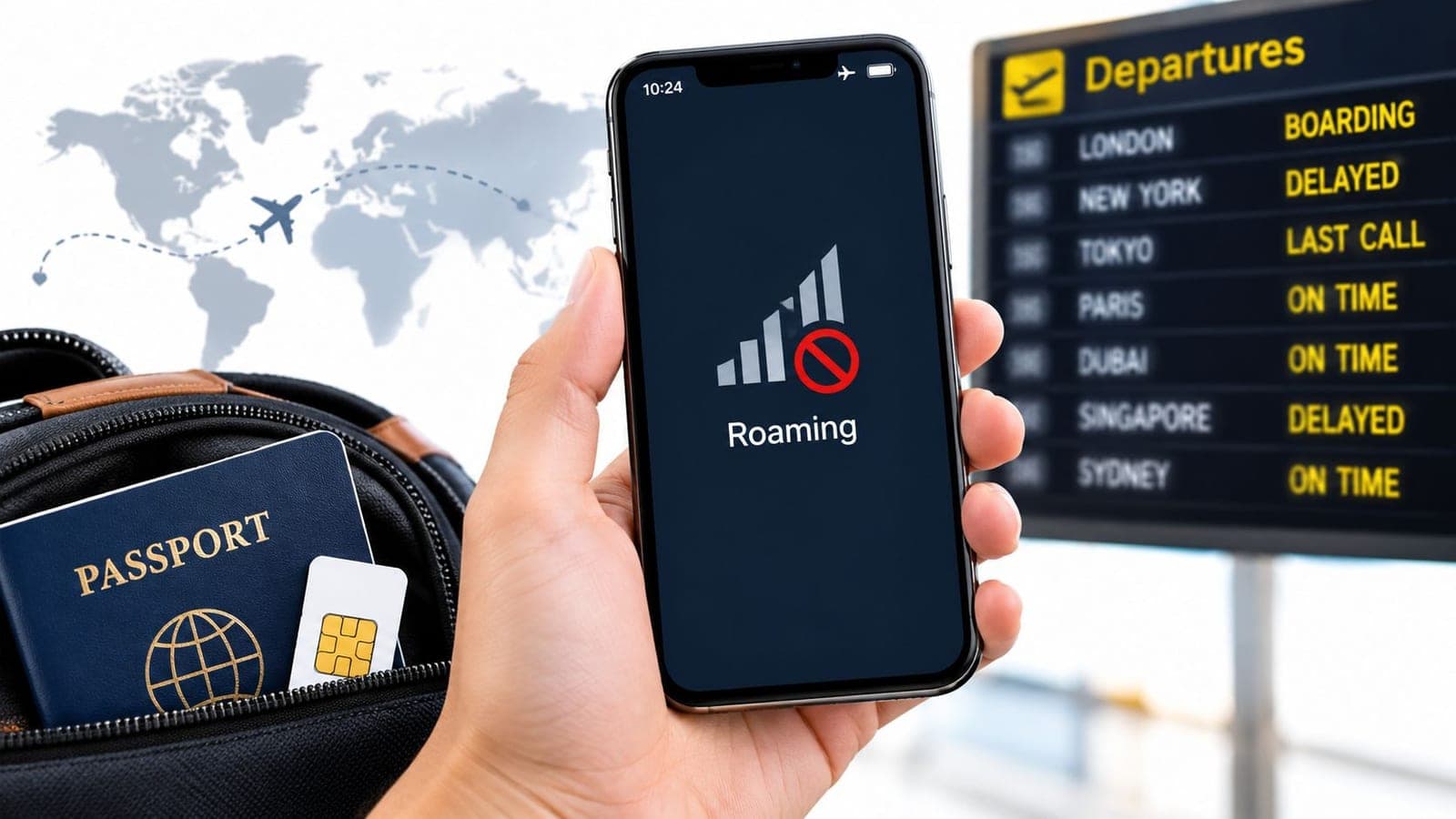
Travel adds a common trap: the phone may be working exactly as configured, but the home plan doesn't have usable roaming at the destination. A travel eSIM can fail for a different reason: it may not be installed, active, selected for cellular data, or compatible with the phone's lock status. Checking a Europe eSIM coverage map can help travelers confirm whether their intended plan covers the destination, but coverage alone doesn't activate a line.
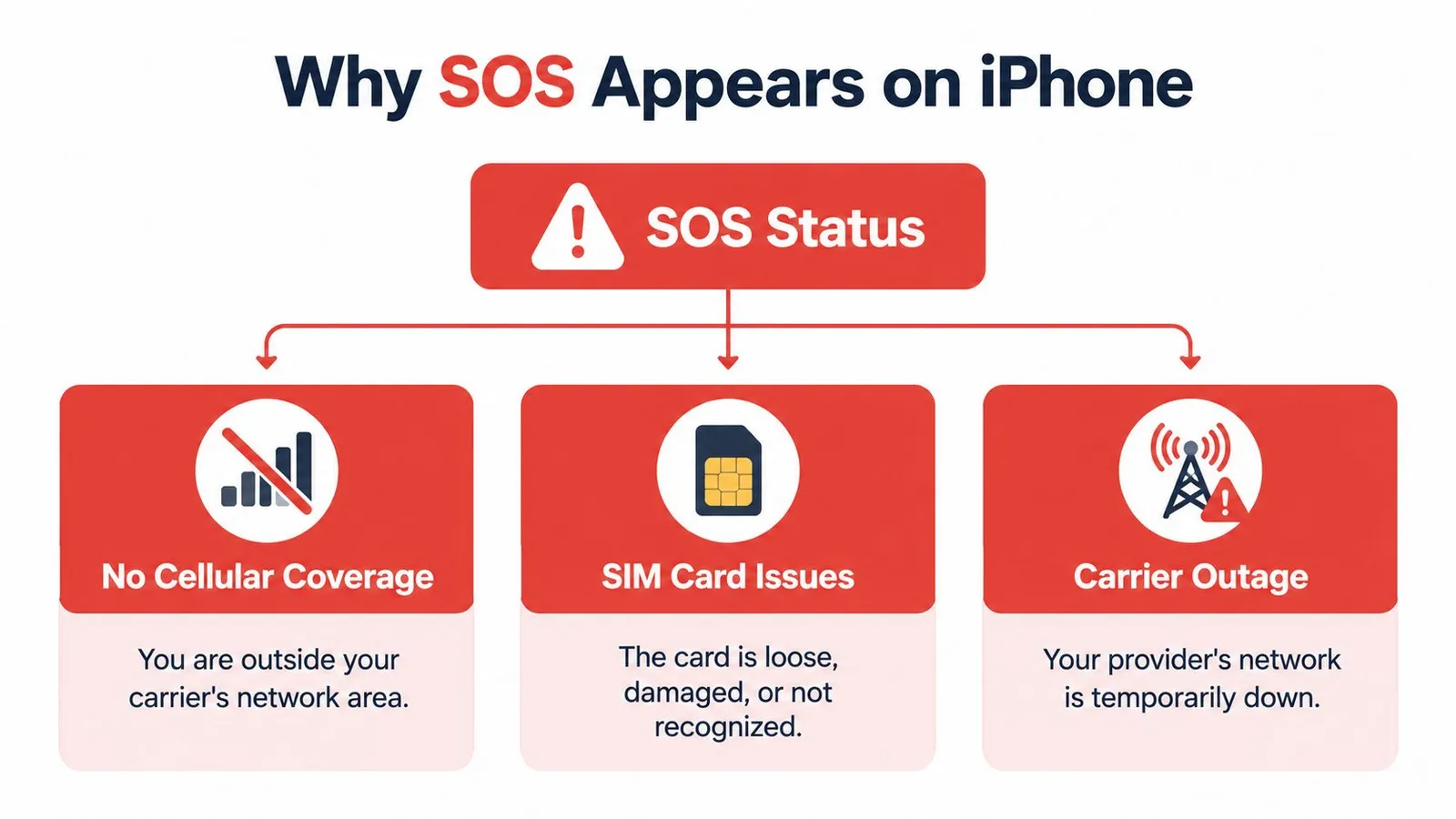
For a quick diagnosis, check these possibilities in order:
- Coverage or temporary network trouble: The phone may be outside the carrier's service area, or the network may be experiencing congestion or an outage.
- Roaming limits: The home carrier may restrict roaming, or the destination network may not be available to that plan.
- SIM or eSIM status: A physical SIM may be loose or unrecognized. An eSIM may be switched off, not fully provisioned, or attached to a plan that isn't active.
- Line selection or settings: Airplane Mode may still be on, or the wrong line may be selected for cellular data.
Quick Fixes You Can Try Right Now
Most online advice skips the obvious thing first: give the phone a chance to register again before changing a stack of settings. Switch Airplane Mode on, leave it for at least 15 seconds, then switch it off, as noted earlier. That forces the iPhone to search for a network from scratch instead of clinging to a dead session.
If SOS remains, restart the phone. A full restart clears temporary connection faults that locking and unlocking the screen can't touch. Once it powers back on, open Settings → Cellular and confirm Airplane Mode is off and Cellular Data is enabled.
Travelers should then check Data Roaming on the line they're trying to use. Open that line's settings and look at the roaming control. Turning it on only helps if the plan permits roaming and a partner network is available where you're standing, so it fixes some cases and does nothing in others. For a practical arrival sequence, see this guide to fixing no signal after landing.
While on Wi-Fi, open Settings → General → About and wait a moment to see if a carrier settings prompt appears. Check Settings → General → Software Update for a pending iOS version as well.
If none of these steps restore service, stop repeating them. The remaining cause is far more likely the SIM or eSIM itself, the plan attached to it, or the carrier's network, and each of those needs a different fix path.
Sorting Out SIM and eSIM Issues
Start with one question: which line should provide service right now? An iPhone can hold several lines at once, and installing a travel eSIM does not automatically make it the active one. Open Settings → Cellular, confirm the intended line is switched on, and check which line is selected for Cellular Data. This is the trap that catches almost every international traveler: the home SIM stays selected while the eSIM they paid for sits idle.
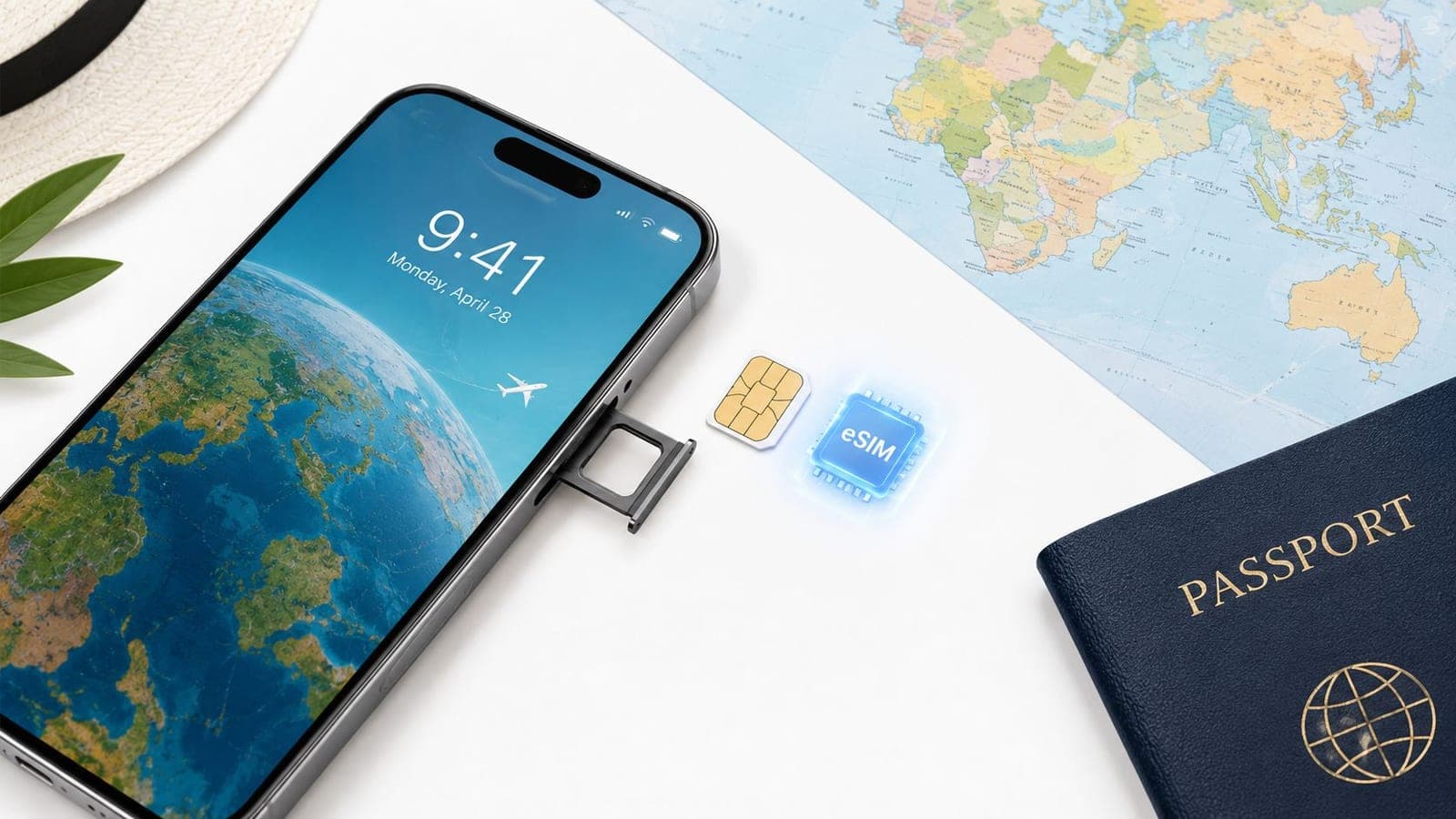
Physical SIMs and eSIMs fail in different ways, so diagnose them differently. With a physical card, check whether the iPhone recognizes it at all. If it doesn't, power the phone off before removing the card, reseat it carefully, and never force the tray. Still unrecognized after that? The carrier may need to check the card or the account behind it.
An eSIM can be present but turned off, installed but never provisioned correctly, or active on a phone restricted to another carrier. Those are three separate faults, and the quick toggles from the previous section fix none of them. Confirm the eSIM line appears in Cellular settings, is switched on, and sits on an active plan. Even then, a working plan still needs an open phone and a partner network where you're standing, as noted earlier.
Different fault, different fix.
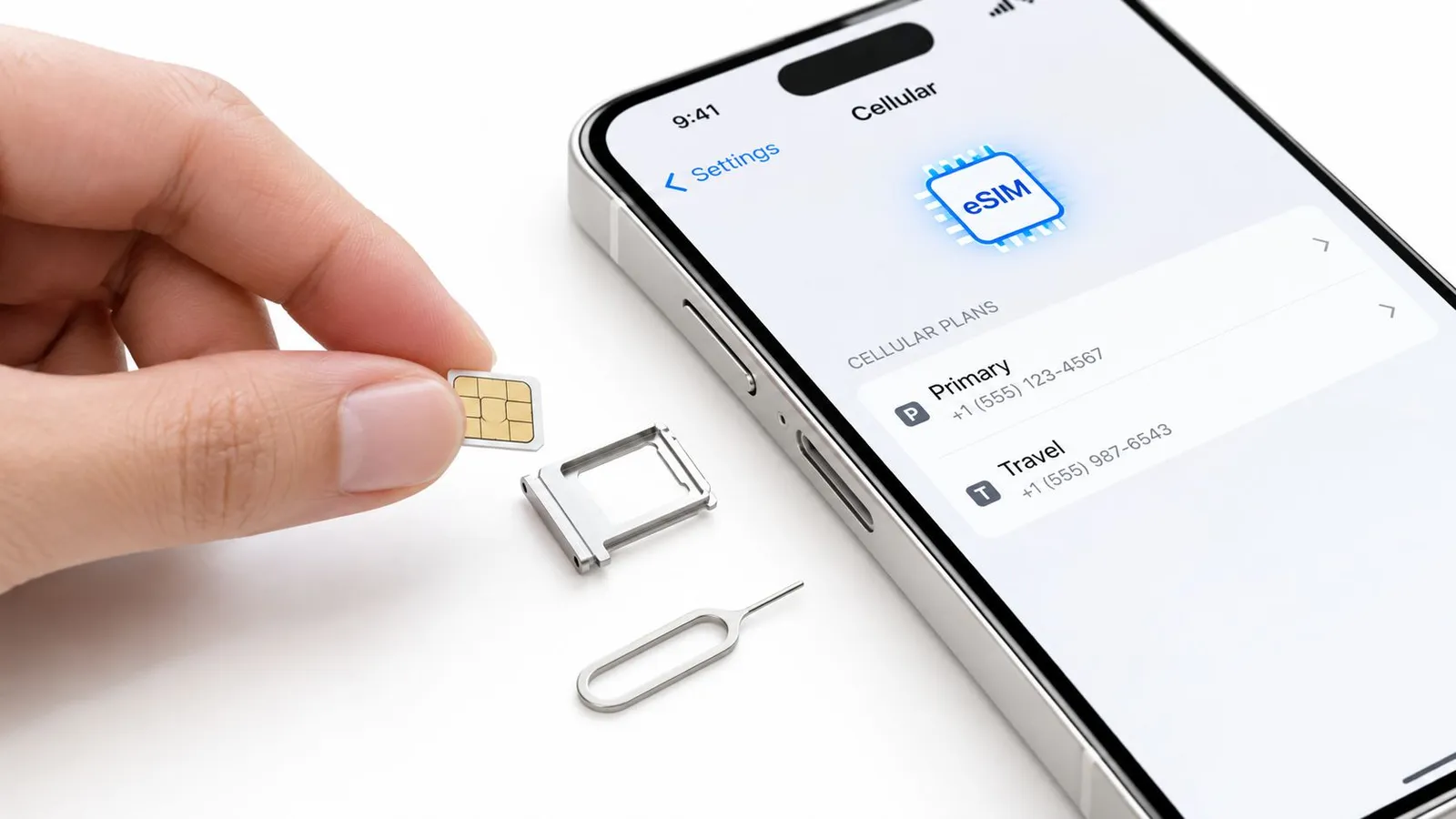
Resist deleting the eSIM as a first move. Removing a profile can leave you with no working line at all if you can't reinstall it. If the provider confirms the profile needs replacing, keep your activation details somewhere accessible before you remove anything, then follow its installation instructions. This guide to setting up an eSIM walks through the installation steps if you're unsure where to start.
When a Travel eSIM Solves the Problem
Settings toggles stop working once the home plan itself can't help. If SOS keeps appearing abroad because your carrier has no usable roaming agreement where you're standing, no amount of restarting creates a network contract that doesn't exist. At that point you need a different line, not another toggle.
A travel eSIM is the cleanest version of that line. You install a data plan designed for the destination, set it to carry cellular data, and leave the home SIM active for calls or texts if the plan supports that arrangement. Here's the trap travelers hit constantly: they install the eSIM, then leave the home line selected for data, so the phone keeps showing SOS even though a working plan is sitting right there. Pick the eSIM for cellular data first. Only then judge whether it works.
Three conditions decide whether this fixes you. The iPhone has to be compatible and carrier-unlocked. The eSIM has to be installed and active, not just downloaded. And the provider needs a partner network at your destination, as noted earlier. Miss any one of those and the eSIM changes nothing.
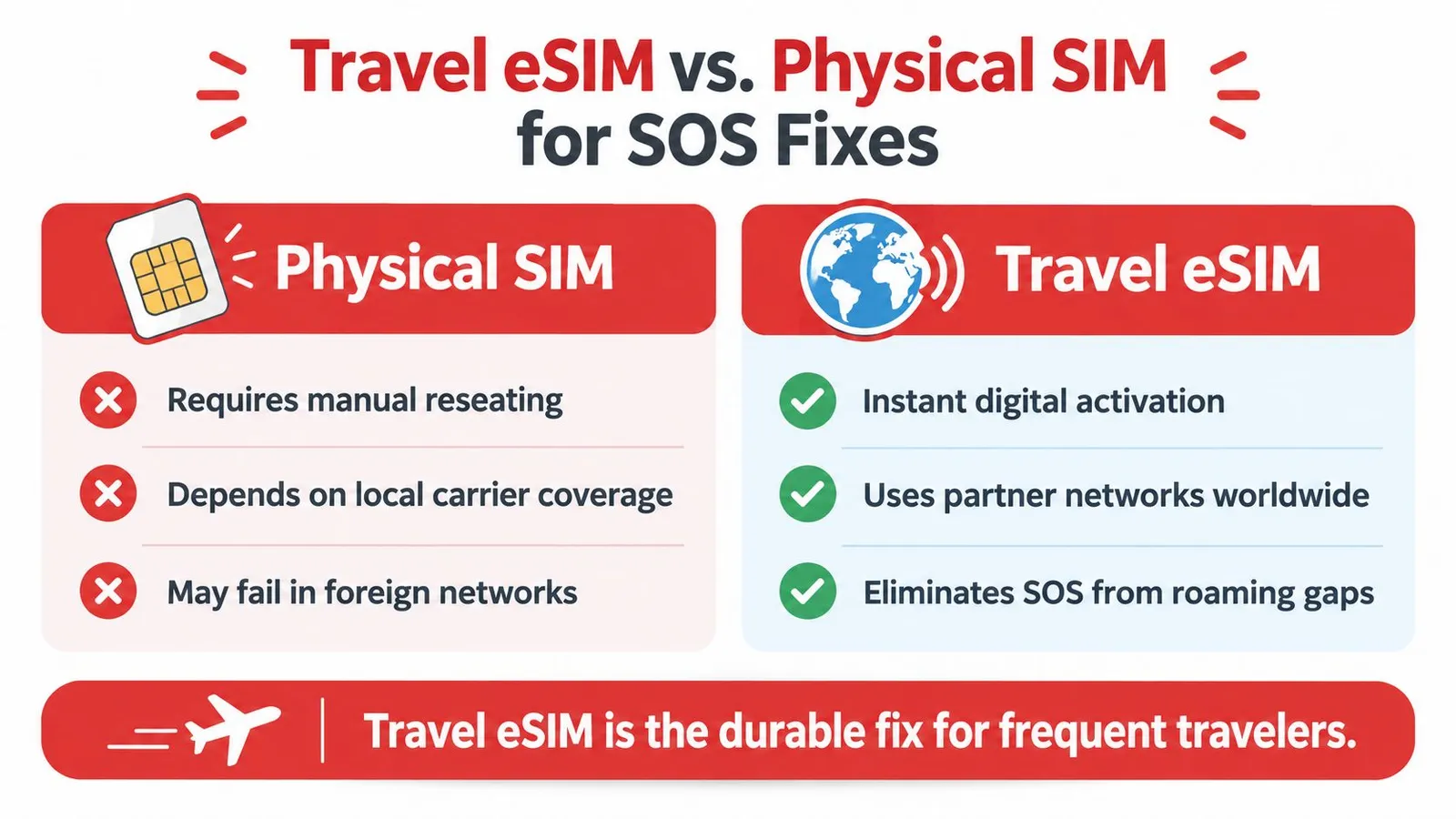
Which option you reach for depends on how often you travel. A home carrier roaming plan is simplest if it already covers the trip. A local physical SIM suits anyone who wants a local plan and doesn't mind finding a card on arrival. A travel eSIM skips the card swap entirely, but only after you check coverage and set the correct line.
For repeat trips, prepare before departure. Confirm compatibility and carrier-lock status, install the plan using the provider's instructions, and confirm which line will carry data. Compare travel eSIM plan options against your destination and itinerary rather than assuming any eSIM works everywhere.
How to Talk to Your Carrier So They Actually Help
If the phone still shows SOS after the basic checks, contact the company responsible for the failing line. For a home SIM, ask the carrier to check whether the account is active, roaming is permitted, and the network has an outage or restriction. For a travel eSIM, contact its provider and ask whether the plan is active and the profile is provisioned correctly.
Have the details ready before starting a chat or call: the phone number or plan associated with the line, the iPhone model, the iOS version, the country and general area, and the status shown in the upper corner. Describe what's already been tried, including the Airplane Mode toggle, restart, and line settings. That gives support a useful starting point instead of a vague report that the phone has no signal.
Ask directly whether the line needs reprovisioning, whether the eSIM profile should be reissued, or whether the phone's eligibility or network registration needs checking. Don't delete an eSIM because a support agent suggests reinstalling it until the provider confirms the profile can be installed again and explains how to retrieve its activation instructions.
Useful detail: If a support agent asks for the IMEI or other device information, provide it through the carrier's official support channel, not a public post or unknown message.
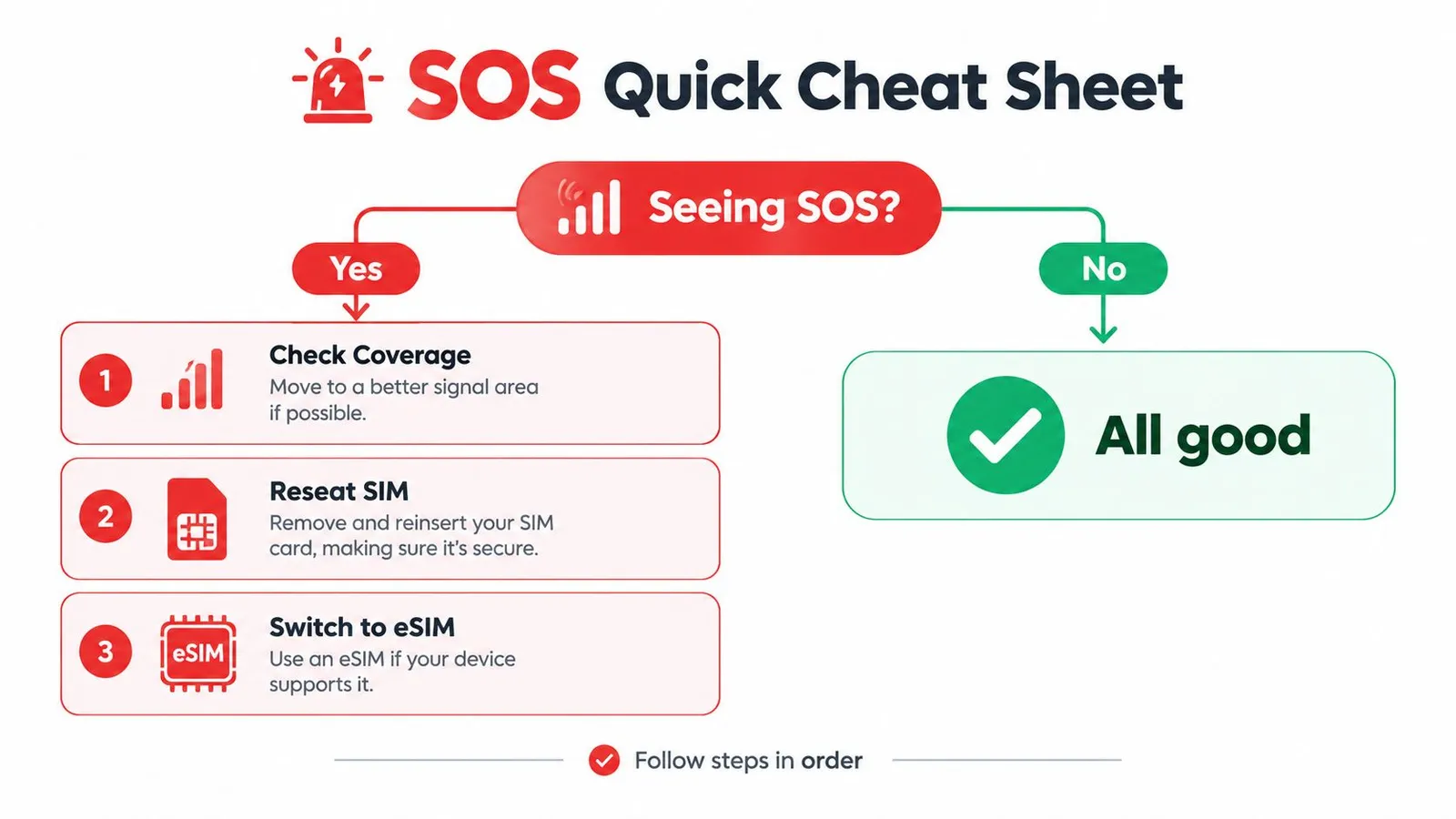
A Quick Cheat Sheet for Next Time
When SOS appears at the airport or hotel, use this order instead of tapping random settings:
- Refresh the connection: Turn Airplane Mode on for at least 15 seconds, then off.
- Restart the iPhone: Give it a fresh attempt to register.
- Check the intended line: Confirm it's on, selected for Cellular Data, and configured for roaming if the plan requires it.
- Verify the SIM or eSIM: Make sure the line is recognized, active, and supported by the phone.
- Contact the provider: Ask the carrier or eSIM provider to check the plan, roaming, and provisioning.
The icon doesn't mean the iPhone is useless. Emergency calling may remain possible through another available carrier. On supported iPhone 14 or later models, satellite emergency messaging may also be available in eligible locations when cellular and Wi-Fi coverage are absent, subject to device, software, and regional restrictions. It isn't a substitute for mobile data. (Apple's satellite emergency feature guidance)
If an emergency call is necessary, don't assume an unserved phone will automatically send its location or allow a callback. State the exact location clearly and keep the phone powered while seeking help. Before a trip, check iPhone compatibility for eSIM use, then verify the plan and line selection before leaving Wi-Fi.
RedSim offers travel eSIM data plans with country, regional, and global options, plus QR-code or in-app installation and support for setup questions. If roaming gaps keep leaving the iPhone on SOS abroad, visit RedSim to check whether a plan fits the next destination.
 Turkey