
 Thailand

Yes, an eSIM can power a hotspot when three conditions line up: the phone supports tethering, the eSIM is selected for mobile data, and the carrier or plan allows sharing. Why, then, can a phone accept an eSIM but still fail to connect a laptop?
The missing distinction is eSIM compatibility versus hotspot compatibility. Installing a digital SIM establishes a subscription on the phone. Sharing that connection requires separate device settings and permission to tether, plus enough data and battery for the connected devices.
Whether an eSIM Hotspot Works on Your Phone
An eSIM hotspot is a phone sharing its cellular connection with another device, usually over Wi-Fi. The digital SIM supplies the subscription credentials; the phone supplies the hotspot function.
The Cellular News guide to eSIM tethering explains the practical distinction: hotspot availability involves the handset, the selected cellular-data line, and carrier support. A successful eSIM installation doesn't prove that all those conditions are satisfied.
Hotspot compatibility checks before buying
| Check | Where to look | What a pass looks like |
|---|---|---|
| Phone supports eSIM | iPhone: Settings > Cellular or Mobile Service > Add eSIM. Android: Settings > Network & internet or Connections > SIMs | The Add eSIM option appears |
| Hotspot is available | Settings > Personal Hotspot on iPhone, or Network & internet > Hotspot & tethering on many Android phones | The hotspot toggle appears and turns on |
| eSIM is the data line | iPhone: Settings > Cellular > Cellular Data. Android: SIM manager or Mobile data preferences | The travel eSIM is selected for mobile data |
| Carrier or plan allows tethering | Plan details in the RedSim app or the carrier's tethering policy | Connected devices get internet without an error |
Android menu names differ by manufacturer. Samsung phones commonly group SIM and hotspot controls under Connections, while other Android devices use Network & internet. Searching Settings for “hotspot” or “SIM” is often faster than following an unfamiliar menu path.
Different devices need different checks
A phone without a physical SIM slot can still share an eSIM connection. A removable card isn't required for tethering.
On a dual-SIM phone, the important setting is which line supplies mobile data, not which line handles calls. Keeping a home number active doesn't mean that line should supply the hotspot connection.
Cellular tablets need a separate check. An eSIM-capable tablet isn't automatically a suitable hotspot, because sharing still requires device and carrier support. Start with the exact model on the device compatibility page, then inspect its tethering settings.
According to GSMA Intelligence, eSIM accounted for 3% of mobile connections globally in 2024, as reported by IoT Insider. Adoption doesn't establish compatibility for an individual handset. Check all three controls before buying a plan.
How Much Data and Battery a Hotspot Uses
Yes. A hotspot usually spends more data and battery than the same apps on the phone alone. The laptop keeps working after the tab you can see: mail stays open, a backup client uploads, the browser restores heavy pages, and the system downloads updates you did not start.
Use the bands below as planning estimates. Video quality, audio settings, attachments, cached files, and app choices move the total. Match the band to the quality you will select.
| Activity | Approx. data per hour | Battery impact |
|---|---|---|
| Email and messaging | About 5-30 MB; large attachments can add hundreds of MB | Light extra draw |
| Web browsing | About 50-150 MB; autoplay video sits at the top of that range | Low to moderate |
| Music streaming | About 40-150 MB, set by the audio quality you pick | Moderate while audio plays |
| Standard video streaming | About 0.5-1 GB at common standard-definition settings | High for the length of playback |
| HD video streaming | About 1-3 GB, higher at 1080p and above | High for the length of playback |
| Video calls | About 0.5-2 GB with camera on; screen share adds more | High for the whole call |
| Cloud sync and OS updates | Often a 0.2-2 GB burst equal to the pending download | Moderate, and it can run for a long stretch |
Budget the high end of each band for the hours you expect to share, then leave spare data for an update you did not plan. Battery labels describe how hard the phone works, not a promised number of hours. Weak signal and video both raise that load.
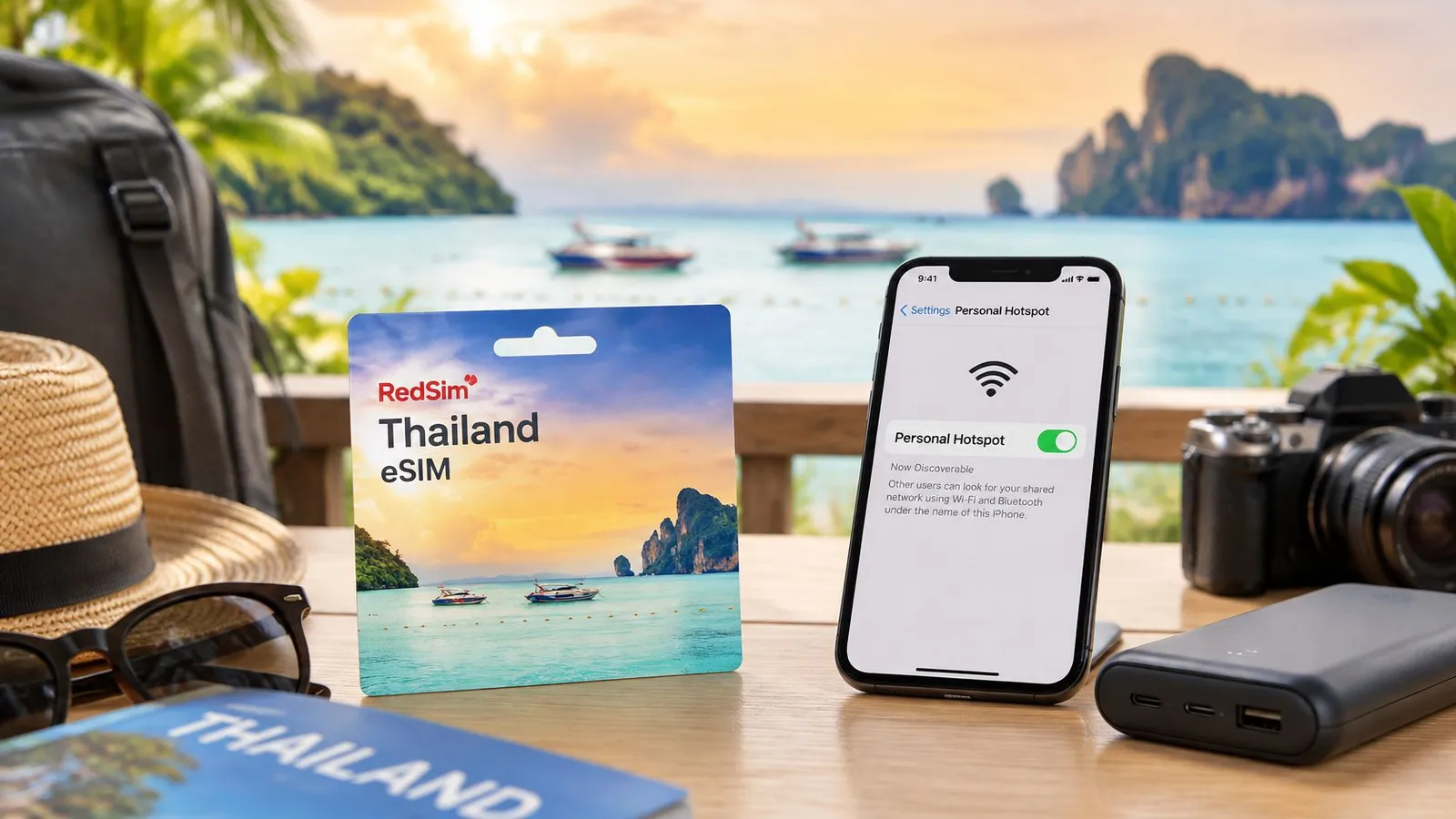
A country plan such as a Thailand eSIM draws hotspot traffic from the same data pool as the phone.
Measure the workload rather than guessing
Run one realistic session on the laptop, with the apps you will use abroad, and read the laptop's network-usage screen plus the phone's data meter. An empty browser window understates the trip.
Practical rule: Multiply connected hours by that measured rate, then keep spare data for transfers you did not expect.
The guide to choosing the right plan turns that total into an allowance. Count every device on the hotspot, including a child's tablet and a work phone.
Battery is a separate limit. Cellular reception plus Wi-Fi sharing stays active the whole session. Plug the phone in for long shares, dim the screen, and keep it in open air, not under bedding or in direct sun.
For trips away from reliable outlets, LuminAID's resource on keeping your phone charged beyond the grid covers charging options. If the handset gets hot, pause heavy transfers and let it cool before you start another long call or download.
Set Up and Test Your eSIM Hotspot Before You Travel
Installation, activation, and a working hotspot are different milestones. A downloaded profile may be ready on the phone without having service in the current country.
The GSMA account of consumer eSIM adoption describes the shift toward remotely provisioned subscriptions. For travelers, the practical benefit is straightforward: the subscription can be installed digitally instead of requiring a physical SIM exchange.
At home
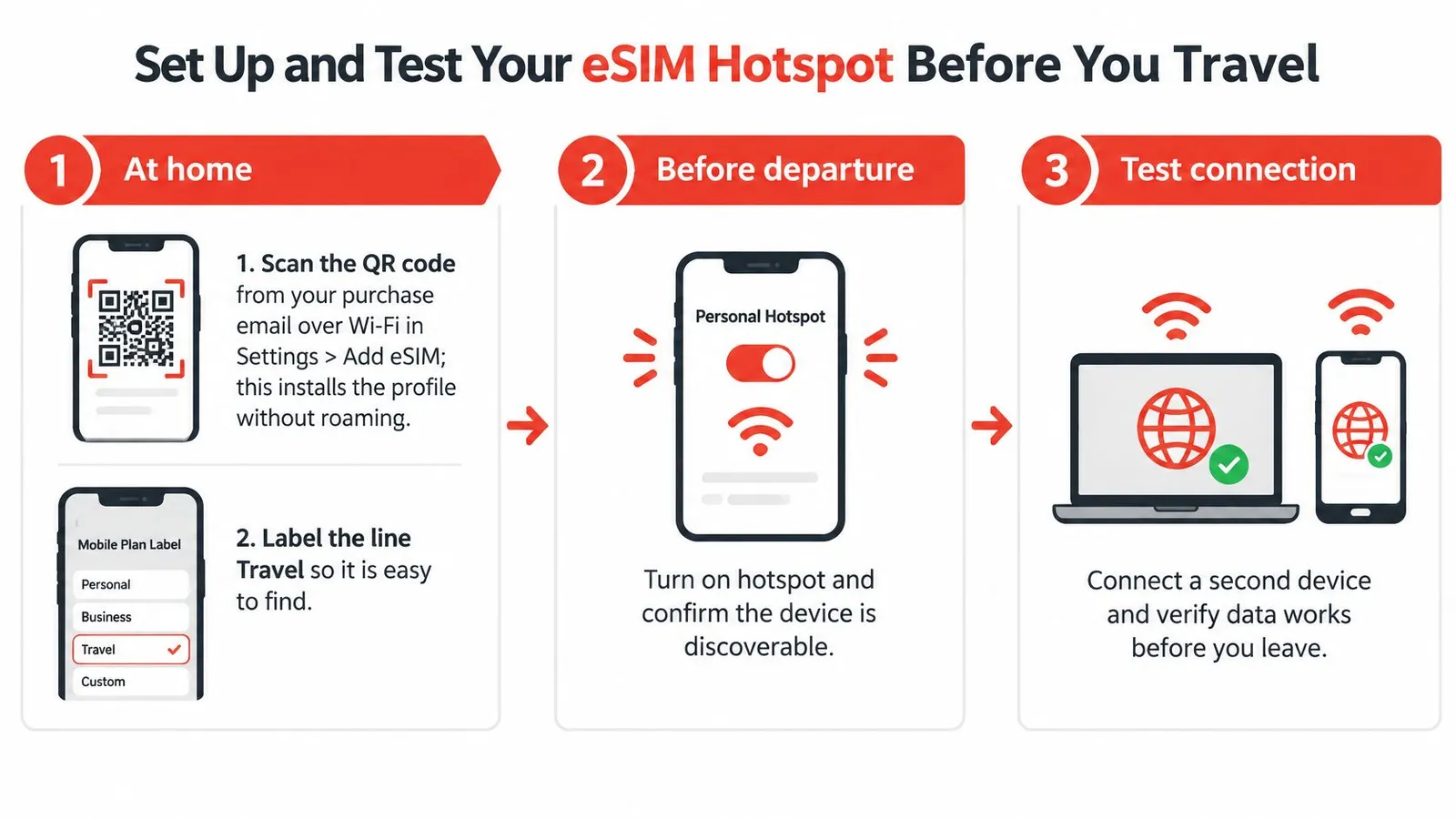
- Install over reliable Wi-Fi. RedSim sends the purchase QR code by email within seconds. Open Settings > Add eSIM and scan it shortly before travel, following the installation instructions. Displaying the email on another screen makes scanning easier.
- Label the line Travel. A clear label helps distinguish the installed profile from the home subscription when selecting data and roaming settings.
- Check activation conditions. Confirm whether installation or network connection starts the validity period. Don't assume every provider handles activation the same way.
- Prepare the sharing settings. Locate Personal Hotspot on iPhone or Hotspot & tethering on Android. Set a recognizable network name and confirm that the laptop can discover it.
The RedSim setup instructions provide the installation workflow. Don't delete a profile because it hasn't connected outside its coverage area; first check its status and destination coverage.
On arrival
- Enable the travel line and its data roaming. RedSim requires roaming on the eSIM line because that's how it reaches the local network. This isn't an extra charge and doesn't change the home SIM's roaming setting.
- Select the eSIM for mobile data. On iPhone, open Settings > Cellular or Mobile Service > Cellular Data. On Android, open the SIM or mobile-network preferences and choose the travel line.
- Confirm phone internet access before enabling sharing. Disconnect the phone from airport or hotel Wi-Fi and load a fresh webpage over cellular data. A cached page isn't a useful test.
- Turn on the hotspot and join from the laptop. Select the phone's network on the laptop and enter the hotspot password. Confirm that the laptop isn't still using hotel Wi-Fi or another remembered connection.
Prove that sharing works
A meaningful test uses the connected laptop, not just the phone. Open a new webpage, send a message, join a video call, and download a file representative of the work planned for the trip.
Read the usage meter before and after the test. Check that the connection remains usable while the phone screen is locked and while the normal work applications are open.
A visible hotspot network proves that the phone is broadcasting. A webpage loaded on the connected laptop proves that data is getting through.
A pre-departure internet test is possible only when the installed subscription has usable service at home. Otherwise, complete the installation and discovery checks before departure, then perform the internet test on arrival before relying on it for work.
For an active RedSim eSIM, additional data can be added through My eSIMs > Top up data, without another QR code. Keep an alternative connection available for essential work rather than making the first test immediately before an important meeting.
Will Your eSIM Hotspot Handle Video Calls and VPNs
A fast webpage on the phone doesn't establish that a tethered laptop will handle a meeting well. The laptop may carry a video call, corporate VPN, cloud documents, and background traffic at the same time.
The Opensignal analysis of travel eSIMs and roaming found that travel eSIMs can outperform traditional roaming on overall Network Quality Index for long-haul travel, while roaming retains an advantage for regional travel. It also identified greater packet-loss exposure for travel eSIMs because providers don't control the entire routing path.
That finding isn't a guarantee for a destination or subscription. For remote work, consistent packet delivery and responsive uploads matter more than an impressive download result.
Test the working environment
- Run the call on the laptop. Enable the camera and screen sharing if those functions are needed for work.
- Keep the VPN connected. Watch for reconnection prompts, stalled applications, and audio interruptions throughout the session.
- Add the normal cloud workload. Open the shared document or business application used during meetings and check responsiveness.
- Check the device list. Disconnect idle devices so their transfers don't compete with the meeting.
For travelers unfamiliar with tunneling and routing, Nerds 2 You Edmonton explains VPN basics for home users. A VPN protects traffic in transit, but it doesn't repair weak cellular reception or remove network congestion.
A stable call with the required VPN is a better work-readiness test than a peak-speed screenshot.
For a shared family connection or sustained laptop work, compare the practical trade-offs in the Japan eSIM versus pocket Wi-Fi guide. A dedicated hotspot separates routing and battery duties from the phone, but it still needs suitable coverage and introduces another device to charge and carry.
Settings That Keep Shared Data Safe and Under Control
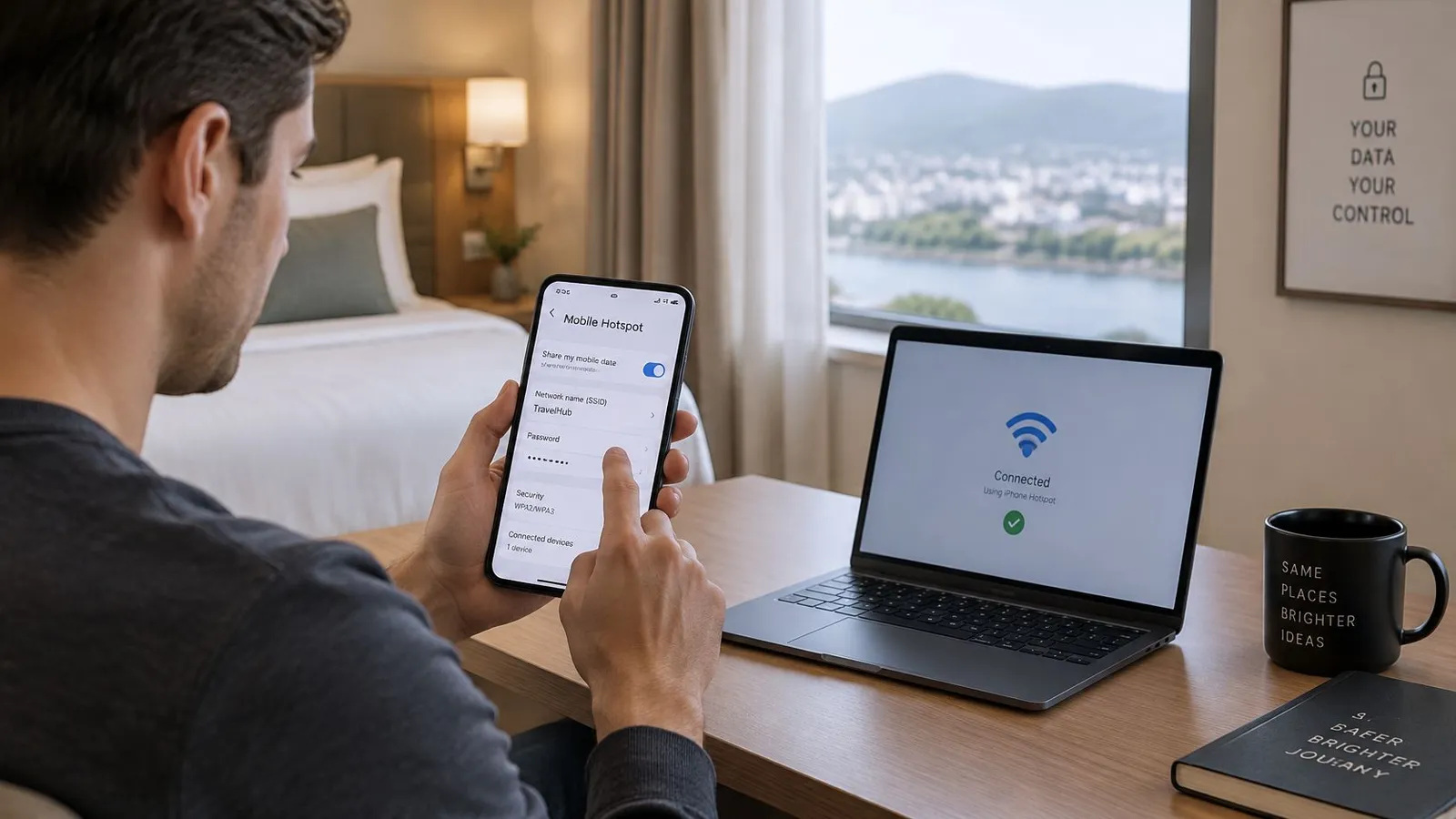
Start with the hotspot password. Use a strong, unique password and select WPA2 or WPA3 where the device offers a choice. Avoid passwords based on a hotel name, room number, or travel date.
The GSMA eSIM security whitepaper describes secure remote provisioning, including mandated TLS for the provisioning protocol. That protection applies to downloading the subscription profile; it doesn't replace security controls on the Wi-Fi network shared with nearby devices.
Protect access and prevent unintended usage
- Disable automatic cellular-data switching. This prevents a secondary subscription from taking over unnoticed when the intended data line loses service.
- Mark the laptop connection as metered. On Windows, inspect the hotspot network's Wi-Fi properties. On macOS, enable Low Data Mode for that network where available.
- Set usage warnings or limits. Android offers data controls on many devices; laptops may also provide network-usage monitoring. Treat warnings as prompts to check the remaining allowance.
- Use data-saving modes carefully. Phone-level controls may not restrict every transfer made by a tethered laptop, so configure the connected device as well.
- Review connected devices. Remove unfamiliar connections and change the password if it has been shared beyond the intended group.
Make monitoring part of the workday
RedSim's app provides real-time usage tracking. Review the remaining allowance before starting a day of calls and check consumption after any unusually demanding session.
The phone's counter and the provider's accounting may not update identically, so use the subscription's remaining allowance when deciding whether more data is needed. Keep the hotspot off when nobody needs it.
For sensitive business work, follow the employer's VPN and device-management requirements. A private hotspot controls who joins the local network, but it doesn't make an unmanaged laptop suitable for confidential work.
Why Your eSIM Hotspot Slows Down or Stops
A missing hotspot option is a settings or permission problem, not a signal-strength problem. Start by confirming that the travel profile is enabled and selected for data, then check the plan's tethering policy.
For other failures, separate the connection into layers: phone configuration, subscription status, cellular network, and the local Wi-Fi link. Changing everything at once makes the actual fault harder to identify.
| Symptom | Likely cause | Fix |
|---|---|---|
| Hotspot option missing | Carrier blocks tethering or eSIM isn't set up | Select the intended data line and inspect the tethering policy; a blocked plan may need replacing |
| Connected but no internet | Data roaming off or APN mismatch | Enable roaming on the travel line and enter the provider's exact APN settings |
| Slow speeds on a laptop | Congestion, weak signal, or many devices | Move near a window, disconnect idle devices, or select another supported network |
| Drops during video calls | Network switching across borders | Reconnect after network registration and move critical work to a backup connection |
| Data used up quickly | Laptop background sync or updates | Pause cloud backups and update downloads, then apply device-level data controls |
Match the fix to the faulty layer
Settings changes are quick checks, but there's no dependable repair time for a carrier restriction or congested network. A tethering ban requires a policy or plan change; restarting the phone won't remove it.
The GSMA guide to eSIM architectures explains profile management and network authentication. In practical use, hotspot performance still rests on the partner network, radio conditions, device modem, and plan policy, not the digital profile alone.
Regional and global subscriptions can reselect supported networks across borders. That transition may interrupt an active session, so avoid scheduling essential calls during a border crossing.
Distinguish Wi-Fi faults from cellular faults
If the phone has working cellular internet but the laptop repeatedly disconnects, investigate the local wireless connection. Forget the saved hotspot network, reconnect with the current password, and check the laptop's wireless adapter.
The 247TechTeam guide to fix recurring wireless connection drops is useful when the failure sits between the laptop and phone. If both devices remain connected but internet access is slow, use the slow-data troubleshooting guide instead.
Keep a regular SIM or another hotspot source ready for time-critical work. Check its roaming costs before using it as the fallback.
RedSim offers travel eSIM data with hotspot sharing for laptops, tablets, and other phones, plus top-ups without a new QR code. Visit RedSim to choose destination coverage, then confirm device compatibility and test the shared connection before relying on it abroad.
 Taiwan

 Japan