
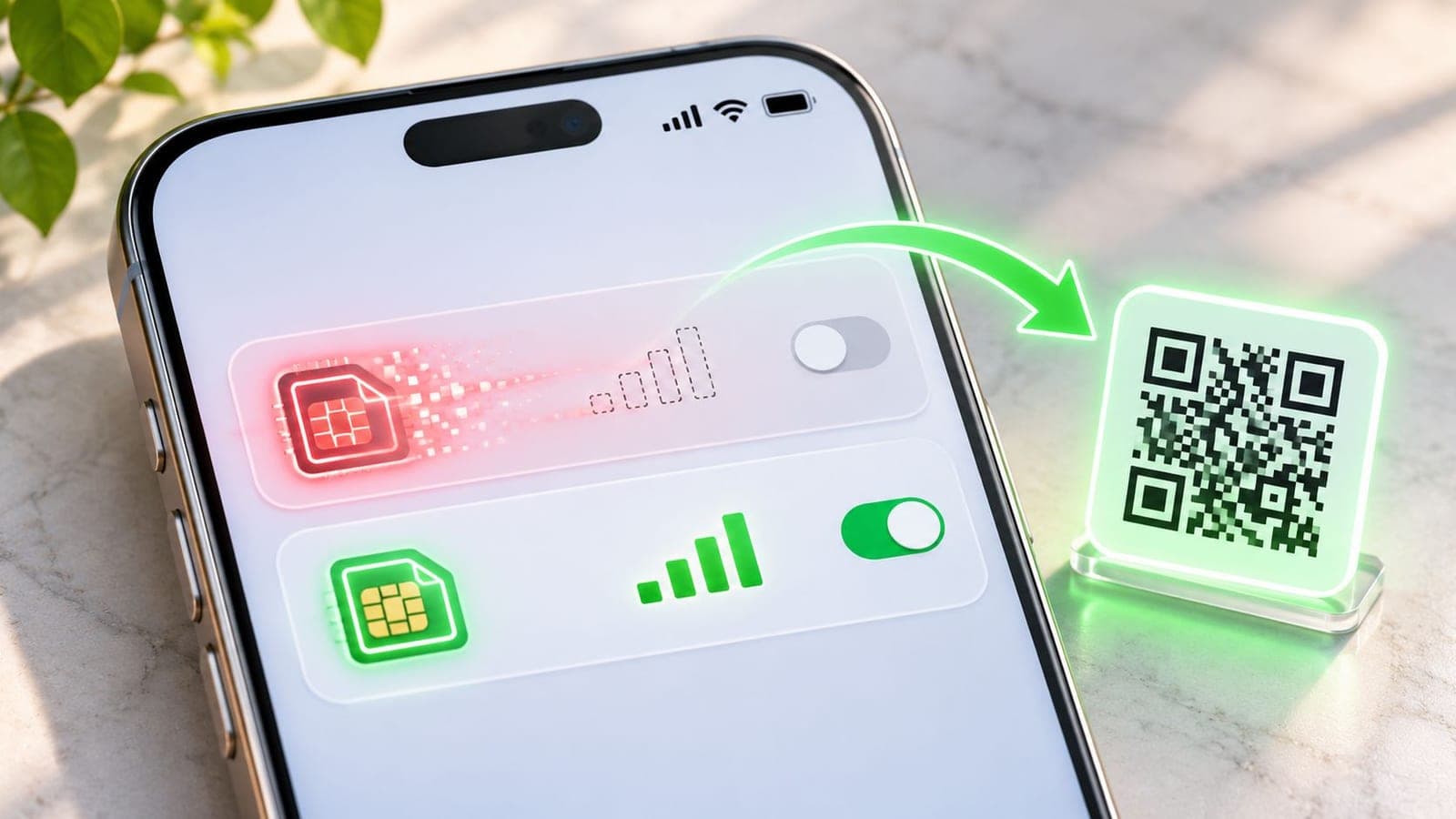
Deleting an eSIM removes that plan from the phone, so the line stops working straight away, and it usually can't be restored from Settings alone. The half of the story that catches people out is this: the plan itself stays alive on the provider's side, where it can keep generating charges long after the phone has forgotten it ever existed.
There are two separate records involved, and deletion only touches one of them. Your phone holds a digital profile, a small bundle of credentials that proves to the network this device is allowed on that line. Your provider holds the account, the thing with the price, the expiry date and the bill attached. Deleting clears the first and leaves the second exactly where it was.
So the honest answer to what happens if you delete an eSIM is that a phone-side action has been mistaken for an account-side one. The line goes quiet. The subscription doesn't. A traveler who removes a used-up plan on the flight home because the trip is over ends up with a tidier phone and no other change. Someone who removes a live plan to fix a slow connection loses a working line and keeps paying for a plan the device can no longer reach.
Both outcomes follow the same rule, and once you can see the two records separately, the rest of the decisions in this guide get simple.
What Deleting an eSIM Changes on Your Phone
The change is local and immediate. The eSIM entry disappears from your cellular list, the phone loses the credentials it used to log in to that network, and anything riding on that line stops within seconds. No grace period, no pending state, no undo button in the menu.
Here's the reference table for everything that follows.
| Item | After you delete | What you can do |
|---|---|---|
| Mobile data for that plan | Stops on this phone | Get a replacement eSIM from your provider |
| Calls and SMS on that line | Stop | Use another line or reinstall with new details |
| Other SIM or eSIM lines | Keep working | No action needed |
| Provider account and plan | Still exists | Manage or cancel it with the provider directly |
| Billing for the plan | May continue | Check with the provider whether charges still apply |
| Phone's eSIM slot | Stays available | Add a new eSIM profile when needed |
What stops and what keeps working
Your photos, apps, contacts, chat history and downloaded files live in the phone's storage, not inside the SIM profile, so they're untouched. The eSIM hardware stays as well, which is why the same phone can accept a new profile an hour later. What leaves is the credential set.
The removed line also stops being an option for calls, texts and data. Most travel plans are data-only, so the usual symptom is quiet: the phone falls back to your home SIM or to Wi-Fi with no warning at all.
Before you touch anything, run this check now. Open Settings, go to Cellular (Mobile Data on some Android builds), and read the list of lines, each with its label and its on/off switch. The line carrying the plan you want gone is the one to note, and confirming its label here is what stops you deleting the wrong entry on a dual-SIM phone.
If the word profile is new to you, what an eSIM actually is explains the chip and the QR code in plain language before you commit to anything.
Why Deleting Is Different From Turning a Line Off
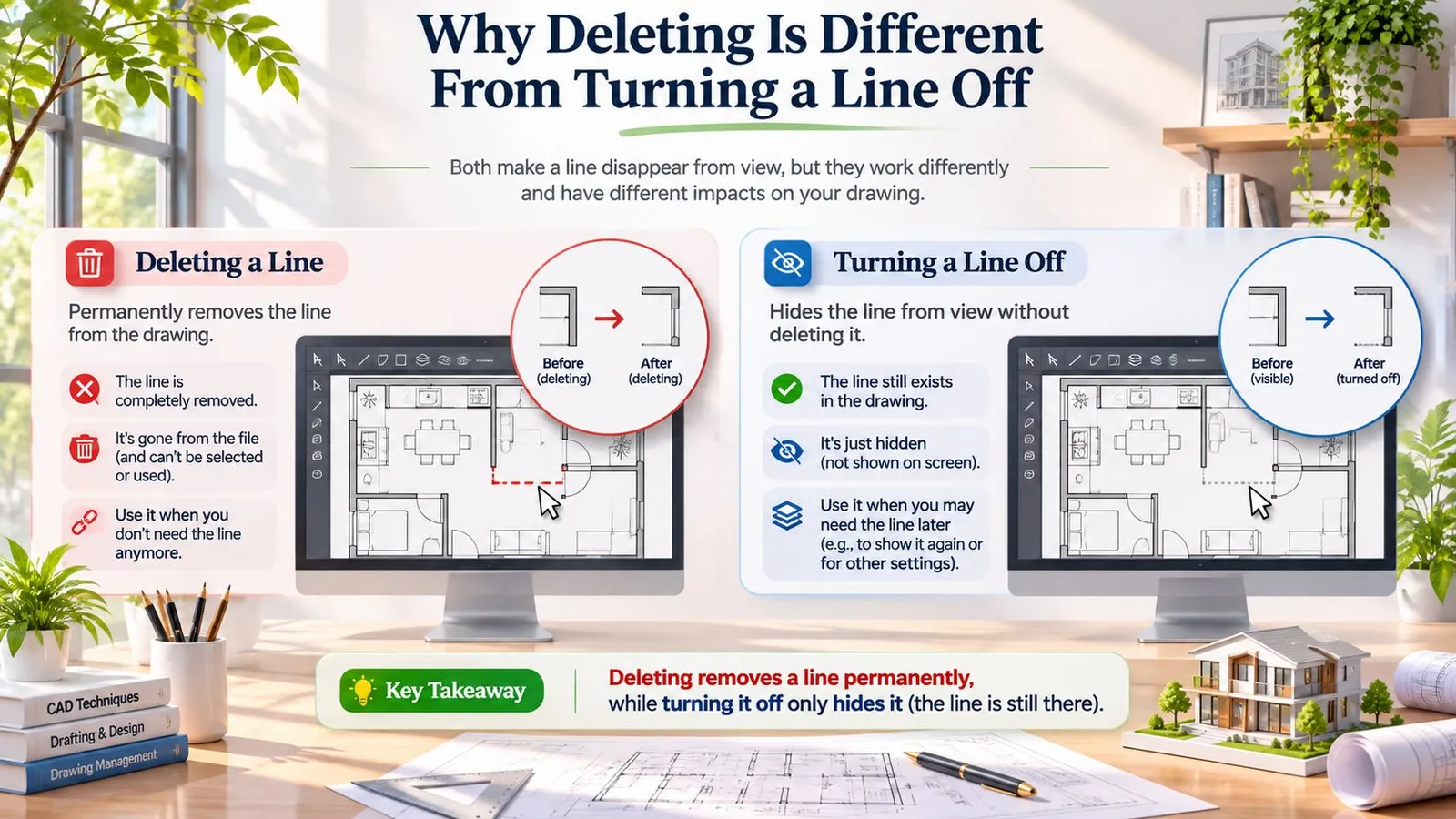
A light switch controls the current, and the wiring carries it. Flipping the switch at the wall leaves every wire in place, and the light comes back with one flick. Pulling the wiring out removes the connection entirely, and no amount of switch-flipping brings it back.
An eSIM line works the same way. Turning the line off keeps the profile stored on the chip and pauses it. Deleting removes the profile and its credentials from the chip itself, so the phone has nothing left to switch back on.
The GSMA's guide to eSIM architectures sets this out precisely: deletion removes the carrier's installed profile from the device's eUICC, the secure hardware component that stores subscription credentials, and immediately stops that profile from authenticating to the mobile network. The eSIM hardware stays in the phone. What leaves is the subscription data: the network identity and the profile parameters tied to it.
Where the plan actually lives
The profile lives on your phone. The plan lives on the provider's account, and the two move independently. The same guide explains that deleting the profile does not cancel the underlying carrier account and does not trigger a refund, because billing and subscription status are managed by the operator, not by the handset's eUICC. The Local Profile Assistant, the software on your phone that runs eSIM lines, handles enabling, disabling, deleting and downloading. It acts as the caretaker of the line. The provider's system is the landlord.
That split explains the confusing cases. A traveler installs a 7-day plan, uses it for a week, and deletes the profile on day 8 in the departure lounge. The phone is clean, yet the plan can still sit in the provider's app with its full history and any leftover data attached, and a plan with time remaining can keep billing. With RedSim, an eSIM is refundable in full only while it was never installed or activated, so wiping an installed profile off the phone does not put money back on the card.
Rule of thumb: disable the line when you plan to return to it, and delete only when the plan is finished, the phone is being sold or replaced, or the provider has confirmed it can reissue.
That one sentence prevents most of the panicked support messages on this topic.
Whether a Deleted eSIM Can Be Reinstalled
Usually not from the phone alone, but often yes with the provider's help. That's the short version. The longer version depends on how the operator has configured its provisioning, and on whether the activation details you were given are still live.
At the standards level, the GSMA's SGP.01 consumer eSIM specification treats deletion as removal of the installed subscription profile from the device's secure eUICC, not as a factory reset and not as a cancellation of the customer account. It describes profile deletion as the permanent removal of the profile and its previously loaded content from the chip. That's why nothing in Settings can un-delete it.
There is a route back. The consumer-provisioning rules in that document allow an operator's SM-DP+ server, the system that issues profiles, to be configured so a profile can be downloaded again after it receives a deletion notification. Whether that happens is a policy decision on the provider's side, not a feature of your phone. Three things decide it: the operator's provisioning policy, the status of the activation code, and whether that code is reusable at all.
What to gather before you contact support
| Situation | Can you restore it? | What you need |
|---|---|---|
| Deleted by mistake, plan still active | Often, through the provider | Provider account login or a new QR code |
| Deleted before activation | Usually yes | The original QR code if saved, or a replacement from the provider |
| Plan already used or expired | No | A new plan |
| Phone replaced or reset | Only if the provider reissues it | Provider reissue, on request |
The habit that saves all of this: keep the QR code and any manual activation string somewhere other than the phone. Screenshot it into cloud storage, or forward the delivery email to an address you'll still have when the phone is wiped. A profile deleted with no record of its activation details turns a ten-second mistake into a support thread.
If the deletion was accidental and the plan is still running, message the provider quickly and be specific. Say the profile was removed from the device, or that the phone was reset. That phrasing gets you a reissue far faster than "it isn't working". If a replacement code is what you're waiting on, what to do when the QR code doesn't arrive covers the normal timing before you assume something is broken.
How to Delete an eSIM the Safe Way
Order matters more than anything else here, because two of the six steps below are the ones people skip and later regret. This is the sequence that leaves you with nothing to recover.
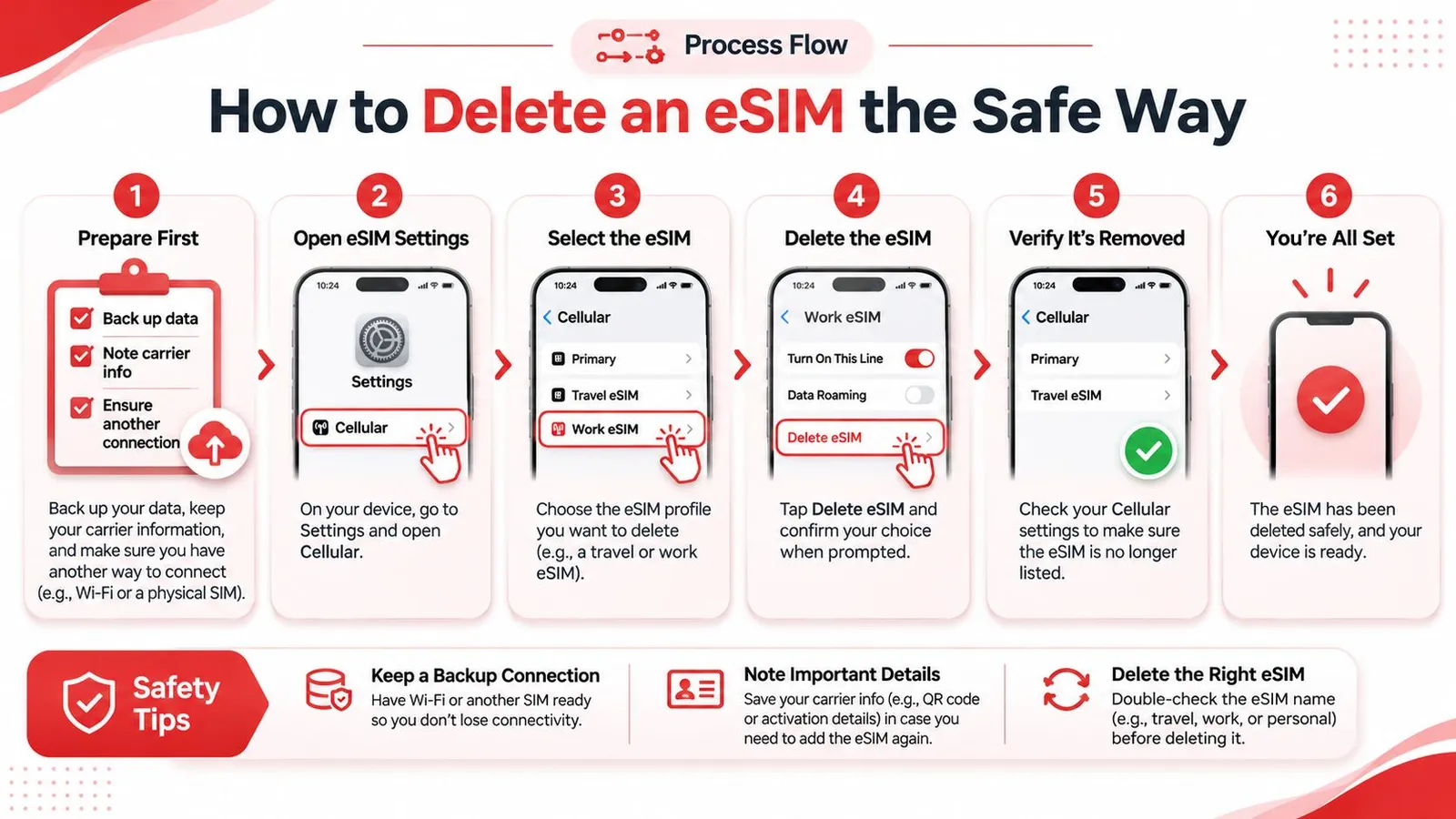
- Confirm the plan is finished, or that you hold its details elsewhere. If there's any chance you'll want the line again, save the QR code or activation string outside the phone first. Without that record, a deleted profile is a request to support.
- Switch the line off before you remove it. A profile gets disabled before deletion, so doing it in that order makes the final tap deliberate rather than a slip of the thumb. It also proves the line you picked is the right one.
- Find the entry in Settings. On iPhone, go to Settings, then Cellular, then tap the eSIM. On Android, go to Settings, then Network and internet, then SIMs. Menu names shift a little between makers and software versions.
- Choose Delete eSIM or Remove Plan and confirm. The label depends on your OS version, and both do the same thing to the chip.
- Read the list afterwards. Your main SIM should still show its number, and the deleted entry should be gone. Place a test call or open a page on mobile data to confirm nothing else moved with it.
- Cancel the plan with the provider if you don't want it any more. Removing the profile doesn't end the contract, so the cancellation is the only step that stops the billing.
If this is your first time handling lines on a phone and you want the exact taps for both platforms, the eSIM setup walkthrough covers install and removal side by side.
A clean result looks like this: one fewer line in the list, your main SIM still active with the right number, and the plan still visible in the provider's account until you cancel it. If the plan vanished from your account the moment you deleted the profile, that's worth a message, because it usually means something else happened.
Mistakes That Cut Off Service and How to Avoid Them
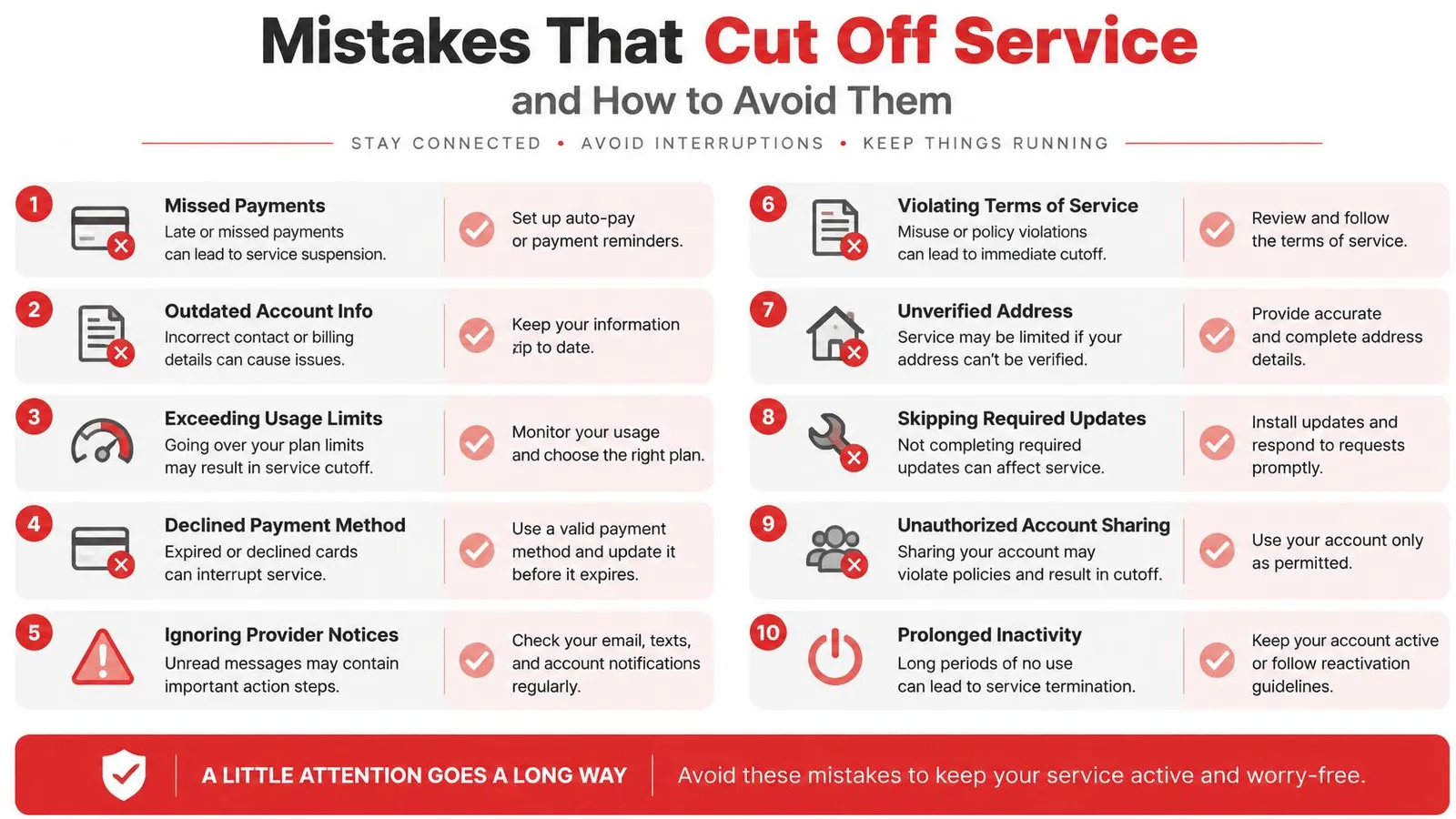
Five habits cause almost every avoidable loss of service here. Each is one tap made at the wrong moment, on the wrong line, or for the wrong reason, and each is easy to catch once you know where to look.
- Deleting to fix a connection problem. Apple's guidance on erasing an eSIM warns against using deletion as a troubleshooting step unless the carrier directs it, because recovery means contacting the carrier for a new eSIM and setting it up again. Toggle the line off and on, confirm data roaming is switched on for the eSIM, then message support before you touch Delete.
- Deleting before the trip instead of after. A plan removed a week early leaves you landing with no data, which is the worst moment to be hunting for airport Wi-Fi. Install it early, leave the line disabled, switch it on when you arrive. If the line is already stubborn on landing, fixing no signal after landing walks through the settings that cause it.
- Deleting the wrong line on a dual-SIM phone. Labels are the only thing separating your home number from a disposable travel plan, so name each line clearly ("Home", "Japan", "Work") and read the label and the number on screen before confirming. Two taps in the wrong row can cost you your primary number.
- Assuming deletion cancelled the bill. The profile disappears from the phone, while the plan stays open on the provider's side. Apple states that cancelling a cellular plan requires contacting the carrier separately, so cancel through the provider and keep the confirmation email somewhere you will find it again.
- Deleting a plan that ran out of data. Empty is not the same as finished. RedSim eSIMs can be topped up anytime from My eSIMs in your account, with no new QR code needed, so an active plan that hit its data limit is a quick fix in the app, not a reason to remove the profile.
Before you tap confirm: if the answer to "could I need this line again this month" is anything other than a flat no, disable it instead.
Decide Whether to Disable or Delete Your eSIM
The decision comes down to one question: will this line be used again on this phone?
Disable it for a temporary pause, a return trip, a plan you might top up, or a line you're still testing. Delete it when the plan is used up, when the phone is being sold or replaced, or when the provider has confirmed how recovery works. If you're in between, disable and wait, because a dormant profile costs you nothing.
A travel plan bought early doesn't need deleting to stay usable, either. RedSim eSIMs can be purchased and activated up to 180 days after purchase, with validity starting on first connection, so a plan bought months ahead can sit installed and switched off until the trip. Refunds follow the same logic: RedSim eSIMs are fully refundable if they haven't been installed or activated, an eSIM that has connected can't be refunded, and one that never connects is always covered. Check that status before you delete, because a connected plan and an untouched one sit in very different positions once the profile is gone. Managing your eSIMs shows where that status lives in your account.
If you can't answer "when will I use this line again" in one sentence, disable it.
Open your cellular settings today, note which lines are active, save any QR code or activation details into cloud storage, and only then decide which lines to switch off and which to remove.
RedSim offers eSIM data plans for more than 200 destinations, delivered as a QR code by email within seconds and installable in a couple of taps from the app. Any eSIM you buy but never install is refundable in full, which makes it practical to set one up weeks before a trip and leave it switched off until you land. If a line ever misbehaves, 24/7 WhatsApp support can check the profile before anything gets deleted. Visit RedSim to pick the plan for your next trip.

 Germany
 Canada

 Australia